

Users
Manage the account users who sign in to the Admin Center and the mobile users who sign in to Plur-e Mobile — subscriptions, roles, environments, ERP user and location per module, password reset, activation and deletion.
Quick answer
Security has two kinds of users. Account Users sign in to the Admin Center with their Microsoft account; invite them by email. Mobile Users sign in to the mobile app; each one gets a subscription, a role, one or more environments and — per module and company — the Business Central ERP user (salesperson or employee) and location they act as. New mobile users receive a temporary password by email.
Account users
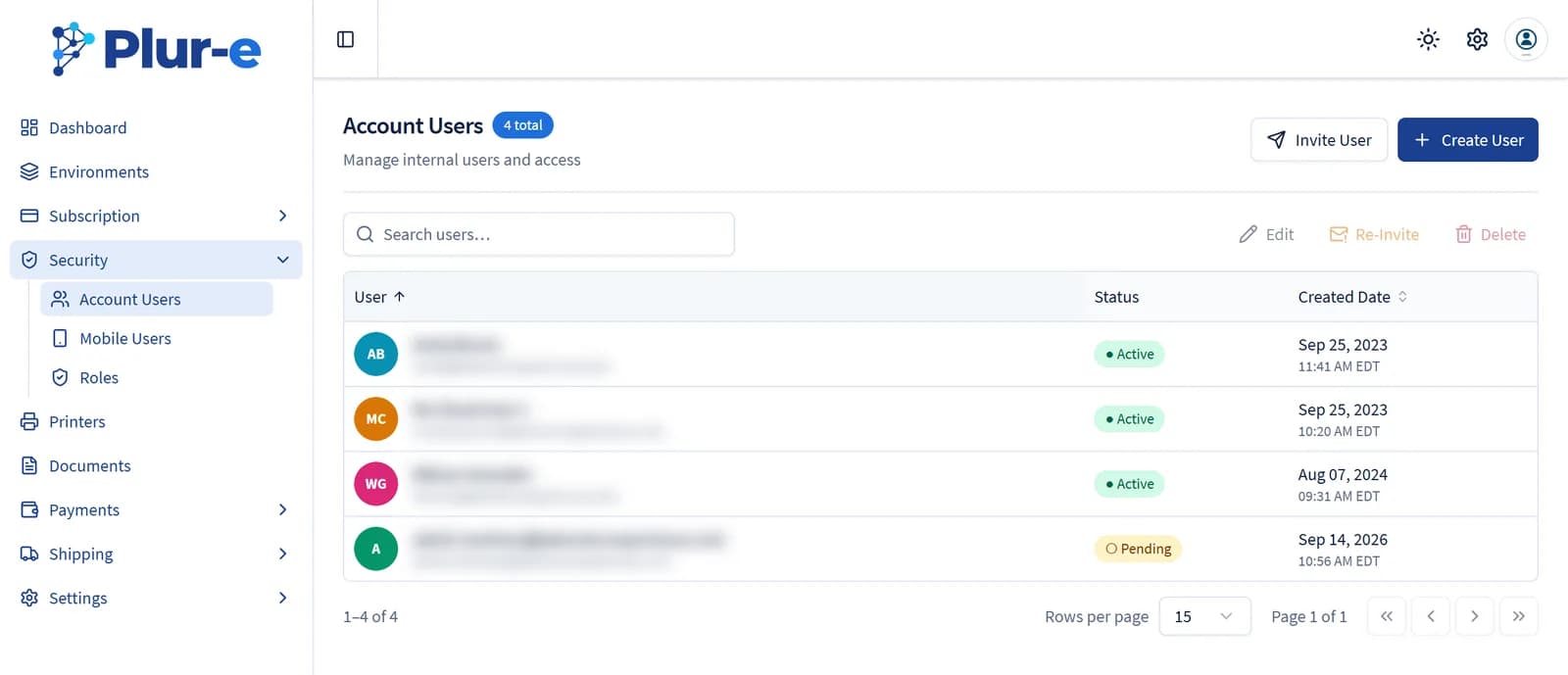
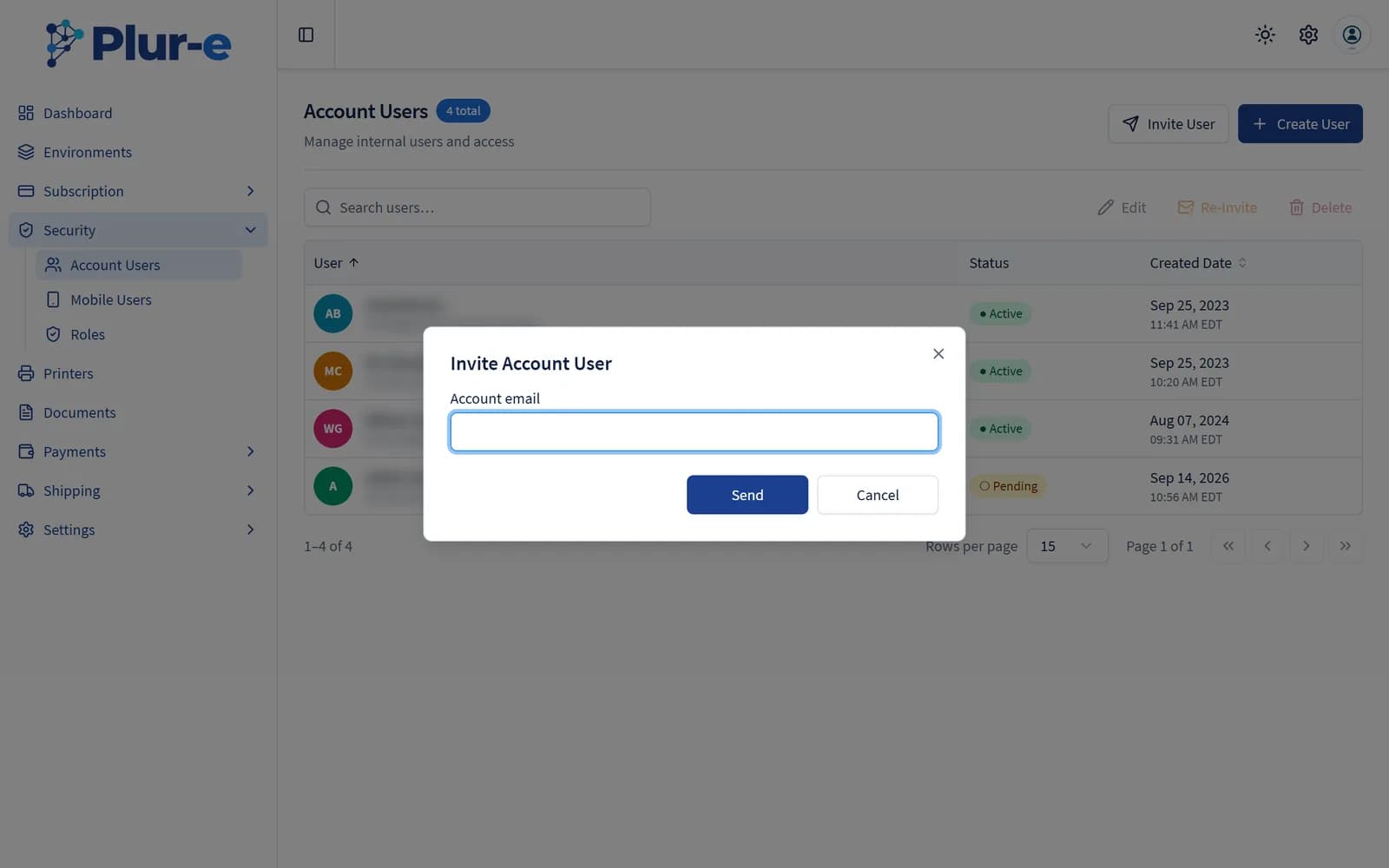
Security → Account Users lists the people who can open the Admin Center for your company. Invite User sends an invitation to a Microsoft account; the entry stays Pending until the person accepts it, and Re-Invite sends it again. Create User, Edit and Delete manage the entries directly.
Mobile users
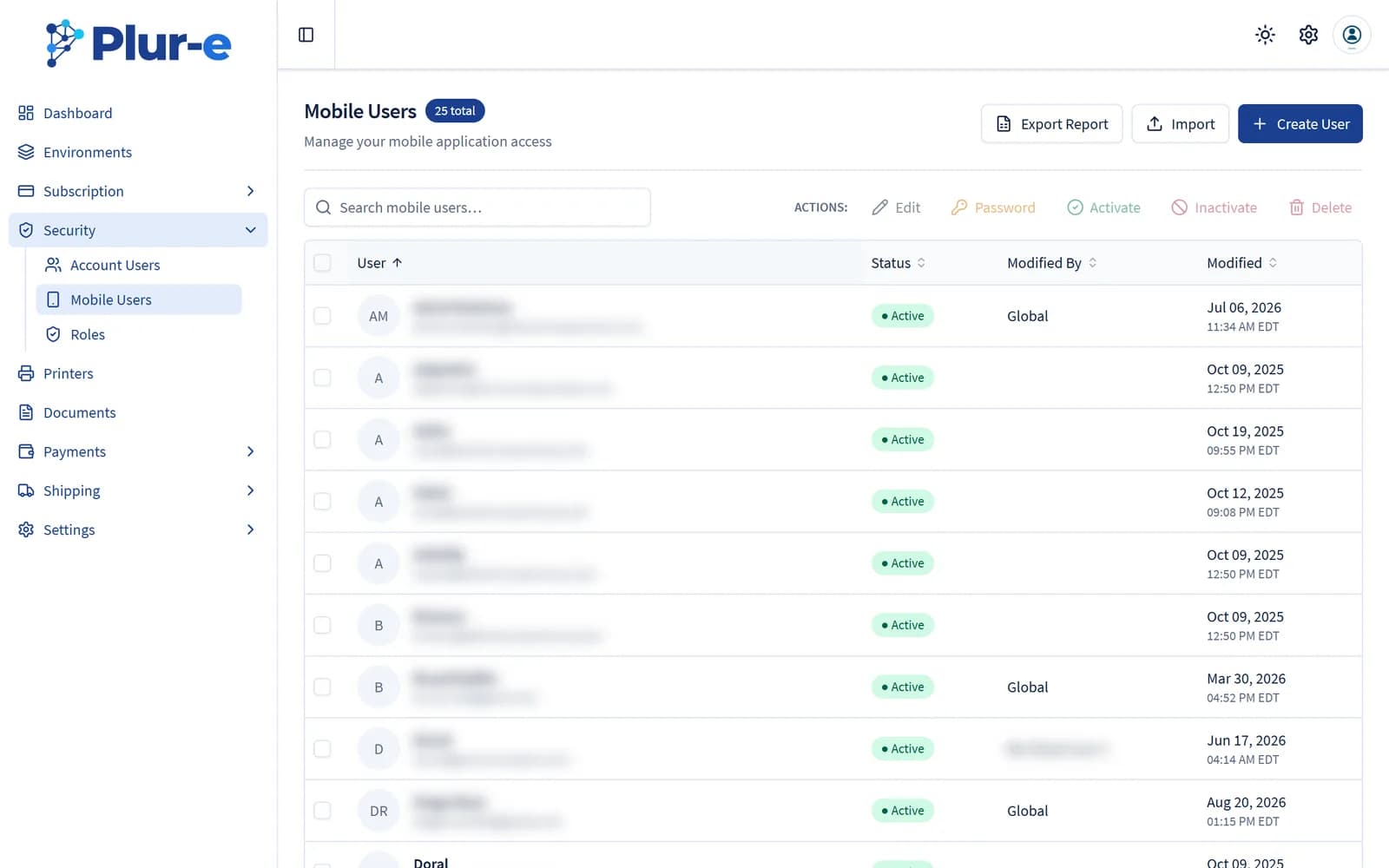
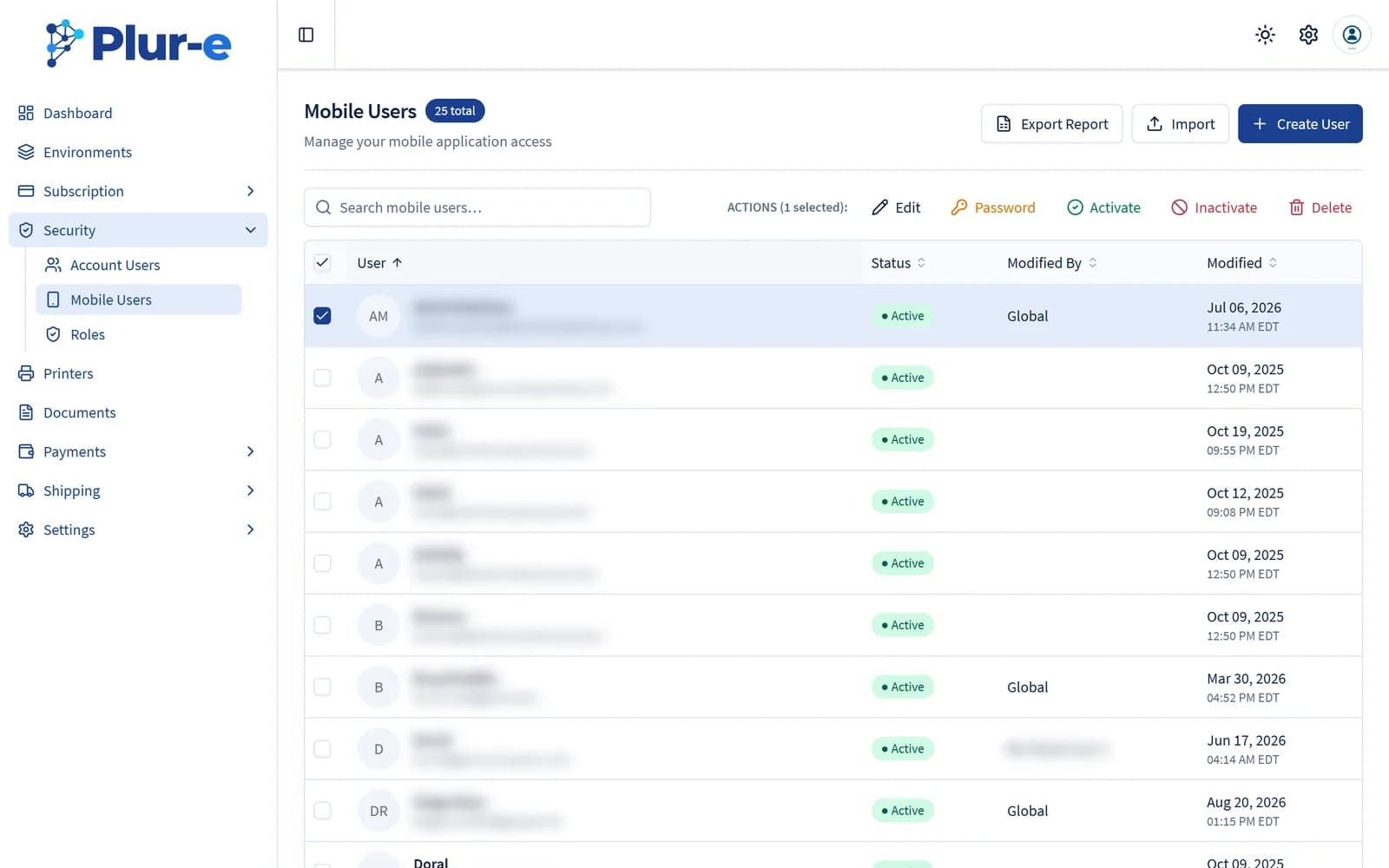
Security → Mobile Users lists the accounts that sign in to the app. Select a user to enable the row actions: Edit, Password (sends a new temporary password), Activate, Inactivate and Delete. Export Report downloads the list and Import creates users in bulk.
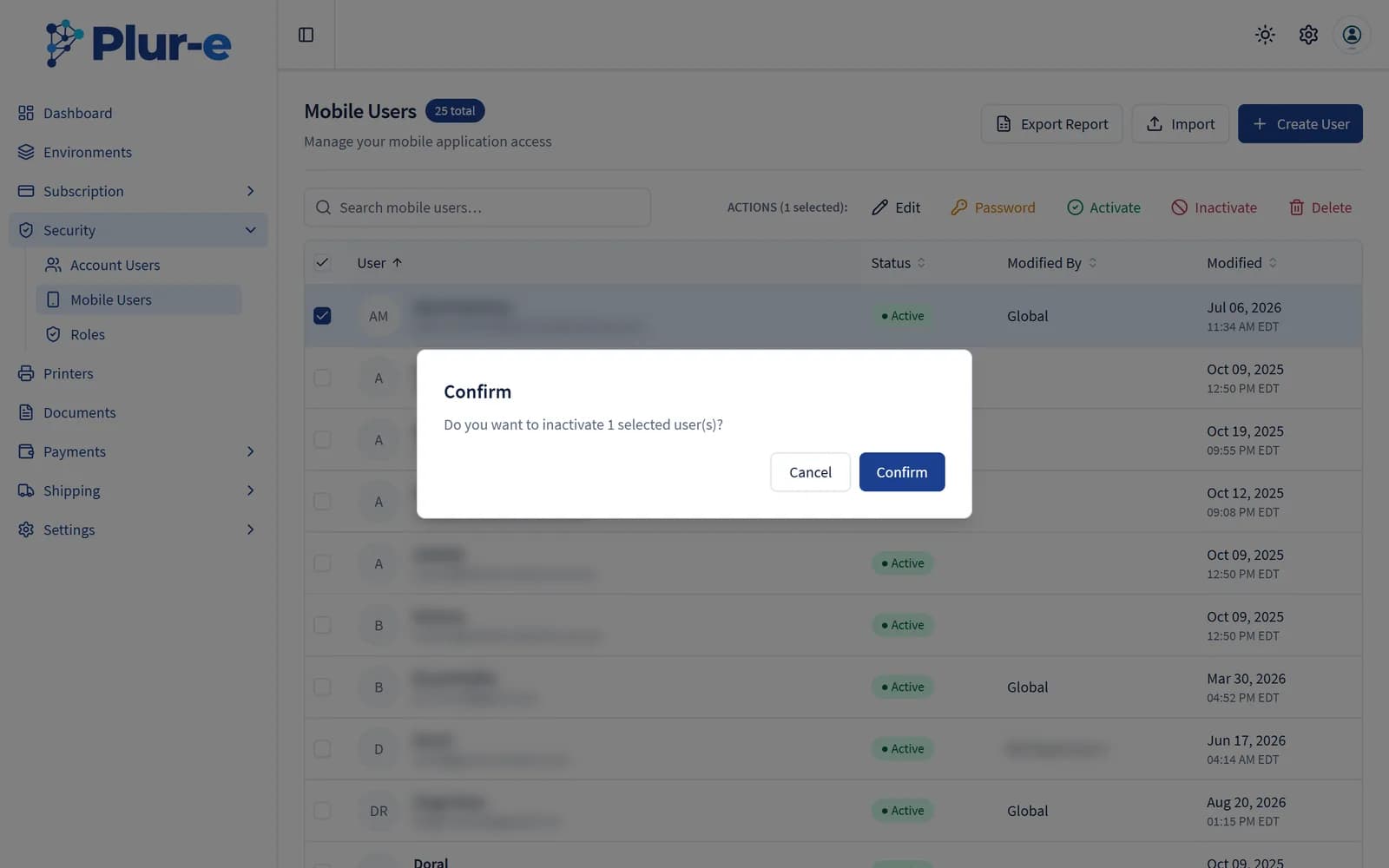
Create a mobile user
Select Create User
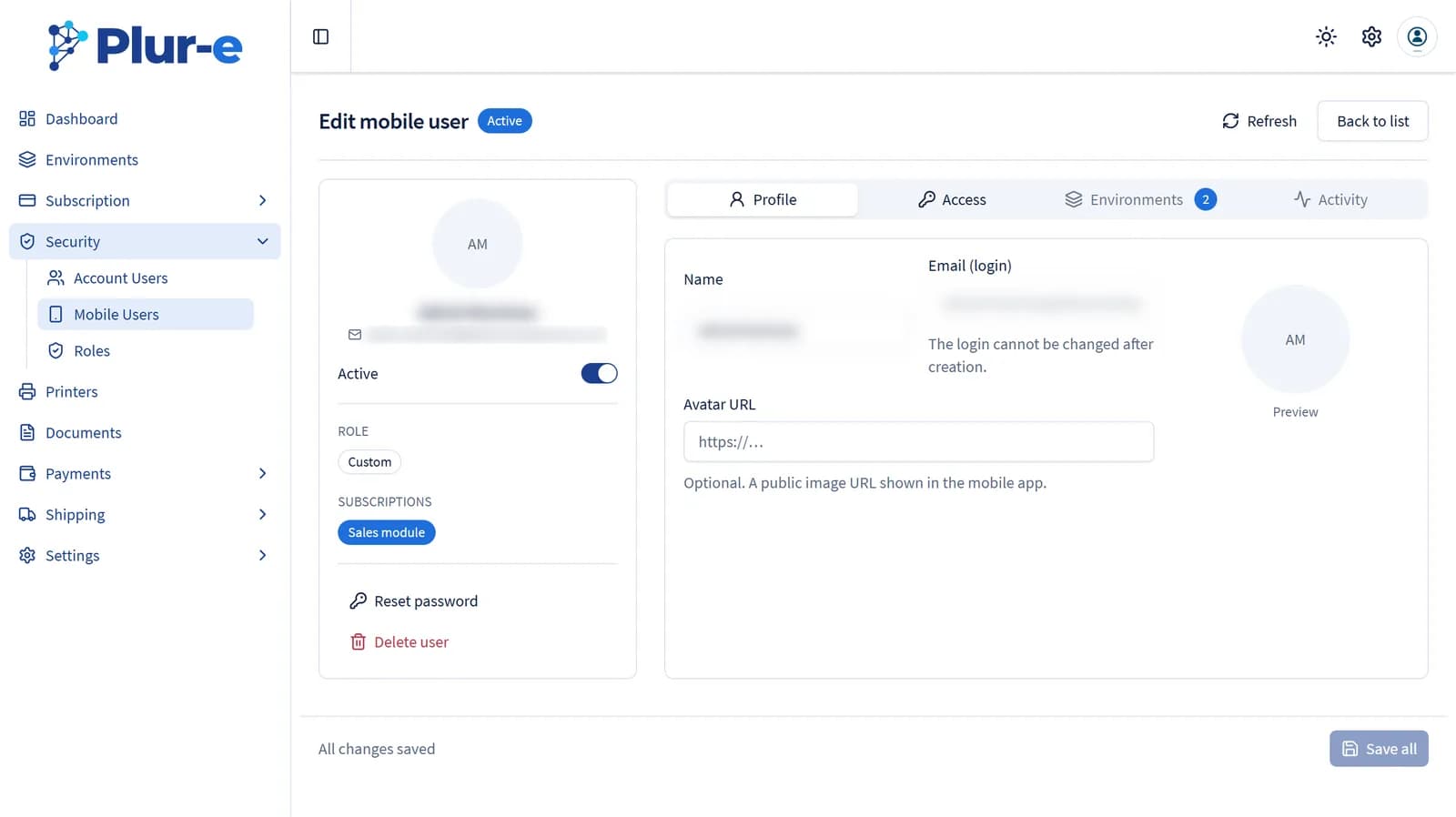
Fill in the Name and the Email (login); the avatar URL is optional. Select Create user — the login cannot be changed afterwards.
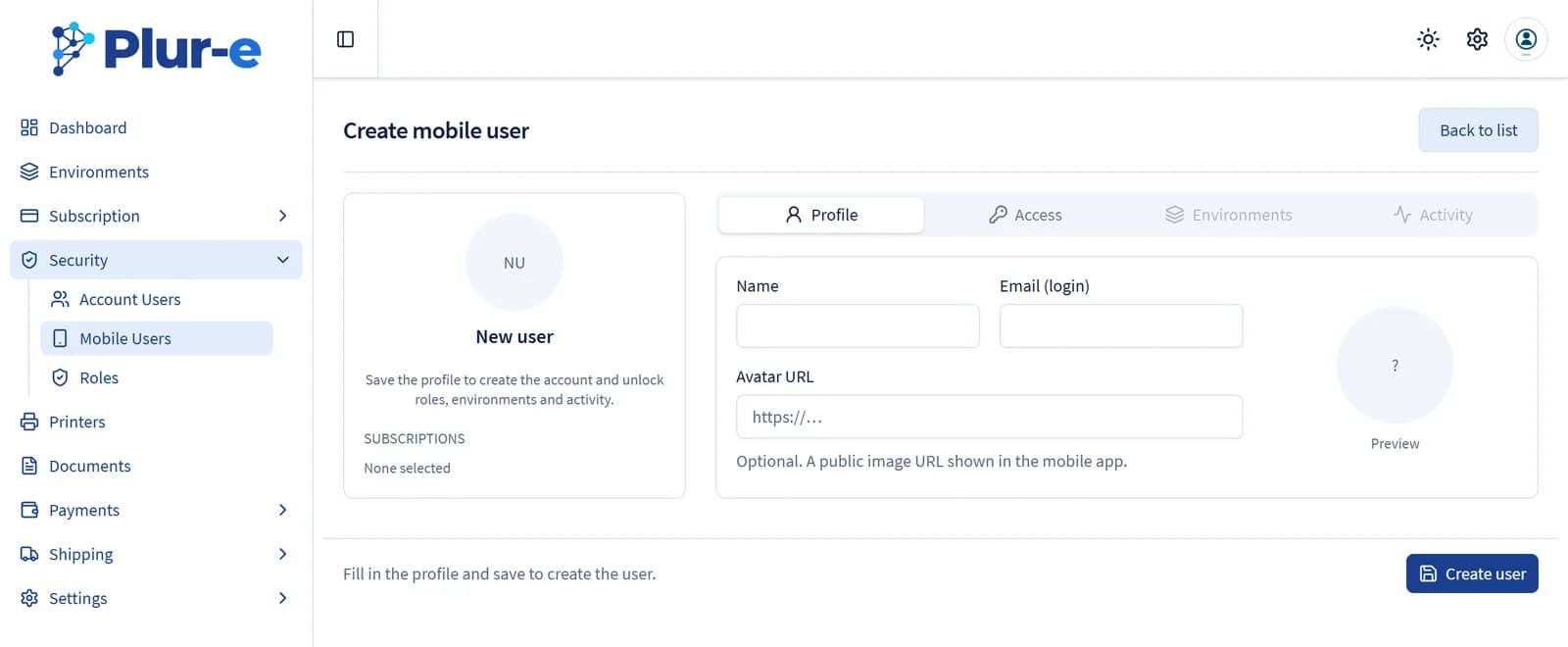
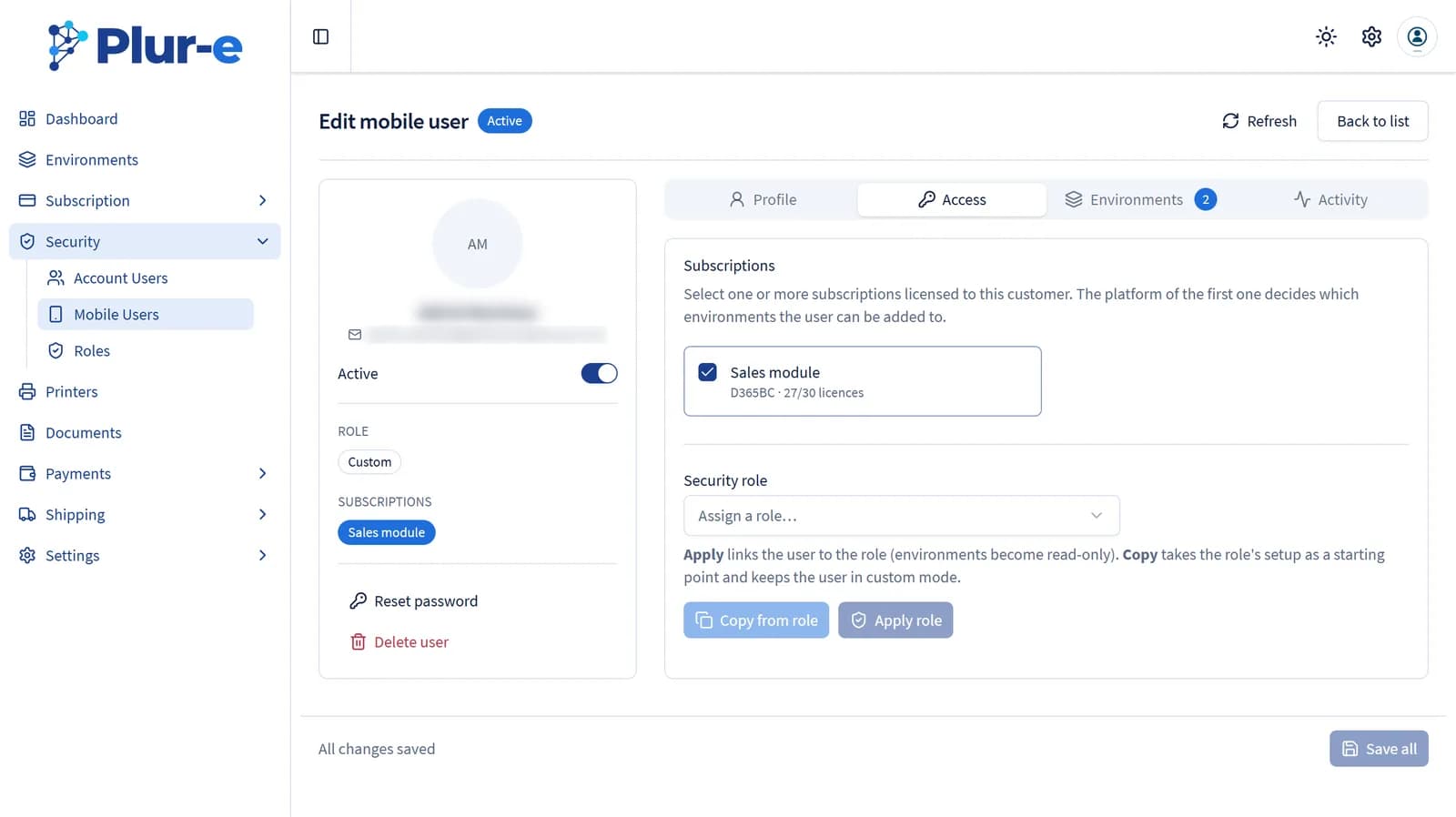
Assign subscription and role
On the Access tab pick the subscription(s) licensed to your company and a security role. Apply role links the user to the role (environments become read-only); Copy from role takes the role's setup as a starting point and keeps the user in custom mode. Applying a role locks the user's modules, permissions, companies and environments to what the role defines; the per-company, per-module ERP user, location and Permissions stay editable.
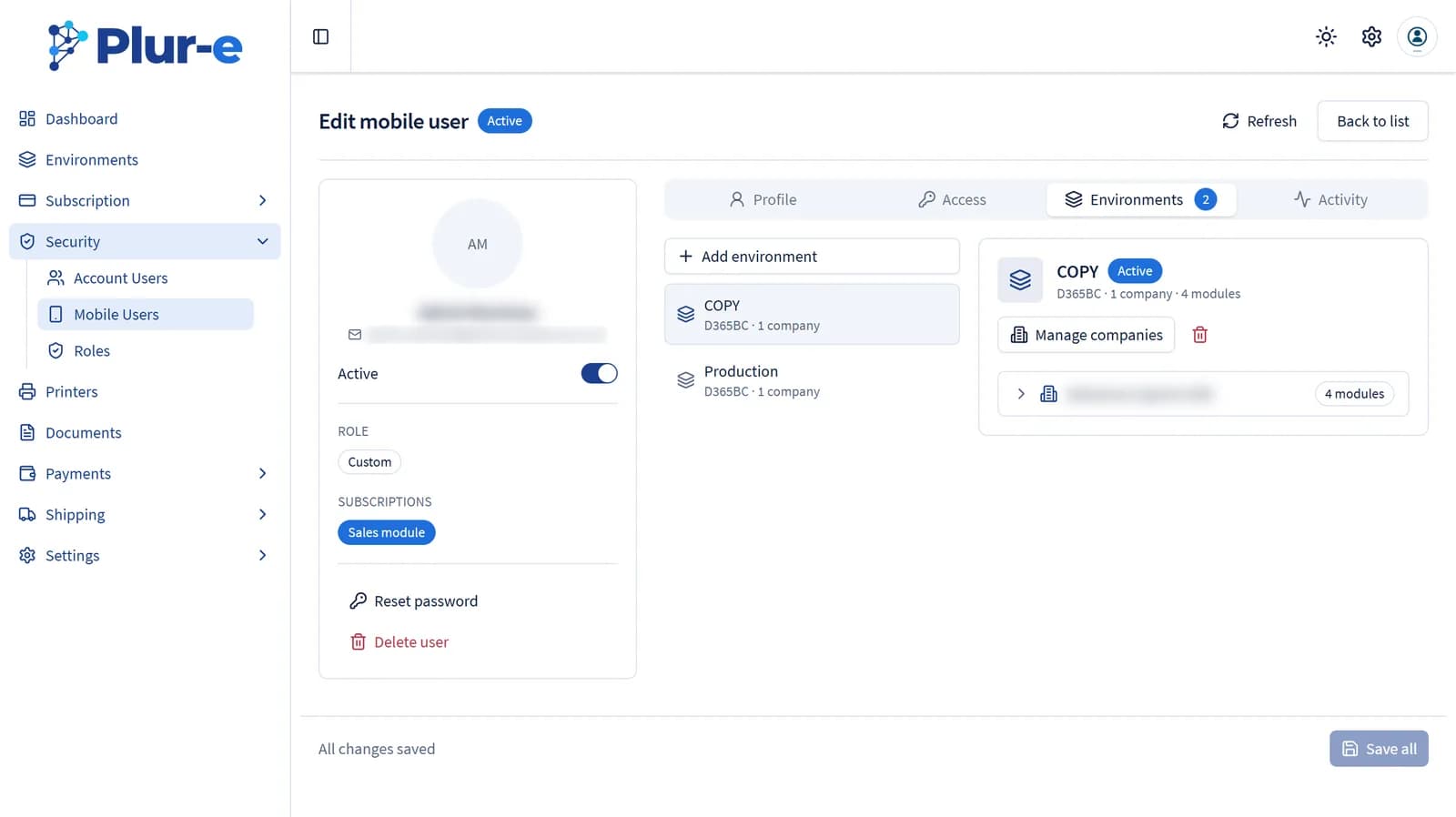
Add environments and companies
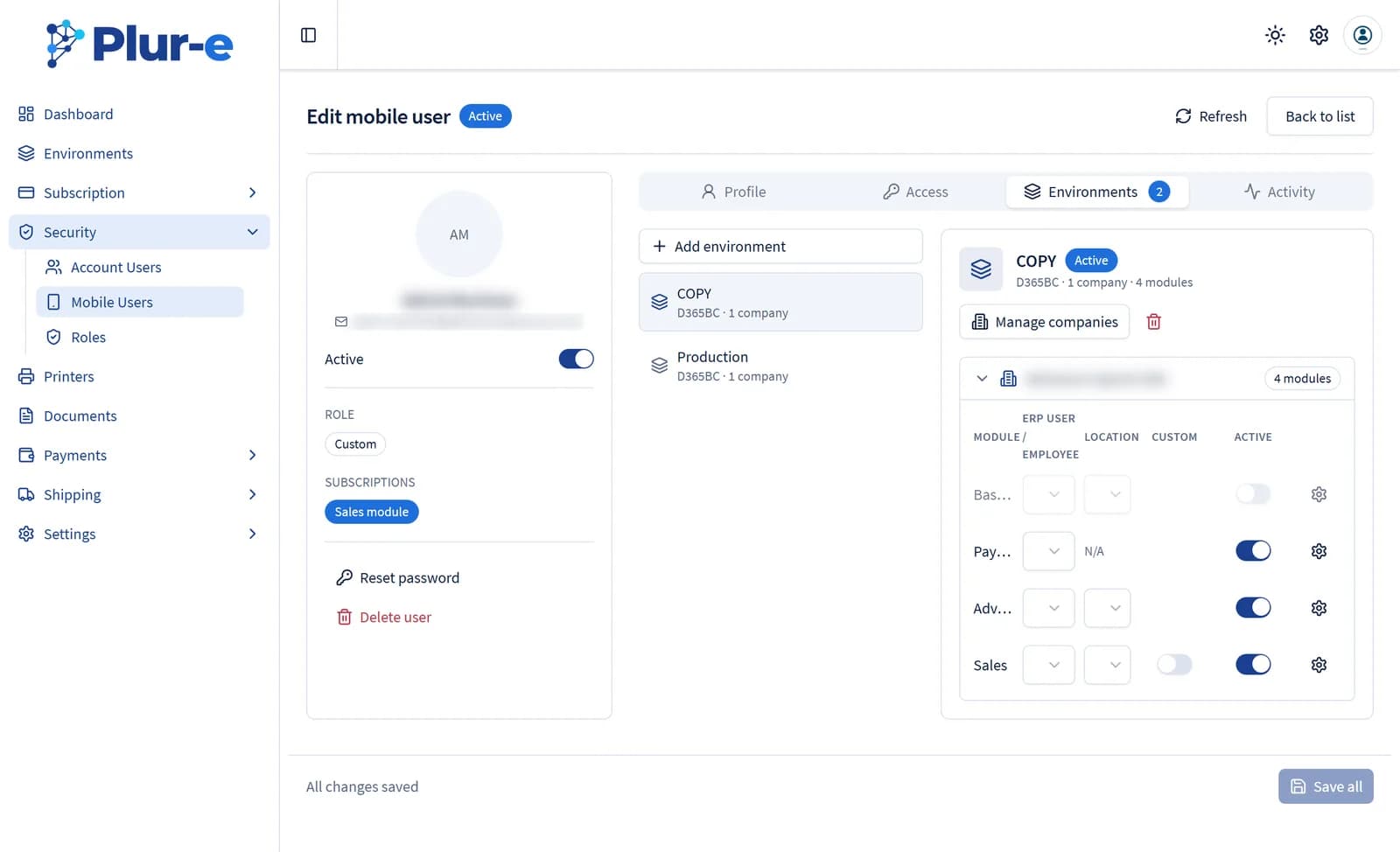
On the Environments tab select Add environment, then Manage companies to enable the companies the user may work in. Once the user has more than one environment, Copy from another environment (only available for users without a role) copies the configuration from an environment already added to this user — see Copy configuration between environments below.
Link the ERP user and location
Expand a company to see one row per module. Choose the ERP user / employee — the Salesperson/Purchaser code for Sales, the employee for warehouse modules — and the default Location. Sales documents created in the app are stamped with that code. In Permissions, the User setup drop-down picks the Business Central permission set the mobile user inherits for that module. These three fields — ERP user / employee, Location and User setup — stay yours to set per company and module even when the user has a role applied, and re-syncing the role does not reset them.
Save all
The user receives an email with a temporary password and changes it at first sign-in. Use Reset password in the editor rail to send a new one.
In Business Central
Mobile users are Plur-e identities, not Business Central users. The extension posts documents through the consented Entra ID application; the ERP user code and the Assigned User ID on warehouse documents are what link a phone user to Business Central data.
Copy configuration between environments
When you clone a Business Central environment — for example Production → a new sandbox — you can carry over each mobile user's setup instead of configuring it again by hand.
- From the user editor, Environments tab: Copy from another environment copies the configuration from an environment already added to that user (only available for users without a role).
- From the Mobile Users list: select several users and choose Copy environment config to copy from one environment to another across all of them at once.
- Automatically when you copy or restore an environment in Business Central, if Copy mobile users is checked (checked by default; requires Copy Plur-e configuration).
What gets copied: companies (matched by name), modules, permissions, ERP user / employee, location and User setup — exactly as configured in the source environment. The user's existing configuration in the destination environment is replaced; the user is not signed out of the app.
Users that don't have the source environment, or that have a role which doesn't include the destination environment, are skipped — the summary lists them with the reason. Source companies with no name match in the destination environment also appear in the summary.
Common problems
| Symptom | Fix |
|---|---|
| Sales user cannot create documents | Add the person to Salespeople/Purchasers in Business Central and pick the code in the module row. |
| Warehouse user sees no documents | Set the Assigned User ID on the warehouse receipt, shipment or pick in Business Central. |
| Temporary password not received | Select the user and use Password in the list; check spam filters. |
| Invited account user cannot sign in | The invitation is still Pending: use Re-Invite and ask them to accept it with the invited Microsoft account. |
| Company name shows as a GUID | Now fixed automatically the next time companies are synced for the environment (Sync Companies or Refresh environments). |
Last updated on
Edit on GitHub