

General inventory count
Count inventory in Plur-e Mobile without preloading items in a batch, for companies that do not use advanced warehouse — location, batch, scan and quantity, three adjustment scenarios, finish and post the Physical Inventory Journal.
Quick answer
Open Inventory Cycle Count, check the company and location, choose General Inventory Count → Physical Inventory and the Batch that will store the count. Scan each item and enter the physical quantity; Plur-e creates positive or negative adjustments in the Physical Inventory Journal. Tap Finish, verify the lines in Business Central and post the journal. The batch content in Business Central is overwritten by the count.
Who it is for
Companies without advanced warehouse (no bins/zones). Items do not need to be loaded in the batch first. For advanced warehouse use the inventory cycle count.
Check company and location
Open Plur-e, confirm the company, open Inventory Cycle Count and confirm the location. The default location comes from your user preferences.
Choose the count type
Select General Inventory Count, then Physical Inventory.
Select the batch
Pick the batch where the count is stored.
The batch is overwritten
Whatever the batch contains in Business Central is replaced by the Plur-e count. You cannot switch batches during a count.
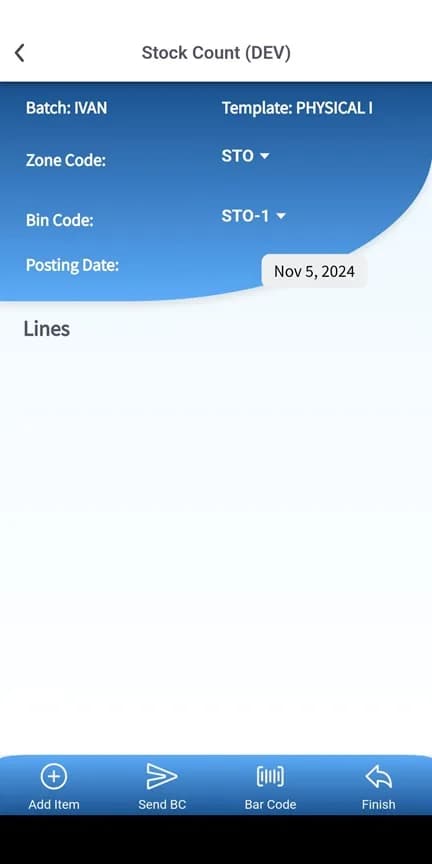
Scan and count
For each item scan the label and enter the physical quantity.
| Scenario | Result in the Physical Inventory Journal |
|---|---|
| Physical quantity lower than calculated | Negative adjustment |
| New item or calculated quantity zero | Positive adjustment |
| Physical quantity higher than calculated | Positive adjustment |
Finish and post
Tap Finish, wait for the sync confirmation, open the Physical Inventory Journal in Business Central, review the lines and post.
What this posts in Business Central
| Plur-e action | Business Central |
|---|---|
| Finish | Physical Inventory Journal lines (Qty. (Phys. Inventory)) in the selected batch |
| Post journal (BC) | Item ledger entries for the positive/negative adjustments |
Best practices
- Verify company and location before scanning.
- Review synced lines before posting; document discrepancies.
- Finish the count before changing location.
Common problems
| Symptom | Fix |
|---|---|
| Barcode not read | Clean the label and scan again, or search the item. |
| Item not found | The item must exist in the company. |
| Sync failed | Check the connection and retry; entries are kept on the device. |
| Batch error | Complete pending entries and sync again. |
Limits
- Lines cannot be edited after posting.
- One batch at a time.
- A stable connection is required to sync.
In Business Central
The journal compares Qty. (Calculated) with Qty. (Phys. Inventory) and posts the difference.
Last updated on
Edit on GitHubLicense plates on shipment
Ship with license plates — create the sales order and warehouse shipment, assign the user, create the pick, assign license plates to the warehouse pick, register and post.
Inventory cycle count
Cycle counting with advanced warehouse — calculate inventory by specification or by counting period in Business Central, then count with Plur-e Mobile and post the Physical Inventory Journal.