

License plates on shipment
Ship with license plates — create the sales order and warehouse shipment, assign the user, create the pick, assign license plates to the warehouse pick, register and post.
Quick answer
Create the sales order and Warehouse Shipment, set Assigned User ID, Create Pick, open Pick Lines → Show Document and use Assign License Plates to Warehouse Pick to select the LP (for example LP-00013). Then Register Pick and Post Shipment.
Create the sales order
In the Business Manager role center open Sales Orders → New, select the customer, add the item line with quantity and Location Code.
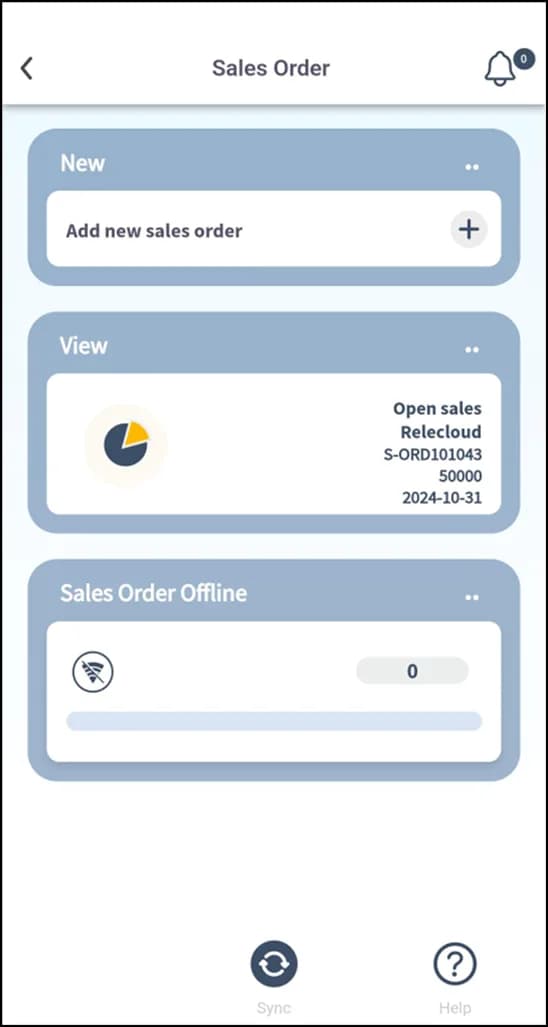
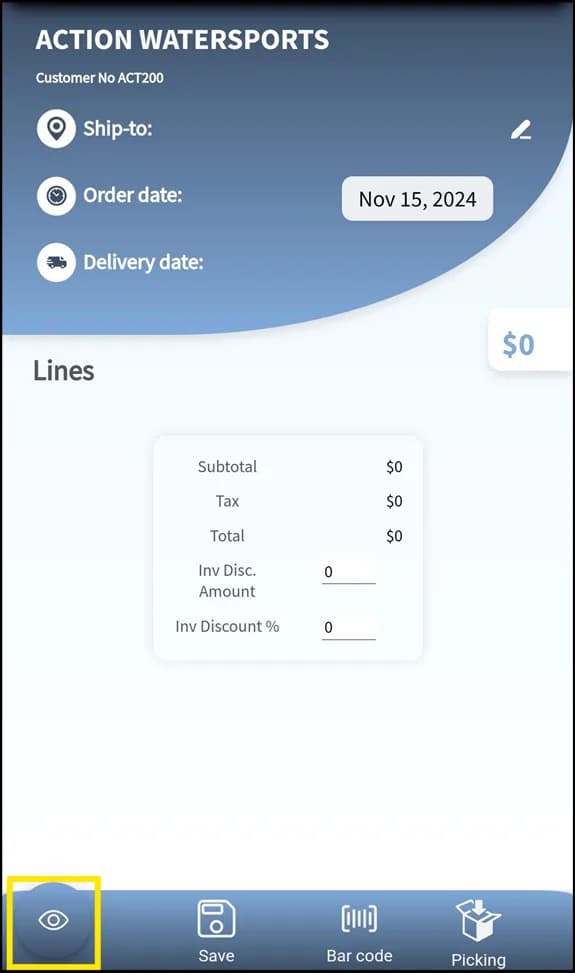
Create the warehouse shipment
Select Create Warehouse Shipment; the document (for example WHSE SHIP-00011) opens. Set Assigned User ID.
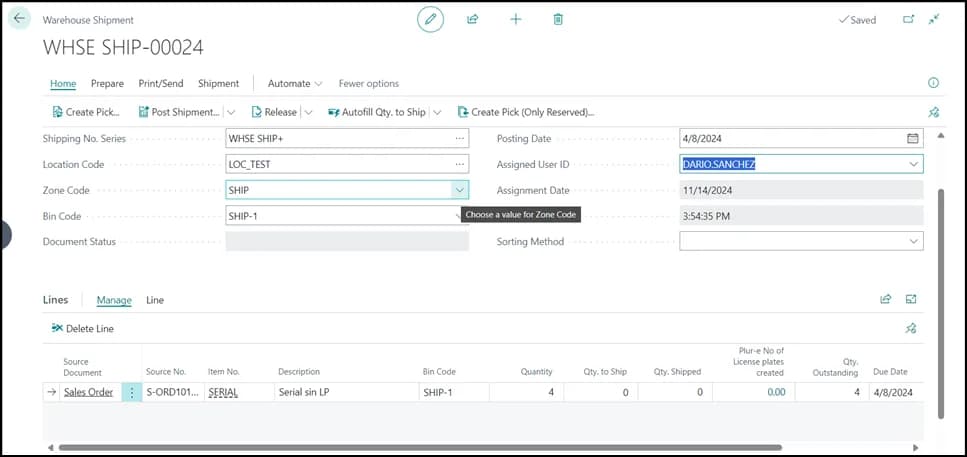
Create the pick
Select Create Pick and confirm the Whse.-Shipment - Create Pick dialog. The pick (for example WHSE PICK-00008) is created.
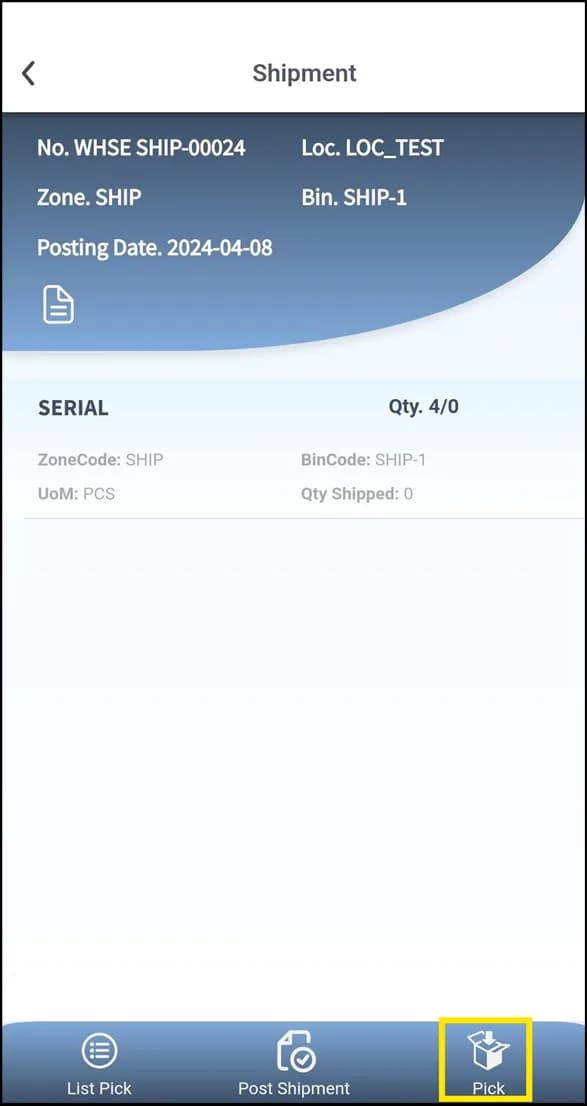
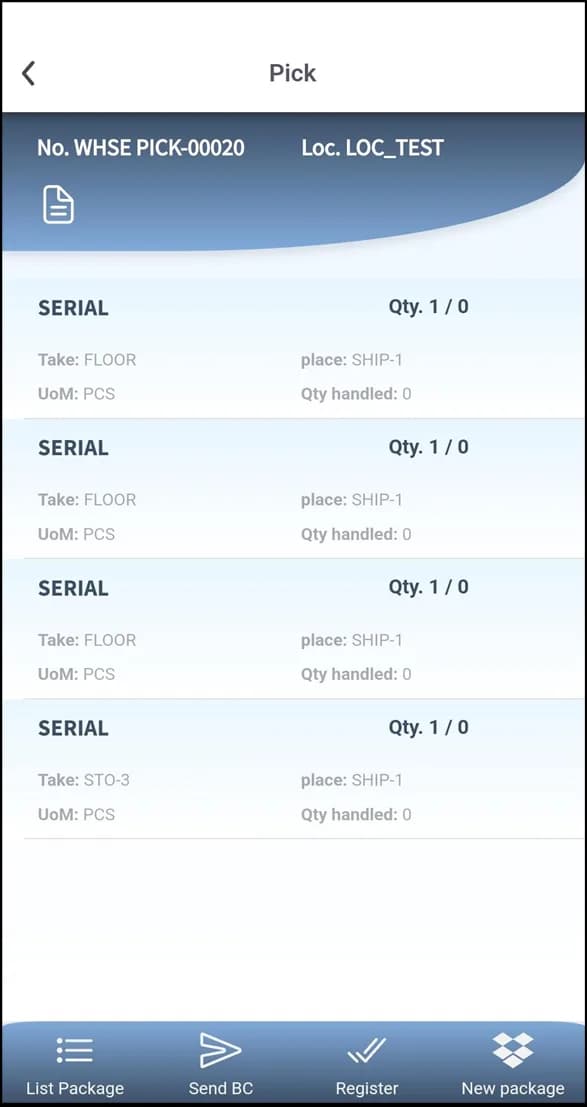
Assign license plates
Open Pick Lines → Show Document, select Assign License Plates to Warehouse Pick and choose the LP. Business Central confirms the assignment.
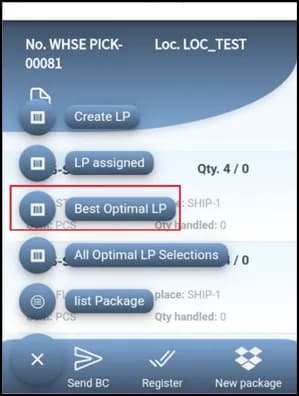
Register and post
Register Pick, confirm, close the pick, then Post Shipment on the warehouse shipment. Business Central confirms "Number of source documents posted: 1 out of a total of 1. Ship lines have been posted."
What this posts in Business Central
| Plur-e action | Business Central |
|---|---|
| Assign LP + Register Pick | Registered Warehouse Pick with the license plate's items |
| Post Shipment | Posted Warehouse Shipment; sales order shipped |
Related: Warehouse shipment and pick · License plates on receipt
Last updated on
Edit on GitHubLicense plates on receipt
Receive with license plates in Plur-e Mobile — New LP, scan UPC, enter quantity and serials, save, review with List LP, remove items, then post the receipt.
General inventory count
Count inventory in Plur-e Mobile without preloading items in a batch, for companies that do not use advanced warehouse — location, batch, scan and quantity, three adjustment scenarios, finish and post the Physical Inventory Journal.