

Inventory cycle count
Cycle counting with advanced warehouse — calculate inventory by specification or by counting period in Business Central, then count with Plur-e Mobile and post the Physical Inventory Journal.
Quick answer
Prepare the batch in Business Central with Calculate Inventory (filters by item and location) or Calculate Counting Period (items with a counting period code). In Plur-e open Inventory Cycle Count → Inventory Count → Physical Inventory, select the batch, scan each label and enter the physical quantity (edit with Select Action → Edit), confirm the sync, verify the journal lines and post.
Method A — Calculate inventory by specification
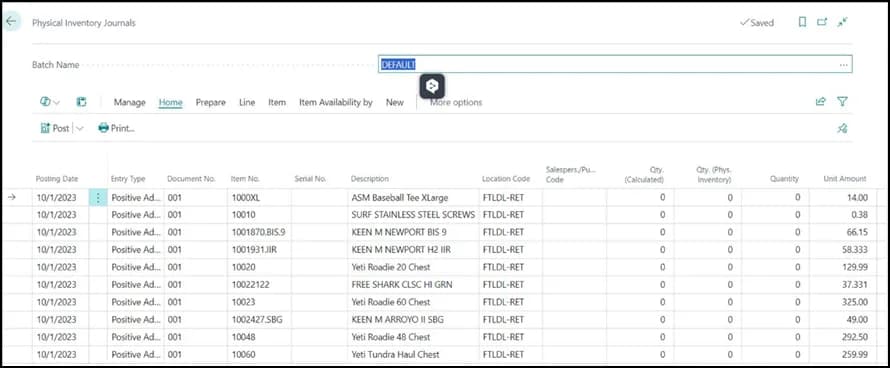
Open the journal
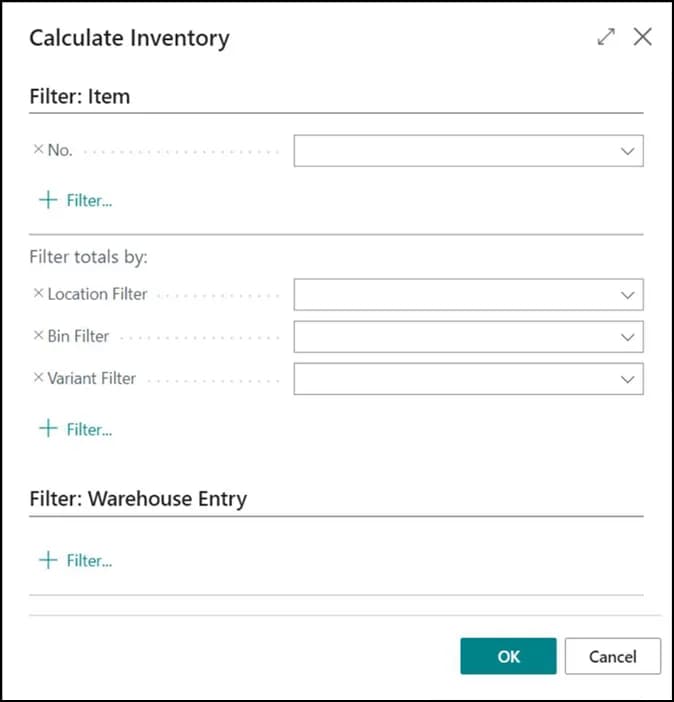
Open Physical Inventory Journals, select or create a batch and select Calculate Inventory.
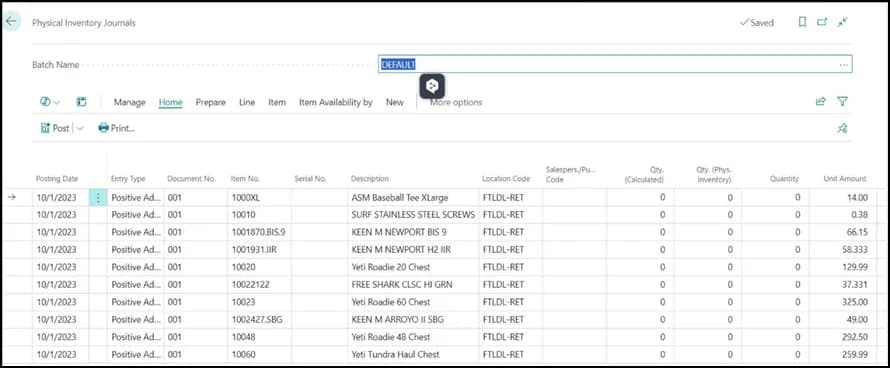
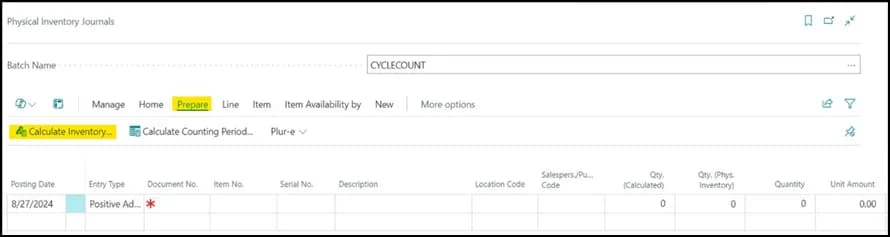
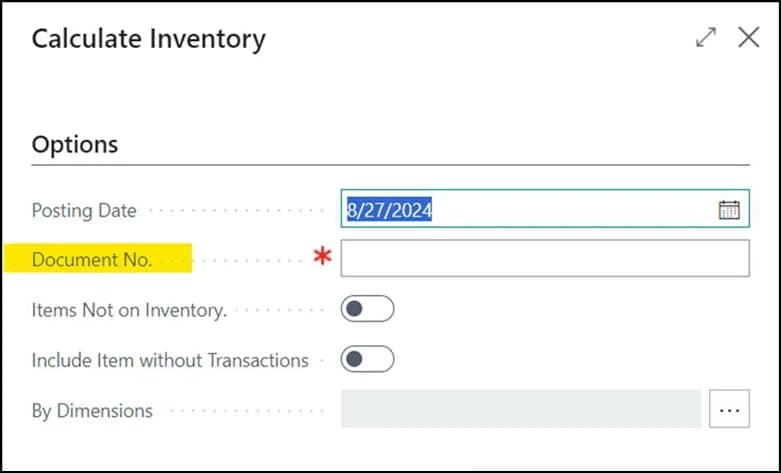
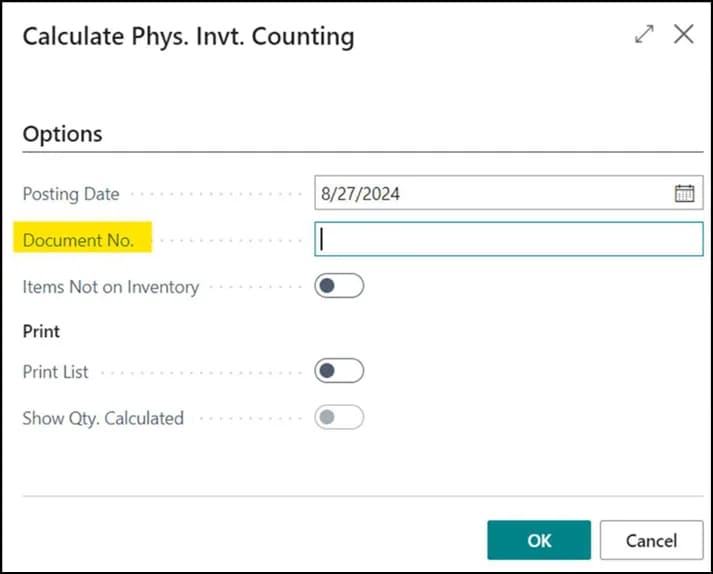
Document number and filters
Enter the Document No., filter items (for example by Gen. Prod. Posting Group) and totals by location or brand.
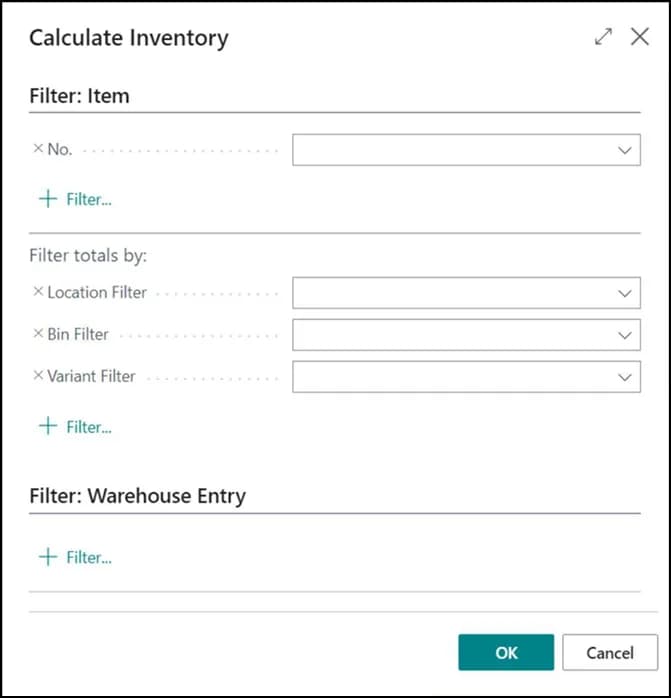
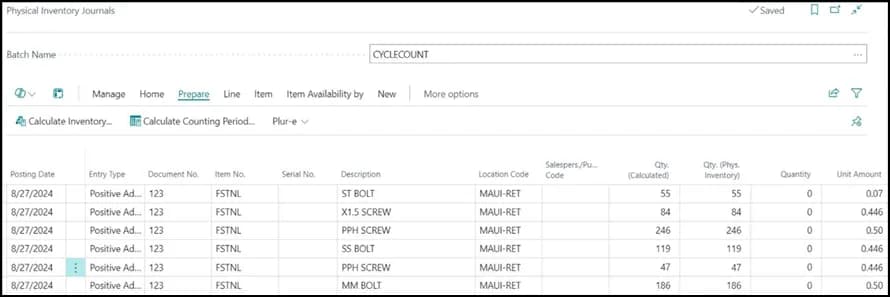
Review the lines
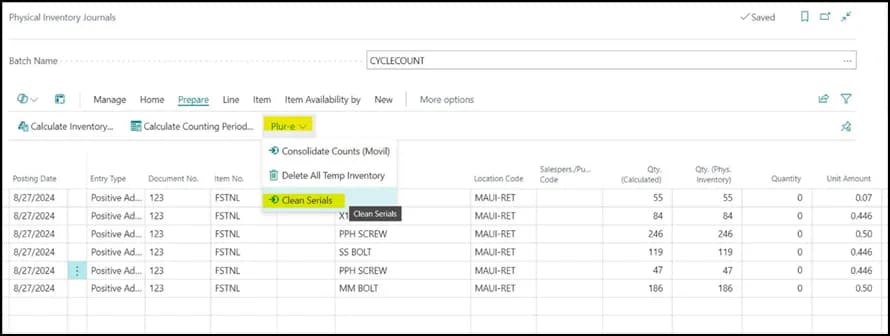
Check the journal. For serialized items use Clear Serials to set serial quantities to zero before counting.
Method B — Calculate by counting period
Create counting periods
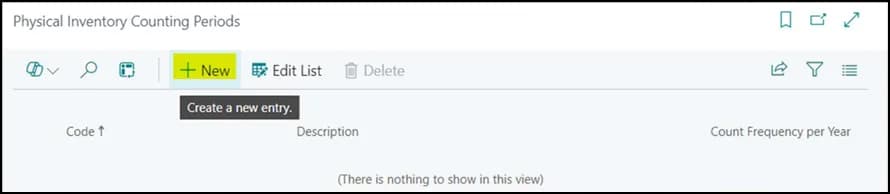
Open Physical Inventory Counting Periods and create one (monthly, quarterly…).
Assign periods to items
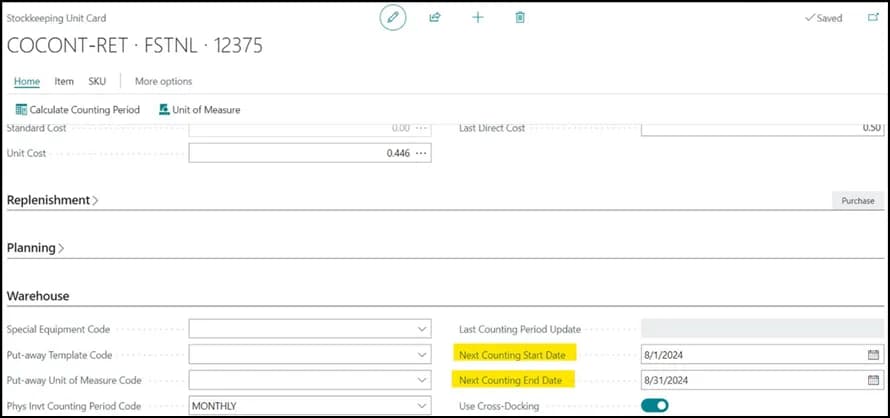
On Items or Stockkeeping Units set the Phys. Invt. Counting Period Code. Business Central fills Next Counting Start/End Date; adjust if needed.
Calculate the counting period
In the journal batch select Calculate Counting Period, review the items due, enter the Document No. and confirm.
What this posts in Business Central
| Plur-e action | Business Central |
|---|---|
| Enter physical quantity | Qty. (Phys. Inventory) on the journal line of the batch |
| Post journal (BC) | Item ledger entries for the differences |
Best practices
- Filter so you never count everything at once; tailor counting periods to item value.
- Keep batch names consistent; sync everything and verify before posting.
- Handle serialized items with Clear Serials first.
- Keep a counting calendar and document manual adjustments.
In Business Central
Counting periods and Calculate Inventory are standard Business Central features.
Related: General inventory count
Last updated on
Edit on GitHubGeneral inventory count
Count inventory in Plur-e Mobile without preloading items in a batch, for companies that do not use advanced warehouse — location, batch, scan and quantity, three adjustment scenarios, finish and post the Physical Inventory Journal.
Bin-to-bin movements
Moving stock between bins with Plur-e Mobile — scan the source bin, item and quantity, then the destination bin. Available under Warehouse Management as Bin To Bin, Whse. Movements and Split / Merge.