

Warehouse receipt
Receive purchase or transfer order lines in Plur-e Mobile — open the warehouse receipt, select or scan items, enter quantities, send serials and post the receipt.
Quick answer
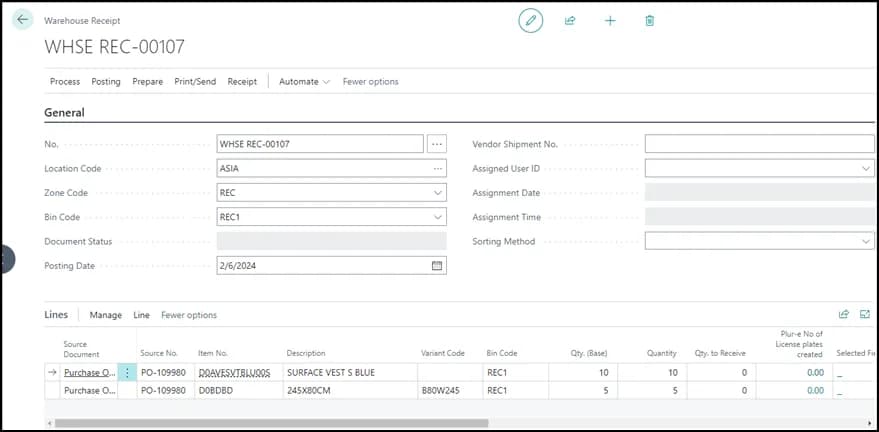
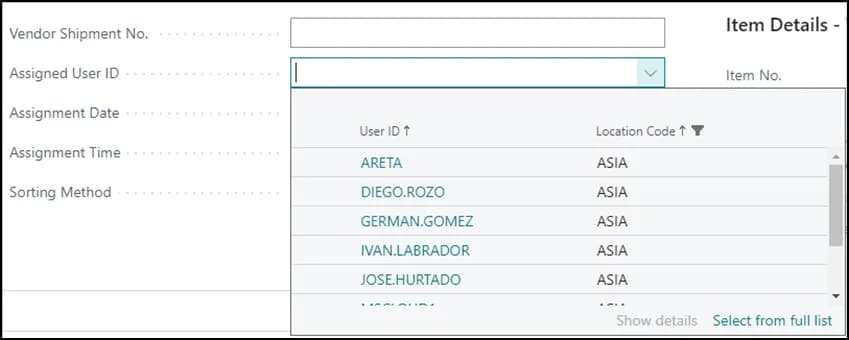
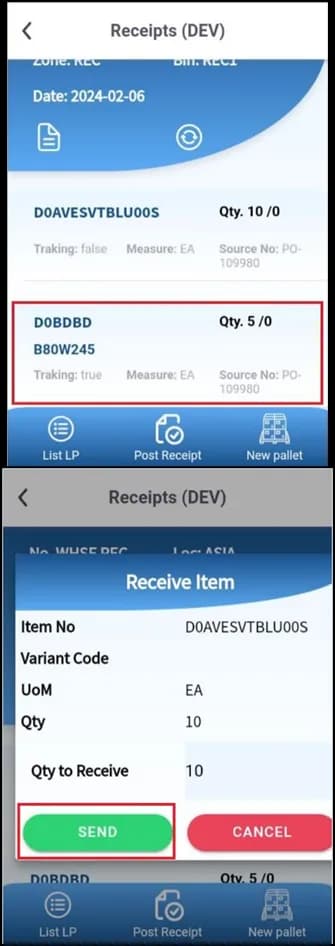
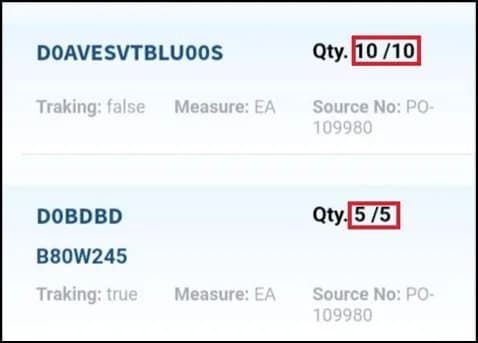
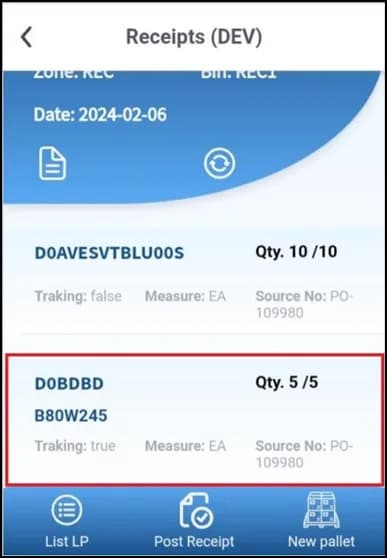
Create the Warehouse Receipt from the purchase order in Business Central and assign the mobile user. In Plur-e open Whse. Receipt, select the document, select or scan each item, enter the quantity (or scan serials for tracked items), tap Send, then Post at the bottom of the screen. The app then offers to continue with the put-away.
Before you start
In Business Central
- Create the Purchase Order (or transfer order). 2. Select Create Warehouse Receipt; a receipt document linked to the order opens. 3. Set Assigned User ID to the warehouse employee that uses Plur-e — otherwise the document does not show on the phone. 4. For items managed with license plates, receive them in the app; Qty. to Receive and Post Receipt remain available in Business Central for the rest.
Receive in Plur-e Mobile
Open Warehouse Receipt
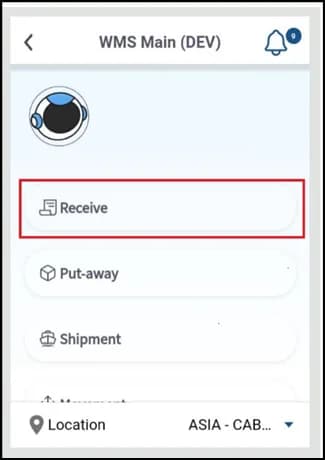
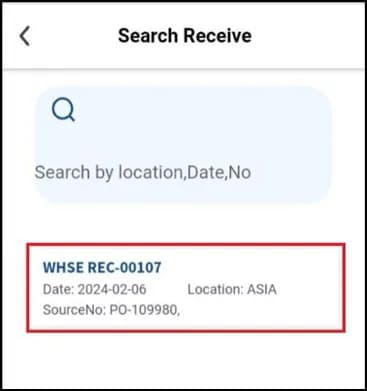
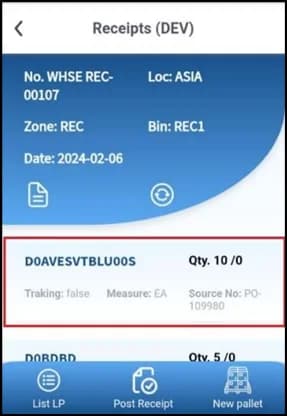
On the home screen open Warehouse Management → Receive and search the receipt by location, date or number.
Receive serialized items
Repeat for serialized items: check the tracking setup with the ? icon if needed and scan each serial number. Details in Receiving serialized items.
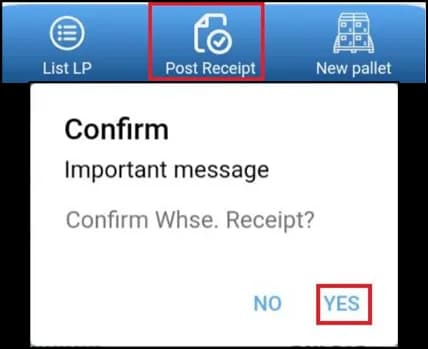
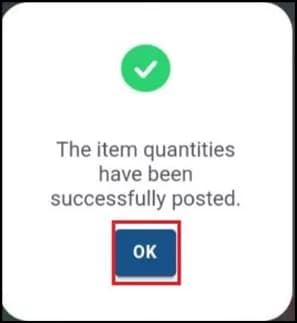
Continue with the put-away
The app asks whether to continue with the put-away.
Result
What this posts in Business Central
| Plur-e action | Business Central |
|---|---|
| Send line | Qty. to Receive and item tracking lines on the Warehouse Receipt |
| Post | Posted Warehouse Receipt; purchase order lines received; put-away created when the location requires it |
Common problems
| Symptom | Fix |
|---|---|
| Receipt not listed on the phone | Set Assigned User ID on the warehouse receipt in Business Central. |
| Item asks for serials you do not have | Check the item's tracking code with the ? icon; serials preloaded from the order only need confirmation. |
| Post fails | Make sure every line has a quantity and tracked lines have all serials sent. |
Related: License plates on receipt · Put-away
Last updated on
Edit on GitHubWarehouse module
Receive, put away, pick, ship, pack and count inventory in Plur-e Mobile against Business Central warehouse documents, with serial numbers and license plates.
Receiving serialized items
How Plur-e Mobile handles serial numbers on a warehouse receipt — tracking configuration, scanning one by one, correcting a scan, sending serials to Business Central and preloaded serials.