

Receiving serialized items
How Plur-e Mobile handles serial numbers on a warehouse receipt — tracking configuration, scanning one by one, correcting a scan, sending serials to Business Central and preloaded serials.
Quick answer
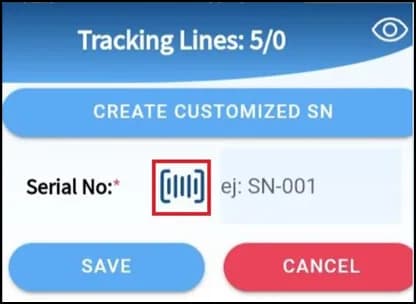
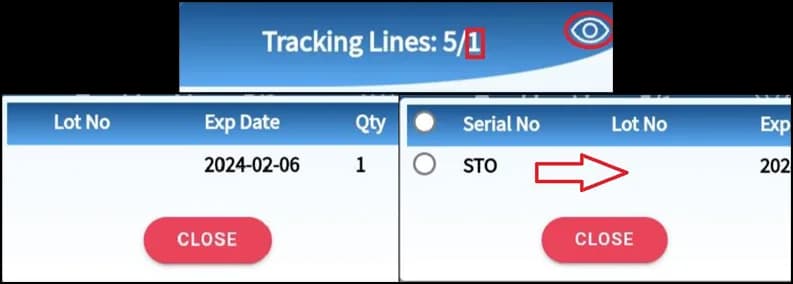
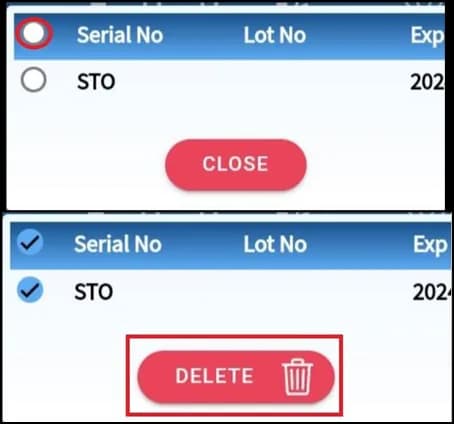
For serialized items, check the tracking rules with the ? icon, scan each serial number one at a time (each scan counts one unit and shows in the list), delete a wrong serial by selecting it, and tap Send to transmit the serials to Business Central. Serials preloaded from a purchase or transfer order only need to be viewed and confirmed.
Check the tracking configuration
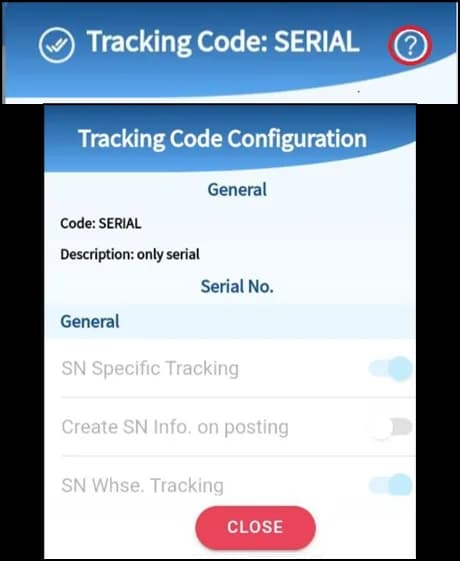
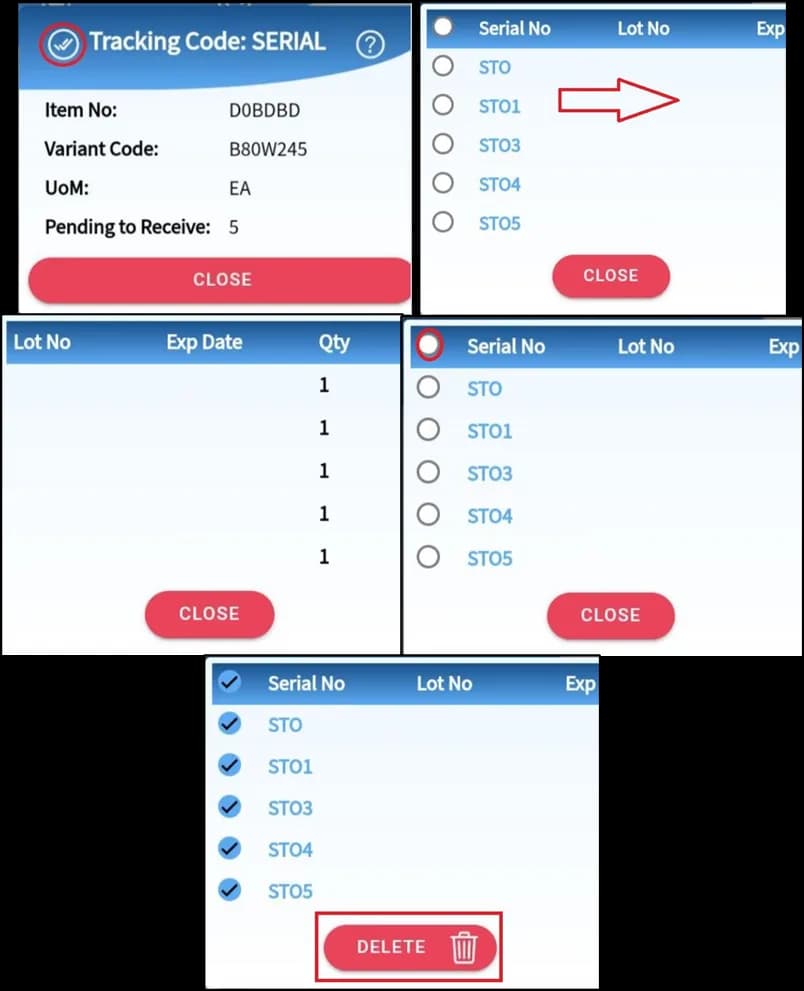
Tap the ? icon on the line to see how the item is tracked (serial, lot, expiration).
Send to Business Central
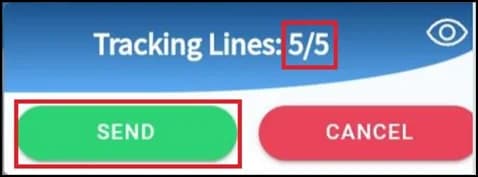
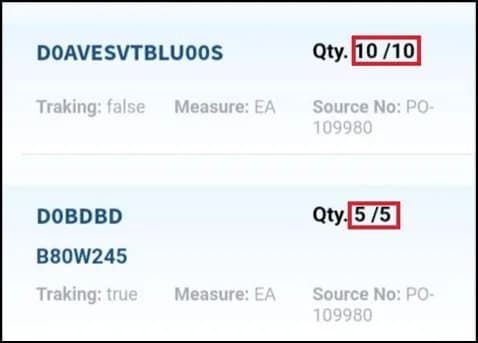
When the count matches, Send becomes available and transmits the serials, creating the item tracking lines.
Preloaded serials
If the serials come from the transfer or purchase order, do not scan them again — open the list, verify and confirm.
In Business Central
Serials appear as Item Tracking Lines on the warehouse receipt and follow the item through put-away, pick and shipment.
Related: Warehouse receipt · License plates on receipt
Last updated on
Edit on GitHubWarehouse receipt
Receive purchase or transfer order lines in Plur-e Mobile — open the warehouse receipt, select or scan items, enter quantities, send serials and post the receipt.
Put-away
Register a warehouse put-away in Plur-e Mobile after a receipt — decide to continue, edit or post by default, scan items or show all, set bin codes, move or remove items, search and confirm.