

Put-away
Register a warehouse put-away in Plur-e Mobile after a receipt — decide to continue, edit or post by default, scan items or show all, set bin codes, move or remove items, search and confirm.
Quick answer
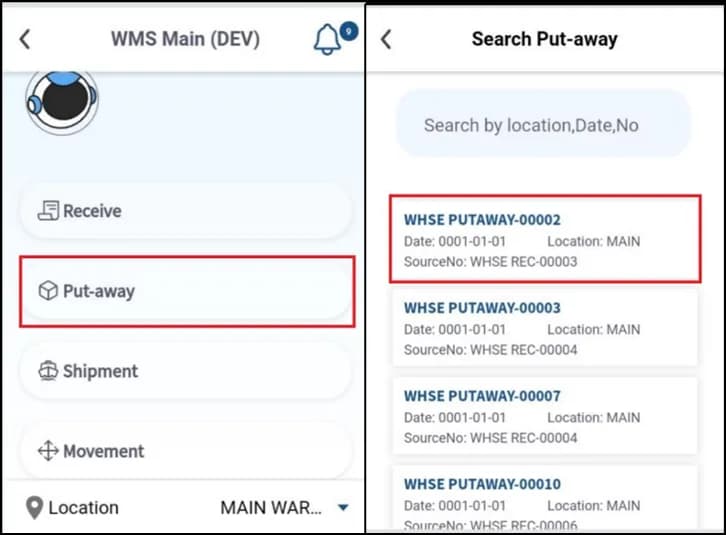
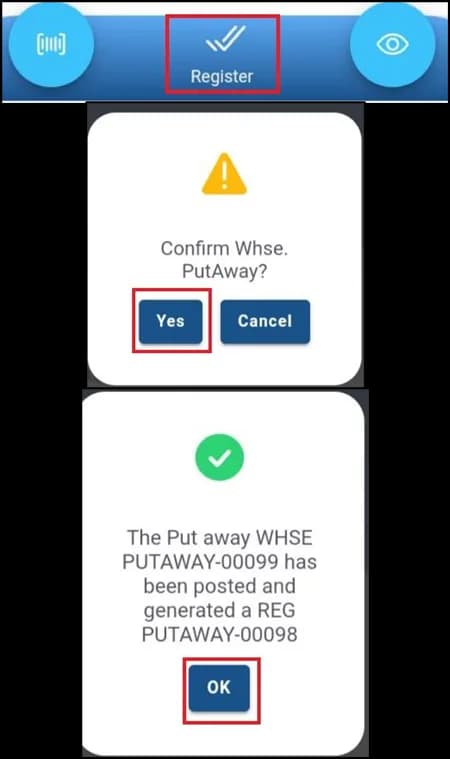
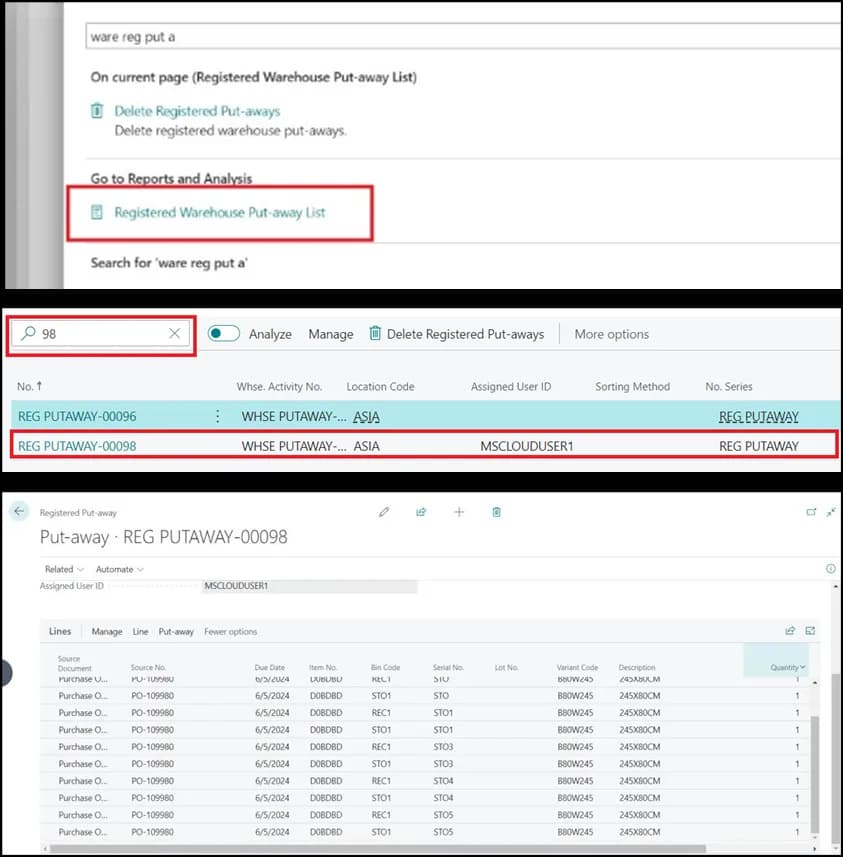
After posting a receipt, answer Yes to continue with the put-away. Choose whether to edit it (No posts the default put-away). In Whse. Put-away decide whether to scan items individually or show them all, enter the quantity and destination Bin Code per item, use Change bin to the selected/all to move lines, swipe left to remove one, and confirm the registration. Verify the registered put-away and bin contents in Business Central.
Decision point
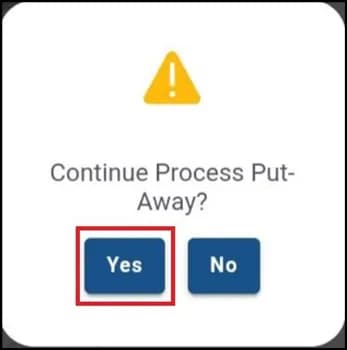
When the receipt is posted the app asks whether to continue with the put-away. Yes continues; No stops here (the put-away stays open in Business Central).
Edit or post by default
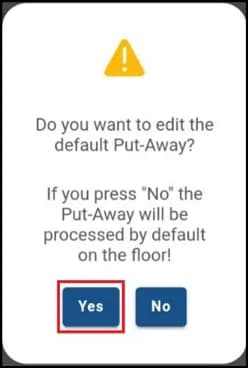
Yes opens the put-away details; No registers the put-away as Business Central suggested it — the fast path for simple cases.
Scan or show all
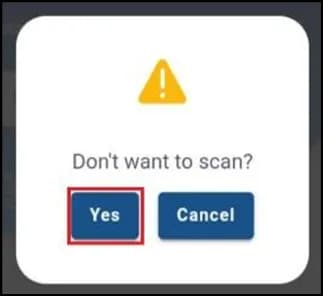
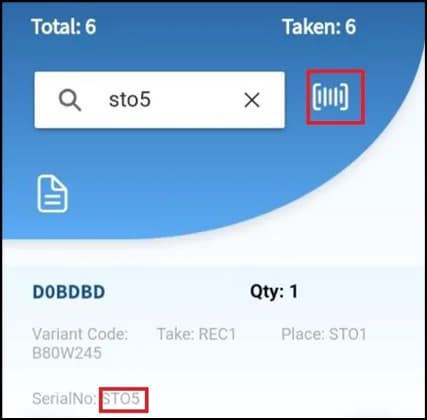
The app asks whether to avoid scanning. Yes shows every line for batch handling; No requires scanning each item for a detailed check.
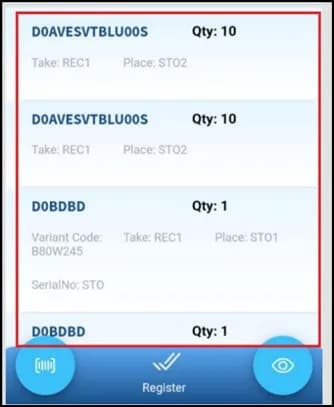
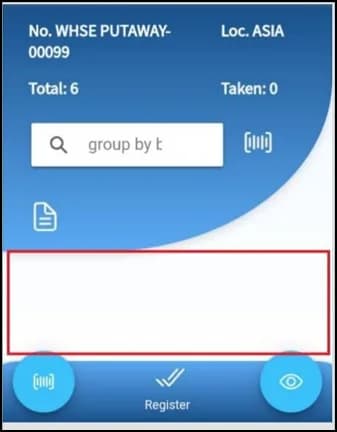
Enter quantity and bin
When you scan an item, enter the quantity (non-serialized) and the destination Bin Code.
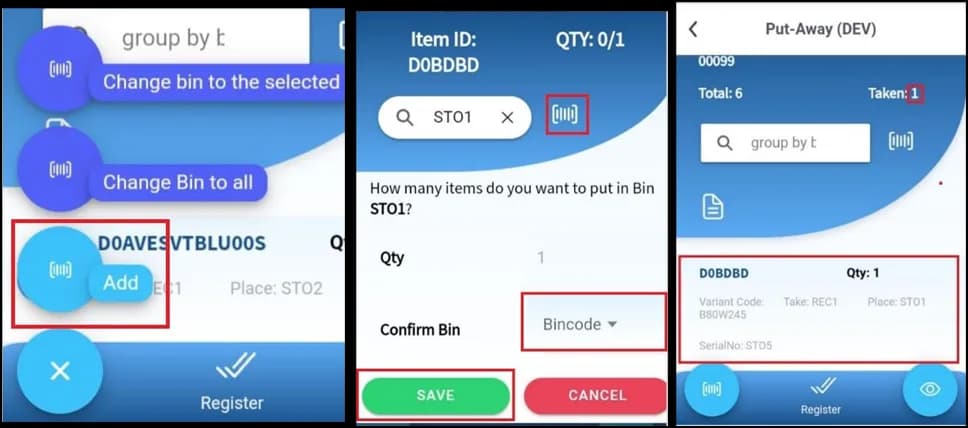
Move items to another bin
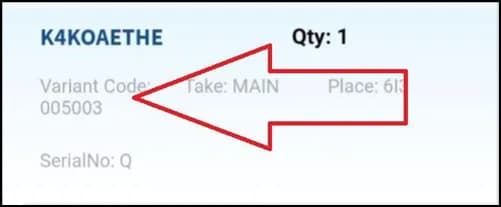
Swipe right on a line, select it and scan the bin with Change bin to the selected. Use Change bin to all for every line.
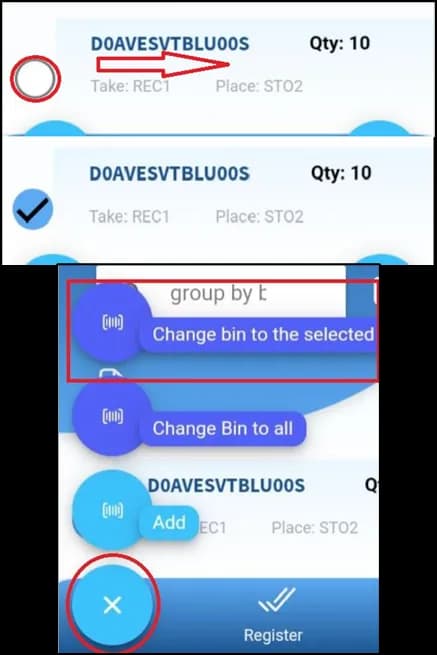
Remove or add lines
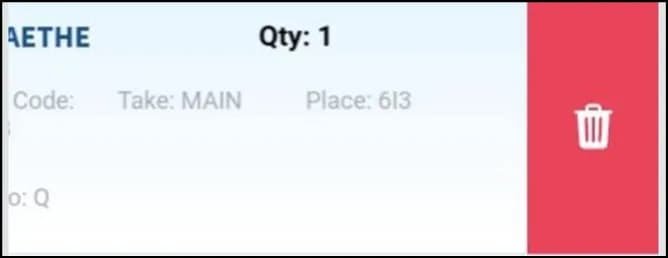
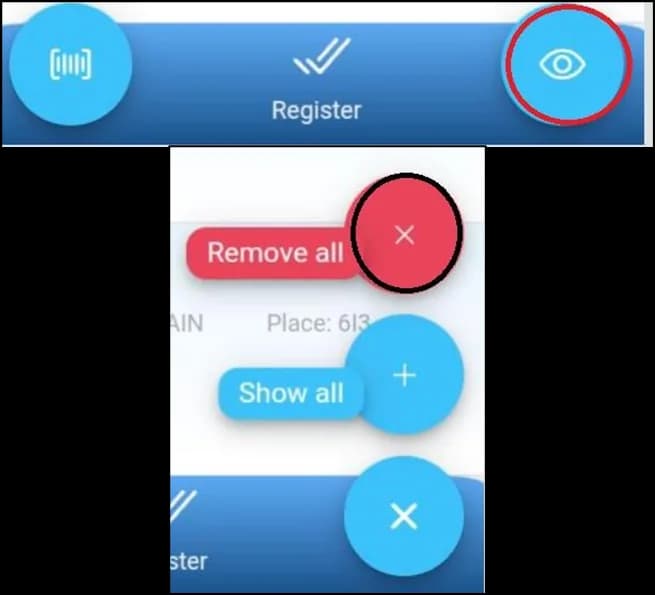
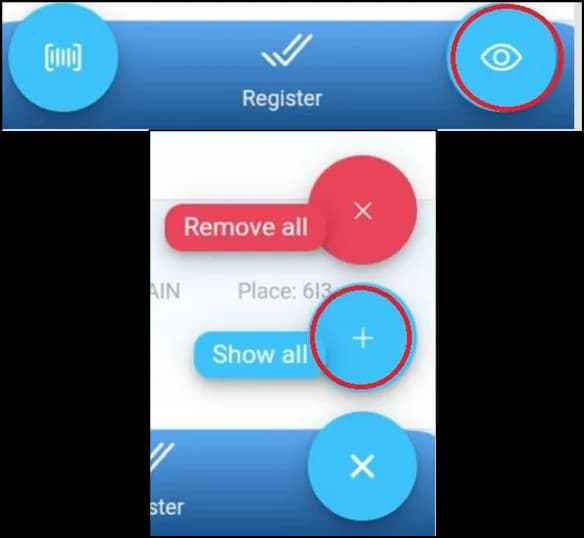
Swipe left to delete a line. Use the menu button → Remove all to clear, or Show all to add every line back.
What this posts in Business Central
| Plur-e action | Business Central |
|---|---|
| Confirm registration | Registered Warehouse Put-away; bin contents updated |
In Business Central
Bin suggestions come from the location's put-away template; the app lets you override the bin per line or for all lines.
Common problems
| Symptom | Fix |
|---|---|
| Bin code rejected | The bin must exist at the location and allow the item (bin type, zone). |
| No put-away after posting the receipt | The location must have Require Put-away enabled. |
Related: Warehouse receipt
Last updated on
Edit on GitHubReceiving serialized items
How Plur-e Mobile handles serial numbers on a warehouse receipt — tracking configuration, scanning one by one, correcting a scan, sending serials to Business Central and preloaded serials.
Warehouse shipment and pick
From a sales or transfer order to a posted warehouse shipment — create the shipment and assign the user in Business Central, create and register the pick in Plur-e Mobile, post the shipment.