

Sales module
Create sales orders, return orders, invoices and credit memos in Plur-e Mobile and post them in Business Central. Requirements, workflow and what each action creates.
Quick answer
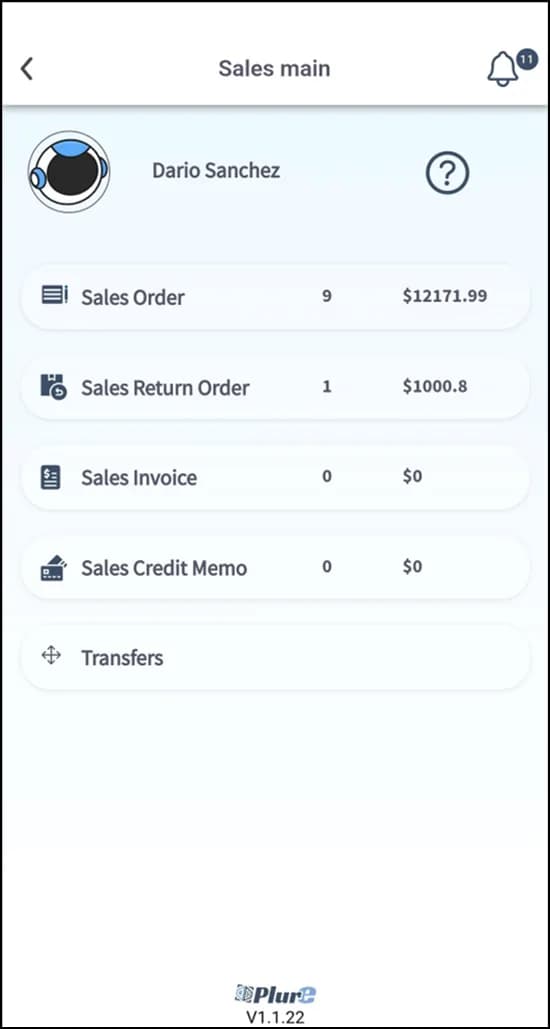
The Sales module lets a rep create sales orders, return orders, invoices and credit memos from the phone, add items by search or barcode scan, and have Business Central validate and post them. Users need sales permissions and must be listed in Salespeople/Purchasers.
Requirements
- Sales permissions in Business Central.
- The user is listed in Salespeople/Purchasers and linked to the mobile user in the Admin Center.
- Payment batches configured if the rep also takes payments.
Guides
Business Central setup
Permissions and Salespeople/Purchasers.
Sales orders
Partial or complete shipment, items by scan, picking.
Sales return orders
Returns against an original order.
Sales invoices
Invoice directly from the phone.
Sales credit memos
Credit an invoice.
Reference: sales documents in Business Central
How the standard documents work.
What this posts in Business Central
| Plur-e action | Business Central |
|---|---|
| Create sales order | Sales Order (open), ready to ship/invoice in Business Central |
| Create return order | Sales Return Order |
| Create invoice | Sales Invoice |
| Create credit memo | Sales Credit Memo |
Notes
- All document types share the same attachment and printing procedure.
- Every transaction is verified in Business Central before posting.
- Sales orders can be captured offline and synced with the Sync button.
Last updated on
Edit on GitHubUser preferences
Per-user defaults such as the default location used by inventory counts and warehouse documents in Plur-e Mobile.
Business Central setup for Sales
What to configure in Business Central before a rep uses the Plur-e Sales module — sales permissions, Salespeople/Purchasers and number series.