

Sales orders
Create a sales order in Plur-e Mobile with partial or complete shipment — customer, delivery date, items by search or scan, location, unit of measure, quantity and picking.
Quick answer
Open Sales Orders → New, pick the customer, addresses and delivery date, add items by Add Item or the scan icon, set location, unit of measure and quantity per line, run the picking step and let Business Central validate the order. For a complete shipment assign the full quantity of each line; for a partial shipment split quantities across shipments.
Create a sales order (partial shipment)
Start the order
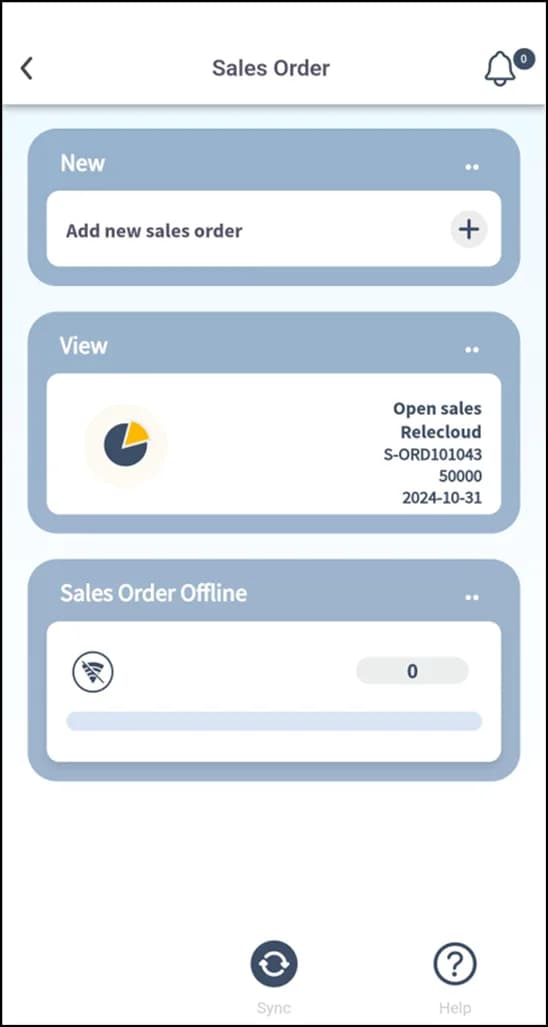
Open Sales Orders and select Add new sales order. Select or verify the customer, choose the shipping and billing addresses and set the delivery date.
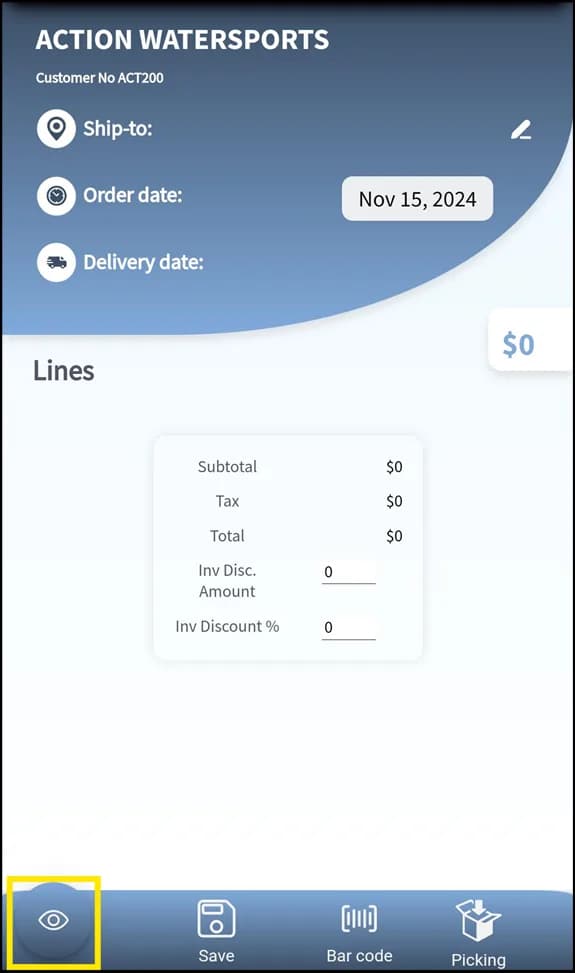
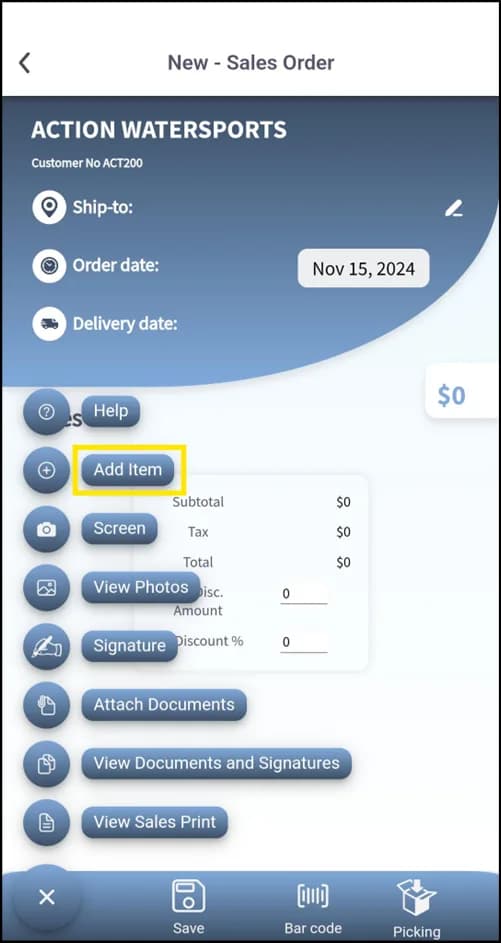
Add items
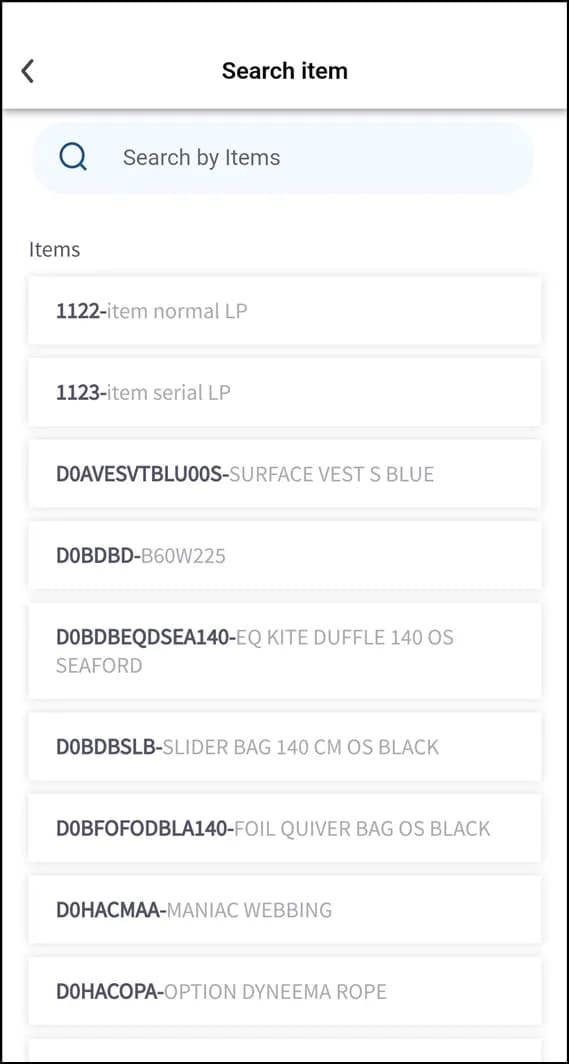
- Manual: Add Item and search by code or name.
- Scan: tap the scanner icon and read the barcode with the camera or a Zebra scanner; confirm the item before adding it.
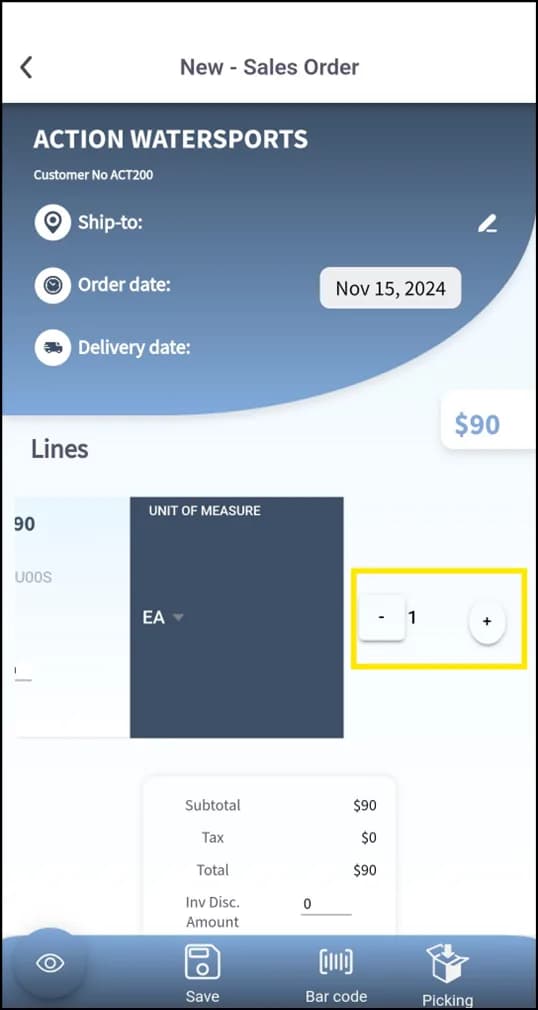
Picking
Set the picking location, check that quantities match the order, confirm the picking list and generate the documentation.
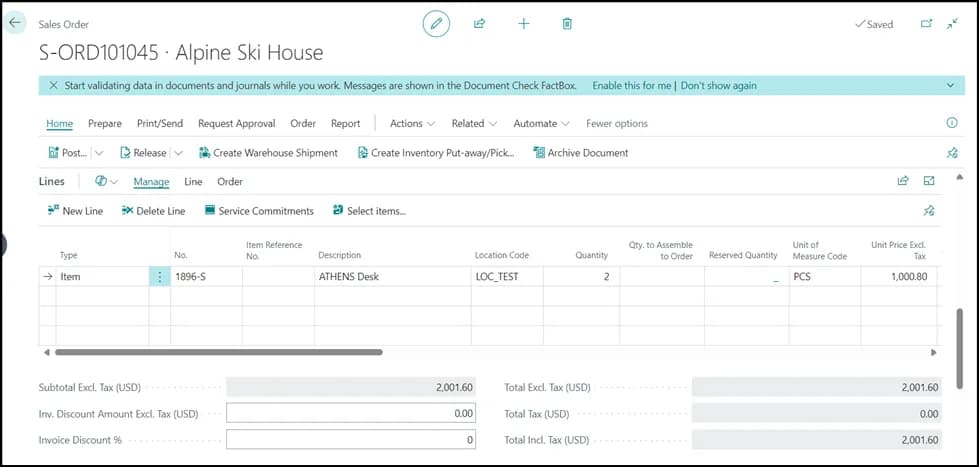
Complete shipment
Same steps; in the picking step assign the full quantity of every item — nothing is split and everything ships together. Before creating the order, check available stock and shipping capacity for the whole order.
| Partial shipment | Complete shipment | |
|---|---|---|
| Quantity per line | Split across shipments | Full quantity at once |
| Picking | Several operations | One operation |
| Use when | Stock arrives in batches | Everything is on hand |
What this posts in Business Central
| Plur-e action | Business Central |
|---|---|
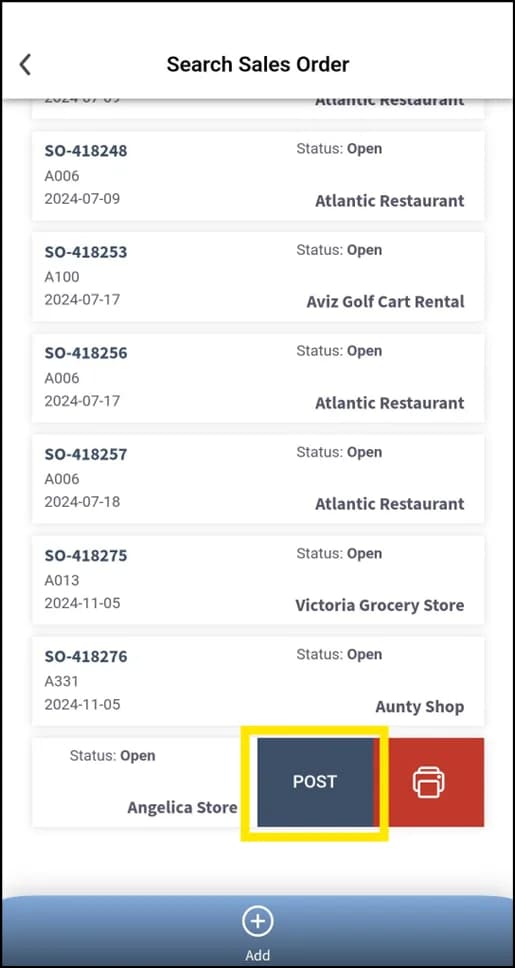
| Send sales order | Sales Order with lines, salesperson code and location; ship and invoice from Business Central or from the warehouse module |
In Business Central
Partial shipments use the Quantity Shipped field on each line; posting the order creates the invoice. See the reference.
Offline
Orders created without connection are queued under Sales Order Offline and sent with Sync.
Common problems
| Symptom | Fix |
|---|---|
| Customer not found | Confirm the customer exists in the company the user is signed in to. |
| Item not available at location | Change the location or check inventory in Business Central. |
| Order not visible in Business Central | Tap Sync; check the number series in Plur-E Setup. |
Related: Warehouse shipment and pick · Pay invoices
Last updated on
Edit on GitHubBusiness Central setup for Sales
What to configure in Business Central before a rep uses the Plur-e Sales module — sales permissions, Salespeople/Purchasers and number series.
Sales return orders
Create a sales return order in Plur-e Mobile from the original order — customer lookup, return items by selection or scan, return location, unit of measure and quantity.