

Pay invoices
Pay a single posted sales invoice or several at once in Plur-e Mobile — swipe right, Pay, choose the payment method and confirm.
Quick answer
In Posted Sales Invoice, swipe right on the invoice and tap Pay, choose one of the configured payment methods and tap Pay again. To pay several invoices, use the search button at the bottom, select them and tap Pay Invoices.
Pay one invoice
Find the invoice
Open Posted Sales Invoice. It lists posted invoices that are still unpaid; search or filter by date range.
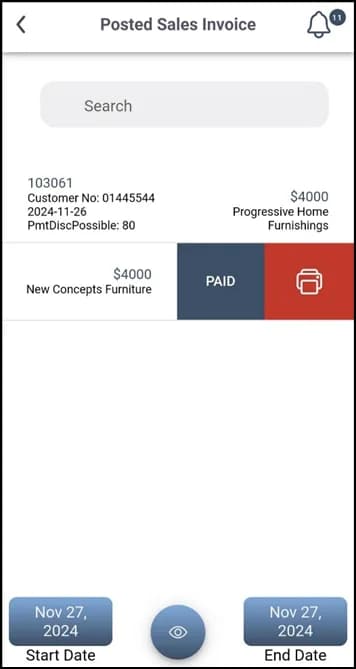
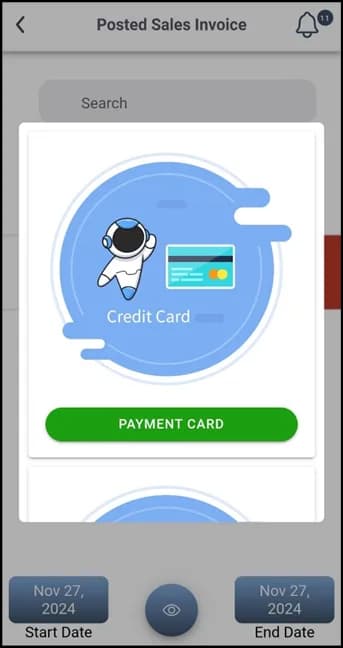
Choose the method
The dialog lists the methods configured in the Admin Center and Business Central. Select one and tap Pay to confirm.
Pay several invoices
Select the invoices
Tap the dynamic search button at the bottom centre, then select each invoice to pay.
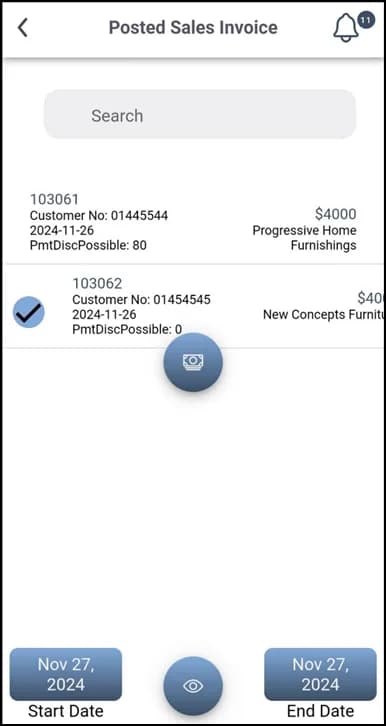
Pay Invoices
Tap Pay Invoices, choose the method and confirm with Pay.
What this posts in Business Central
| Plur-e action | Business Central |
|---|---|
| Pay | General journal line(s) in the batch of the selected method, applied to the invoice(s)[Posted automatically; the receipt number is returned to the app] |
Common problems
| Symptom | Fix |
|---|---|
| No payment methods in the dialog | The batch exists in Business Central but not in the Admin Center (or the other way round). See setup. |
| Card payment declined | Check the Stripe keys and the Stripe dashboard for the decline reason. |
Last updated on
Edit on GitHubSet up payments in the Admin Center
Mirror the Business Central payment batches as payment methods in the Admin Center and store the Stripe keys that link the card gateway.
Payment history and printing
Review paid invoices in Posted Sales Invoice Payment and print a receipt to a configured printer from Plur-e Mobile, including the Bluetooth permission needed.