

Set up payments in Business Central
Create the Payments general journal template and one General Journal Batch per payment method with balancing account and Payment Method Code so Plur-e can post payments.
Quick answer
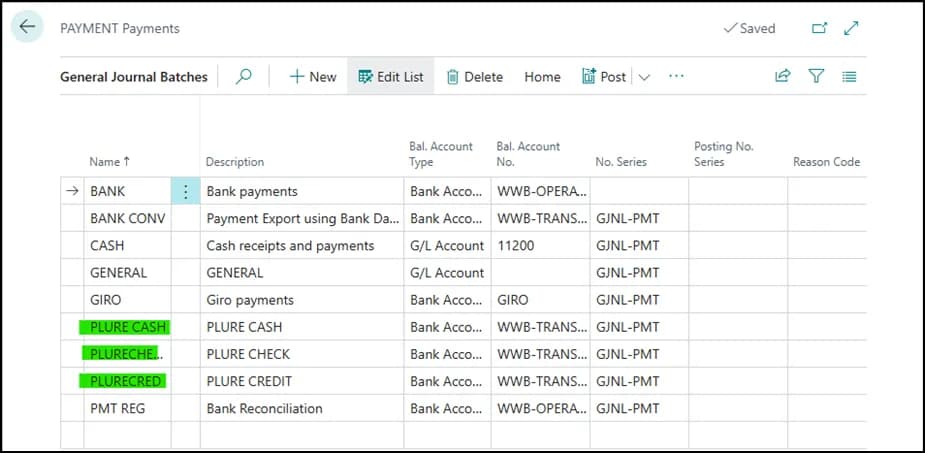
In General Journal Templates create a template named Payments. With it selected, open Batches and create one batch per payment method with Name, Bal. Account Type, Bal. Account No. and Payment Method Code. Then replicate the same methods in the Admin Center.
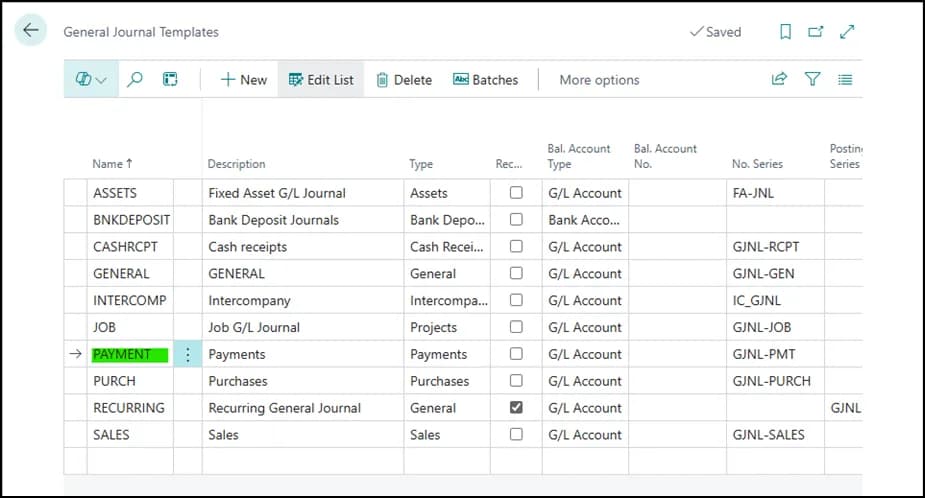
Create one batch per payment method
Select the template and choose Batches. For each method fill in:
| Field | Value |
|---|---|
| Name | Name of the batch, e.g. CASH, CARD |
| Bal. Account Type | Bank Account or G/L Account |
| Bal. Account No. | The account that receives the money |
| Payment Method Code | The payment method the batch represents |
Mirror them in the Admin Center
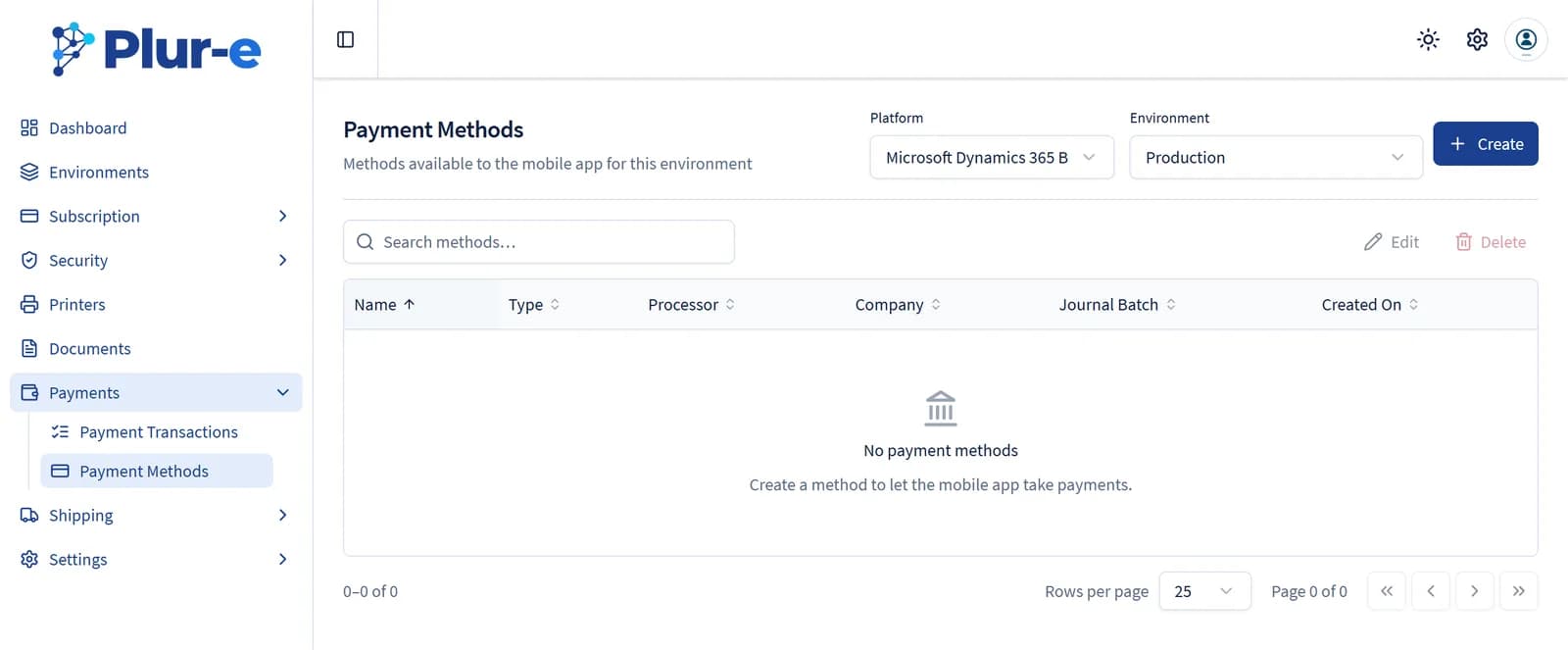
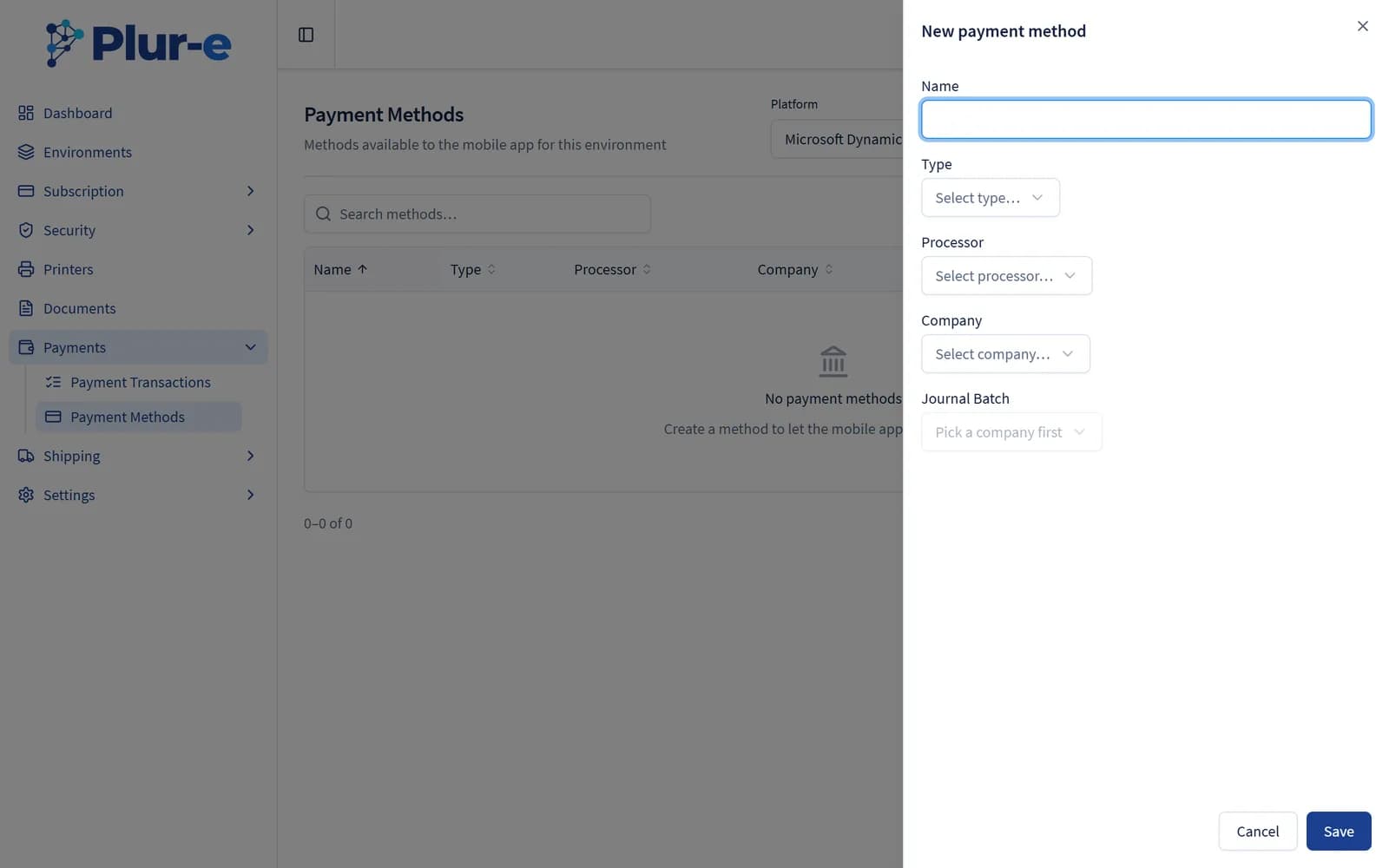
Create the same methods in Admin Center → Payments (guide). Only methods that exist on both sides appear in the app.
Key points
- The template is created once; the batches are the individual methods.
- Batch names must match the methods created in the Admin Center.
In Business Central
Payment Method Codes are defined under Payment Methods; the balancing account on the method or batch decides where the payment is posted.
Last updated on
Edit on GitHubPayments module
Take payments for posted sales invoices in Plur-e Mobile — one or many invoices at a time — using payment methods defined as General Journal Batches in Business Central and mirrored in the Admin Center.
Set up payments in the Admin Center
Mirror the Business Central payment batches as payment methods in the Admin Center and store the Stripe keys that link the card gateway.