

Sales return orders
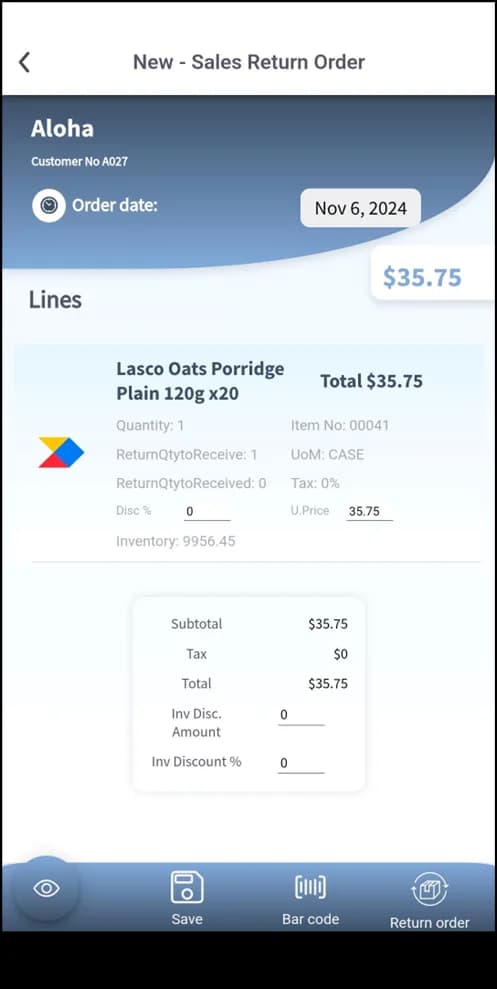
Create a sales return order in Plur-e Mobile from the original order — customer lookup, return items by selection or scan, return location, unit of measure and quantity.
Quick answer
Open Sales Return Orders → Create New Return Order, find the customer by name or original order number, add the returned items from the original order or by scanning, set the return location, unit of measure and quantity, and let Business Central authorize the return and update inventory.
Start the return
Have the original sales order reference at hand. Open Sales Return Orders and select Create New Return Order.
Select the customer
Search by customer name or original order number; verify account status and shipping address.
Add the returned items
- Manual: Add Return Item and pick from the original order.
- Scan: read the barcode with the camera or a Zebra scanner.
Configure each line
Select the return location, unit of measure and returned quantity.
Validate in Business Central
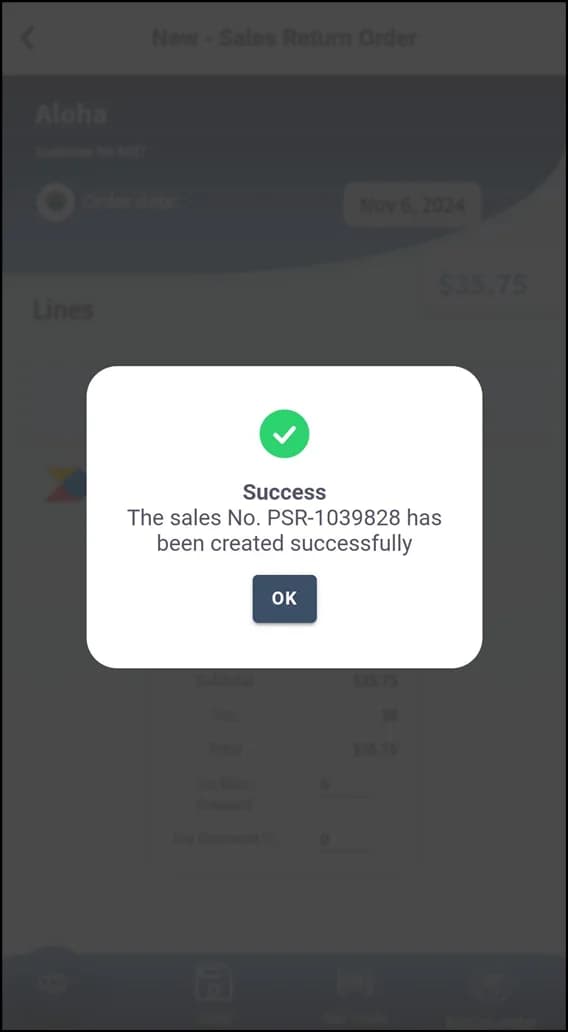
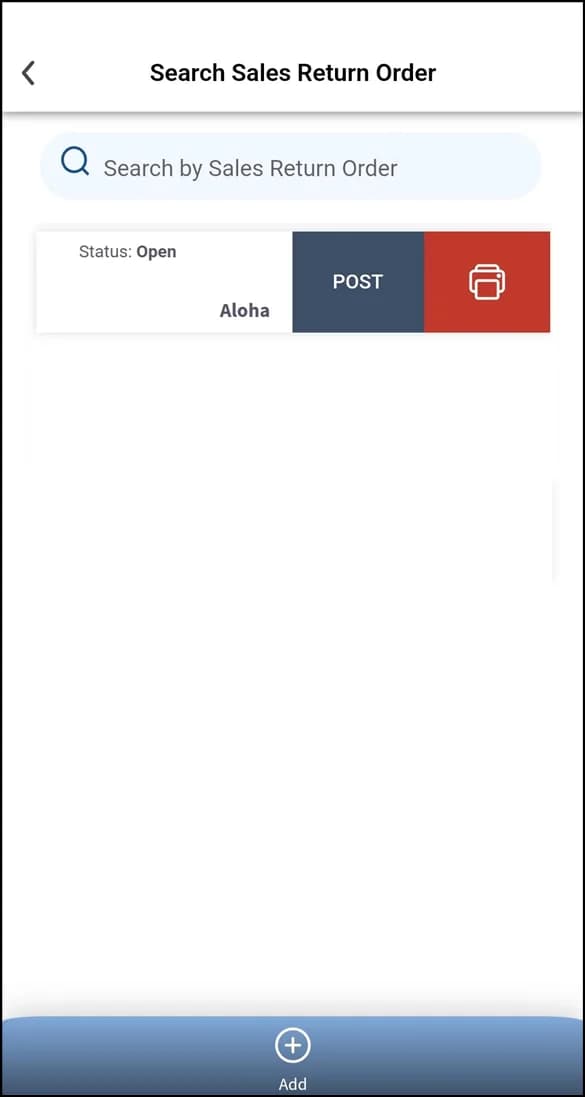
Review items and quantities, generate the return authorization and post to update inventory.
What this posts in Business Central
| Plur-e action | Business Central |
|---|---|
| Send return order | Sales Return Order linked to the customer; receive and post it in Business Central |
In Business Central
In Business Central a return order can copy lines from the original invoice with Copy Document; posting it receives the goods and creates the credit memo.
Last updated on
Edit on GitHubSales orders
Create a sales order in Plur-e Mobile with partial or complete shipment — customer, delivery date, items by search or scan, location, unit of measure, quantity and picking.
Sales invoices
Create a sales invoice in Plur-e Mobile — customer by name, ID or account, items by search or scan, location and quantity — and post it in Business Central.