

Sales invoices
Create a sales invoice in Plur-e Mobile — customer by name, ID or account, items by search or scan, location and quantity — and post it in Business Central.
Quick answer
Open Sales Invoices → Create New Invoice, identify the customer by name, ID or account number, add items manually or by scan, set location, unit of measure and quantity per line and validate in Business Central.
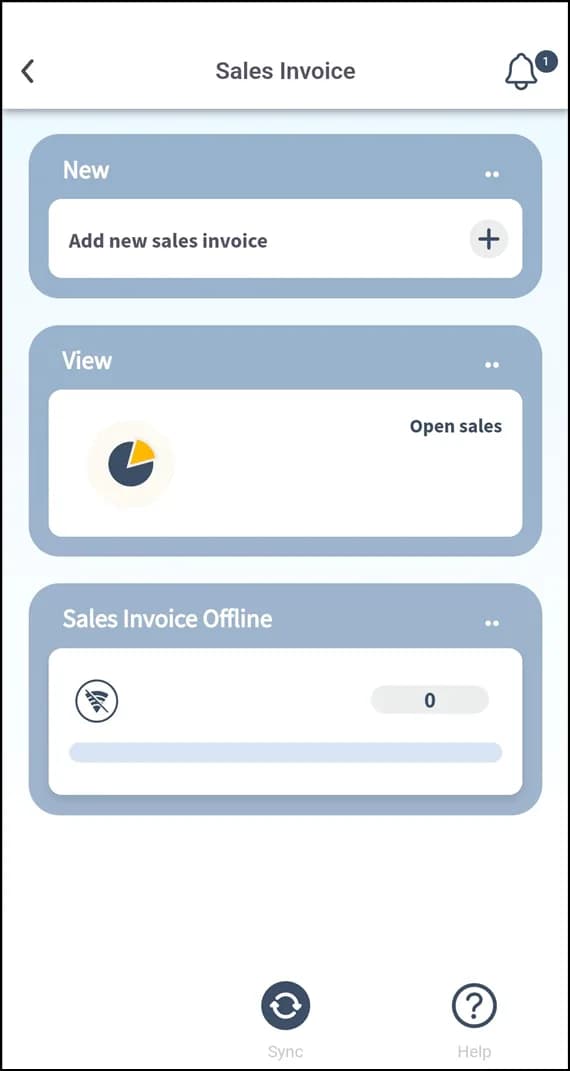
Select the customer
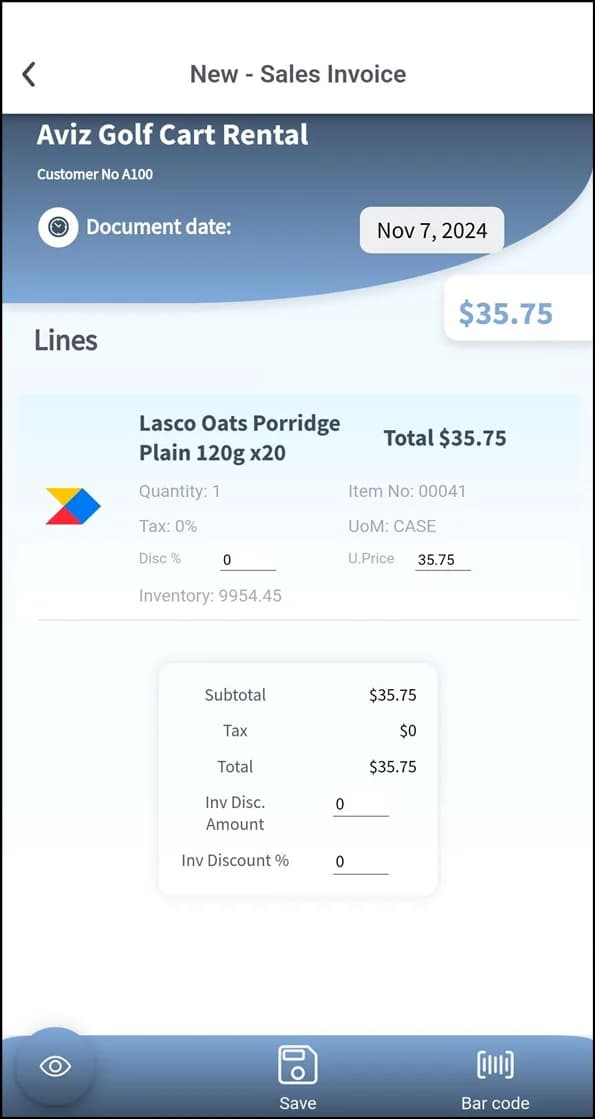
Search by name, ID or account number; verify account status and billing information.
Add items
Add Item and search by code, name or category, or scan the barcode.
Configure each line
Select the location (check stock), unit of measure and quantity.
What this posts in Business Central
| Plur-e action | Business Central |
|---|---|
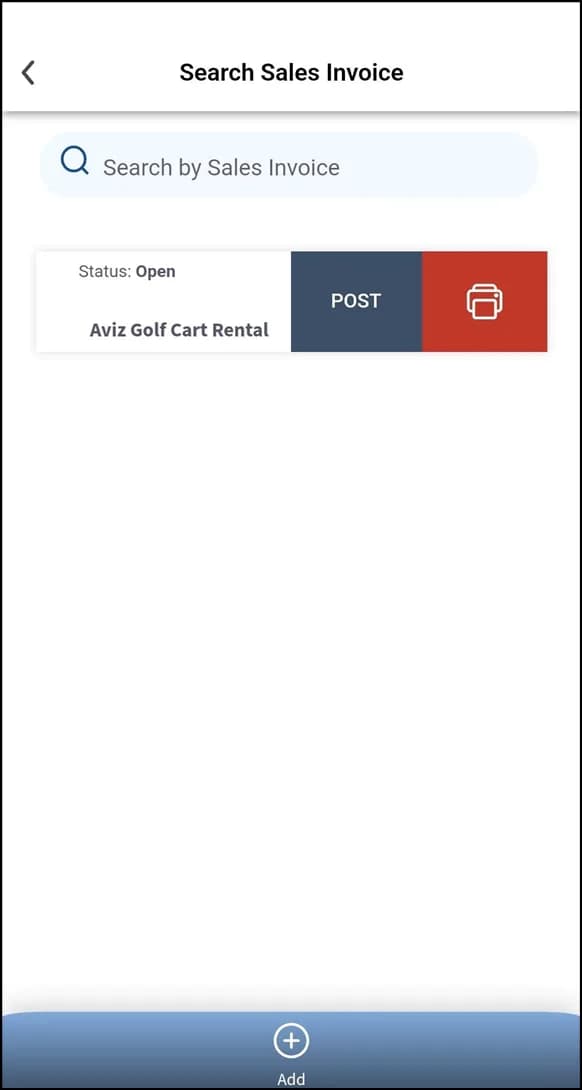
| Send invoice | Sales Invoice; posting updates the general ledger and inventory |
Once posted, the invoice appears under Posted Sales Invoice in the app, where the rep can take the payment.
Last updated on
Edit on GitHubSales return orders
Create a sales return order in Plur-e Mobile from the original order — customer lookup, return items by selection or scan, return location, unit of measure and quantity.
Sales credit memos
Create a sales credit memo in Plur-e Mobile against an original invoice — customer lookup, items from the original document or by scan, return location and quantity.