

Warehouse · Receiving
Receive purchase orders by barcode, straight into Business Central
Open the warehouse receipt on the phone, scan what arrives, capture serials and lots, post. Put-away starts from the same screen.
Quick answer
Plur-e Receiving lets warehouse staff open a Business Central warehouse receipt on an Android device, scan the items, capture serial and lot numbers one by one, review the item tracking setup, post the receipt and continue into put-away. Serial numbers preloaded from the purchase or transfer order are confirmed without rescanning.
Receiving on paper means counting twice
Goods arrive, someone writes quantities on the packing slip, someone else types them into Business Central hours later. Serialized items get transcribed by hand. Plur-e removes the second step: the receipt is posted from the dock, with the serials already captured.
How it works
Receiving: how it works
Create the warehouse receipt in Business Central
From the purchase or transfer order, choose Create Warehouse Receipt and assign the warehouse user. The document appears in Plur-e for that user.
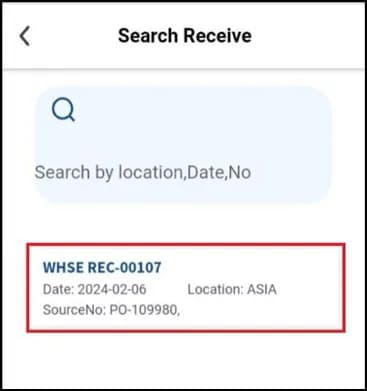
Open Warehouse Receipt in Plur-e Mobile
Select the receipt from the list. Items without tracking are received by scanning and entering the quantity.
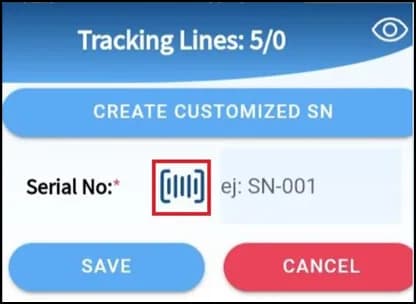
Scan serial numbers individually
For serialized items, each scan counts and lists the serial. Tap the “?” icon to see how the item is tracked; select and delete a serial to correct a mistake.
Confirm preloaded serials
If the order already carries serial numbers, review them on screen and confirm — no rescan needed.
Post, then decide on put-away
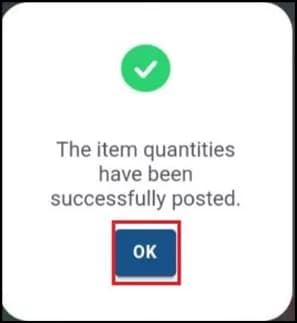
Tap Post to register the receipt in Business Central. Plur-e asks whether to continue with put-away right away.
What this posts in Business Central
| Plur-e action | Business Central |
|---|---|
| Send quantities and serials | Warehouse Receipt lines (Qty. to Receive, item tracking) |
| Post | Posted Warehouse Receipt → item ledger and inventory |
| Continue with put-away | Warehouse Put-away (see Put-away) |
Offline behaviour
Receiving needs a connection: each item you send updates Qty. to Receive in Business Central and posting runs from the device, with automatic retries when the network blips. Work in progress on a receipt (scanned items, serials and license plates) is kept on the device until you post it.
Specifications
| Business Central pages | Warehouse Receipts, Purchase Orders, Transfer Orders |
|---|---|
| Item tracking | Serial and lot numbers, preloaded or scanned; expiry date captured with the lot or serial |
| Barcodes | UPC, EAN-8, EAN-13, Code 39, QR (camera or Zebra scanner) |
| License plates | Create LPs while receiving (New LP → scan → save) |
| Works offline | Yes — syncs when back online |
| Requires | Warehouse user assigned in Business Central; Receiving enabled in the user's Plur-e role |
FAQ
Frequently asked questions
Put your AI, Business Central and Dynamics 365 CRM to work together
Book a 2-hour MCP discovery workshop, or start the 30-day trial of Plur-e Mobile from AppSource.