

Operations · Printing
Print ZPL labels and Business Central documents from the app
A small Windows service, a printer key, and every device in the warehouse can print to the right printer.
Quick answer
Plur-e prints labels (items, bins, license plates, shipping) on Zebra and ZPL-compatible printers and documents such as packing slips, invoices and receipts through Plur-e Printer, a Windows desktop application linked to the Admin Center with a printer key. Printers are created in the Admin Center with the exact Windows device name and a format; printed documents are kept in a history where they can be viewed in their original format and reprinted. Bluetooth printers can be used directly from the phone.
The label printer is always somewhere else
Operators walk to a PC to print a label for the pallet they just built. With Plur-e the print job goes from the phone to the nearest configured printer.
How it works
Label & Document Printing: how it works
Install Plur-e Printer
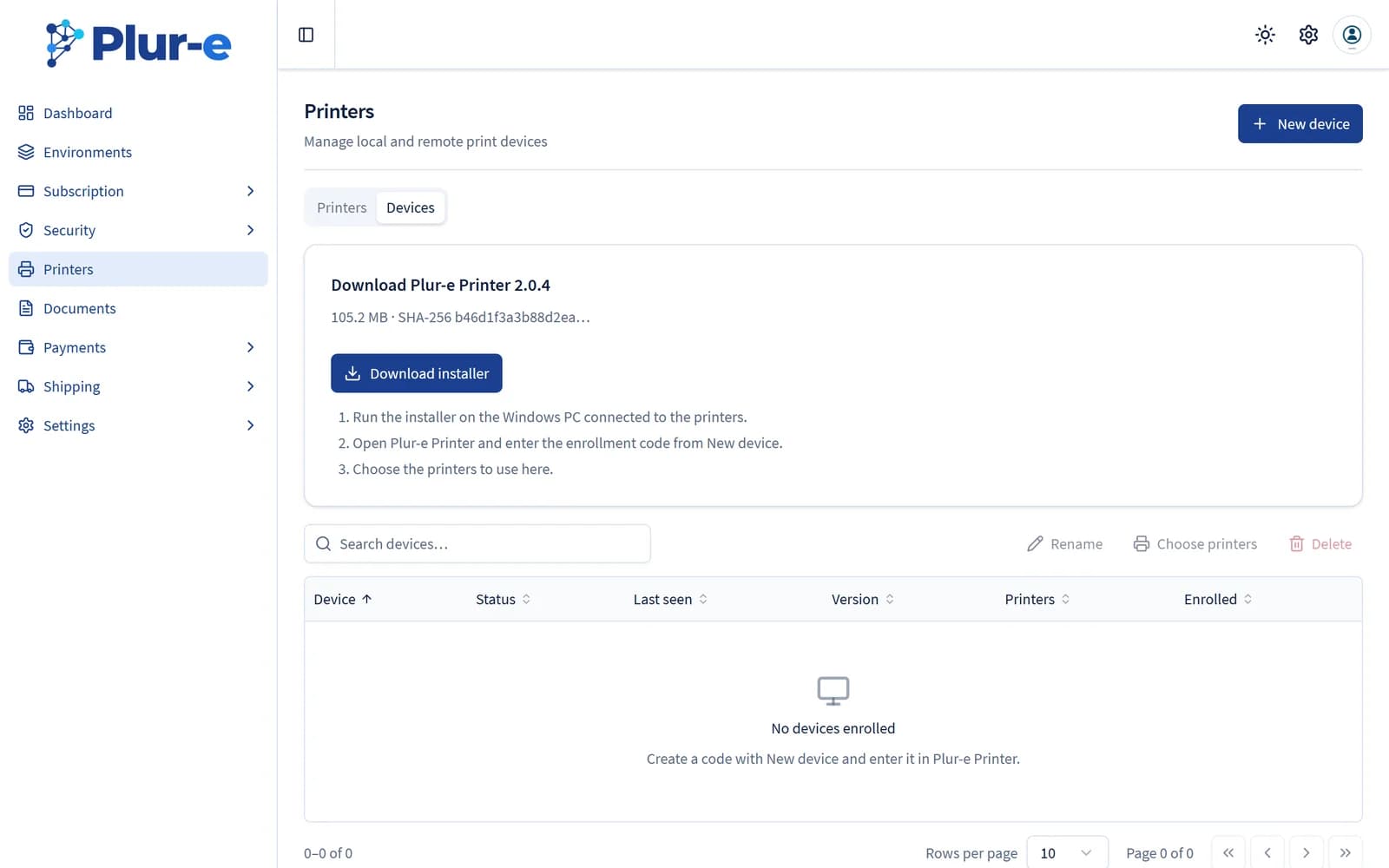
Download Plur-e Printer from the Admin Center (Printers section), then run the installer as administrator on the Windows PC connected to the printers; install the required framework when prompted.
Create the printer in the Admin Center
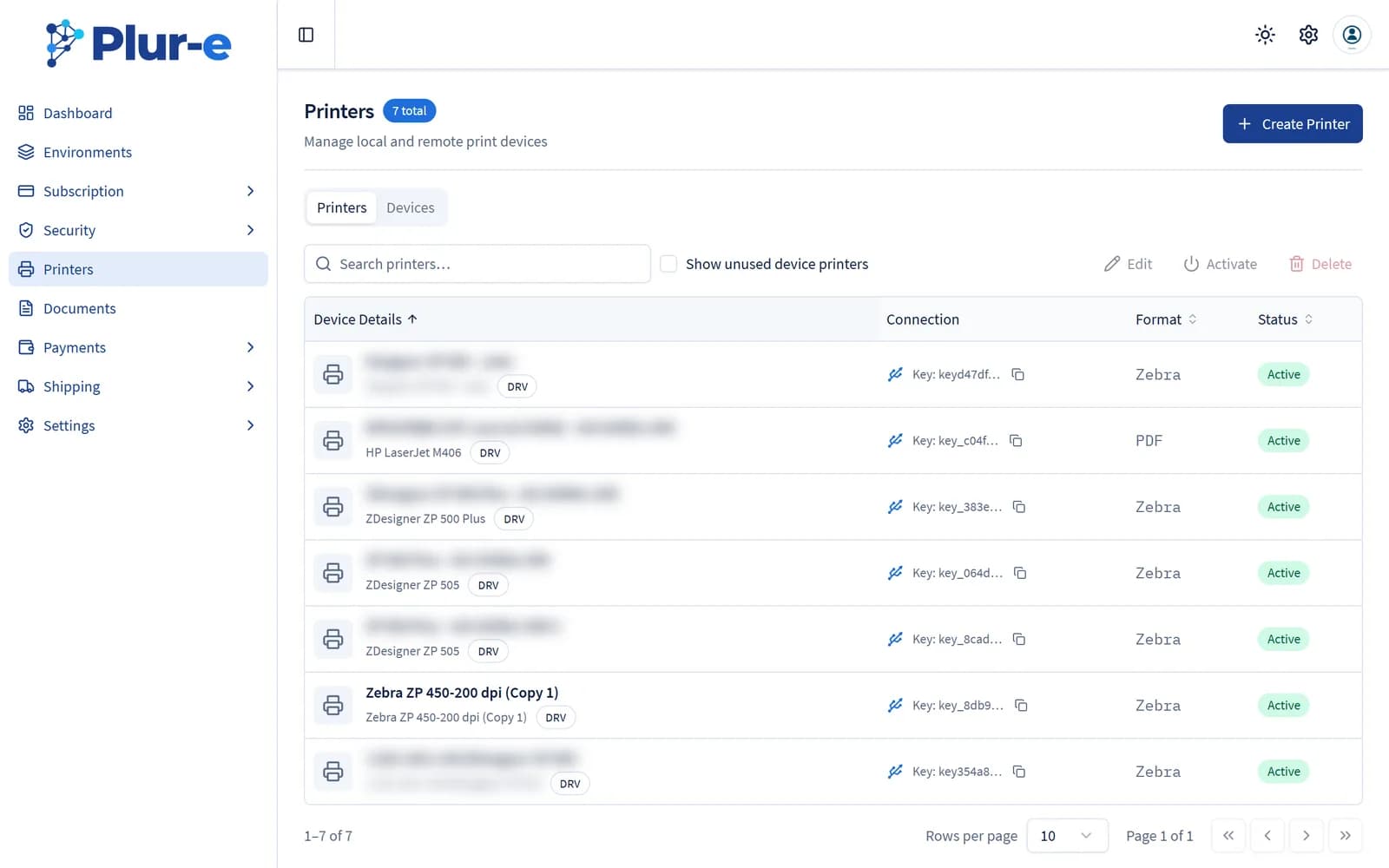
Printers → Create: name exactly as in Windows devices, description and format. Save and activate.
Pair with the printer key
Copy the Printer Key from the printer list and paste it into Plur-e Printer; activate the print service.
Print from the app
Choose the printer when printing a label or a paid invoice. Documents appear in the Admin Center history for reprint.
What this posts in Business Central
| Plur-e action | Business Central |
|---|---|
| Document history in Admin Center (view original, reprint) |
Offline behaviour
Print jobs are queued in Plur-e: Plur-e Printer polls the queue from the Windows PC and prints them in order, so a job sent while the PC is offline prints when it reconnects. Bluetooth printing goes straight from the phone to the printer.
Specifications
| Printers | Zebra and ZPL-compatible label printers; Windows printers via Plur-e Printer; Bluetooth printers from the phone |
|---|---|
| Formats | ZPL and CPCL labels (license plates, item IDs); PDF documents (sales order, invoice, receipt, packing list) rendered from HTML templates |
| Setup | Admin Center → Printers (name, description, format, Printer Key) |
| Remote printers | Supported on request (contact form) |
| History | Admin Center → Documents: view and reprint |
FAQ
Frequently asked questions
Put your AI, Business Central and Dynamics 365 CRM to work together
Book a 2-hour MCP discovery workshop, or start the 30-day trial of Plur-e Mobile from AppSource.