

Set up the Admin Center
After installing the extension, configure Plur-e from the Admin Center — confirm the environment, test the connection, create users and roles and hand out temporary passwords.
Quick answer
Once the extension is installed, Plur-e Support emails you the link to the Admin Center. Open Environments and test the connection, then create mobile users in Security, assign them environments and roles, and let each user sign in to the app with the temporary password they receive by email.
Open the Admin Center
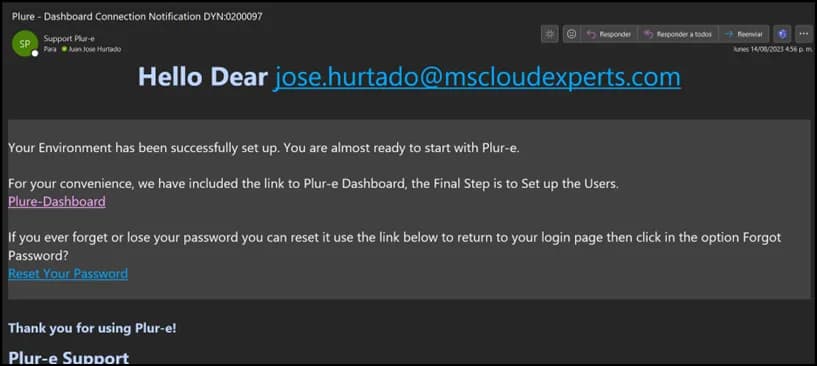
After the extension is installed you receive an email from Plur-e Support confirming the environment is configured. It contains the link to the Admin Center at admincenter.plur-e.com. You can also open it from the Plur-E Setup page in Business Central.
Know the sections
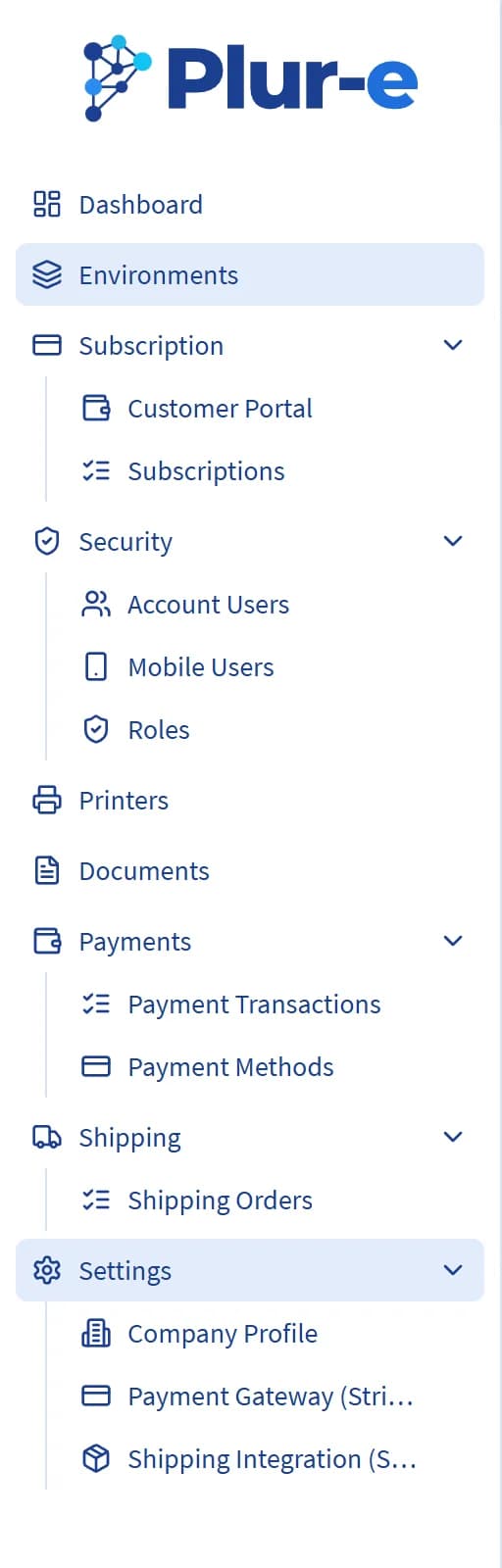
The left menu has Dashboard, Environments, Subscription, Security, Printers, Documents, Payments, Shipping and Settings. Each one is described in Admin Center.
Check the environment
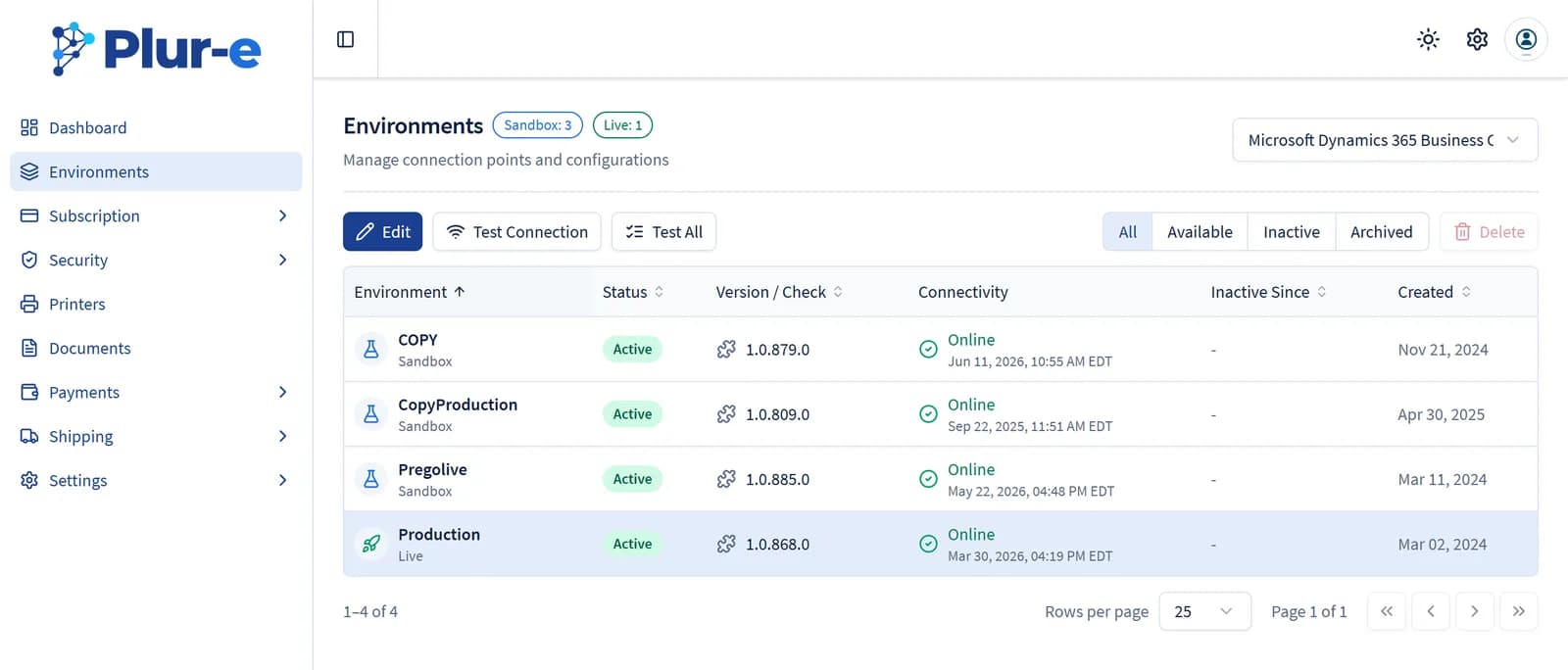
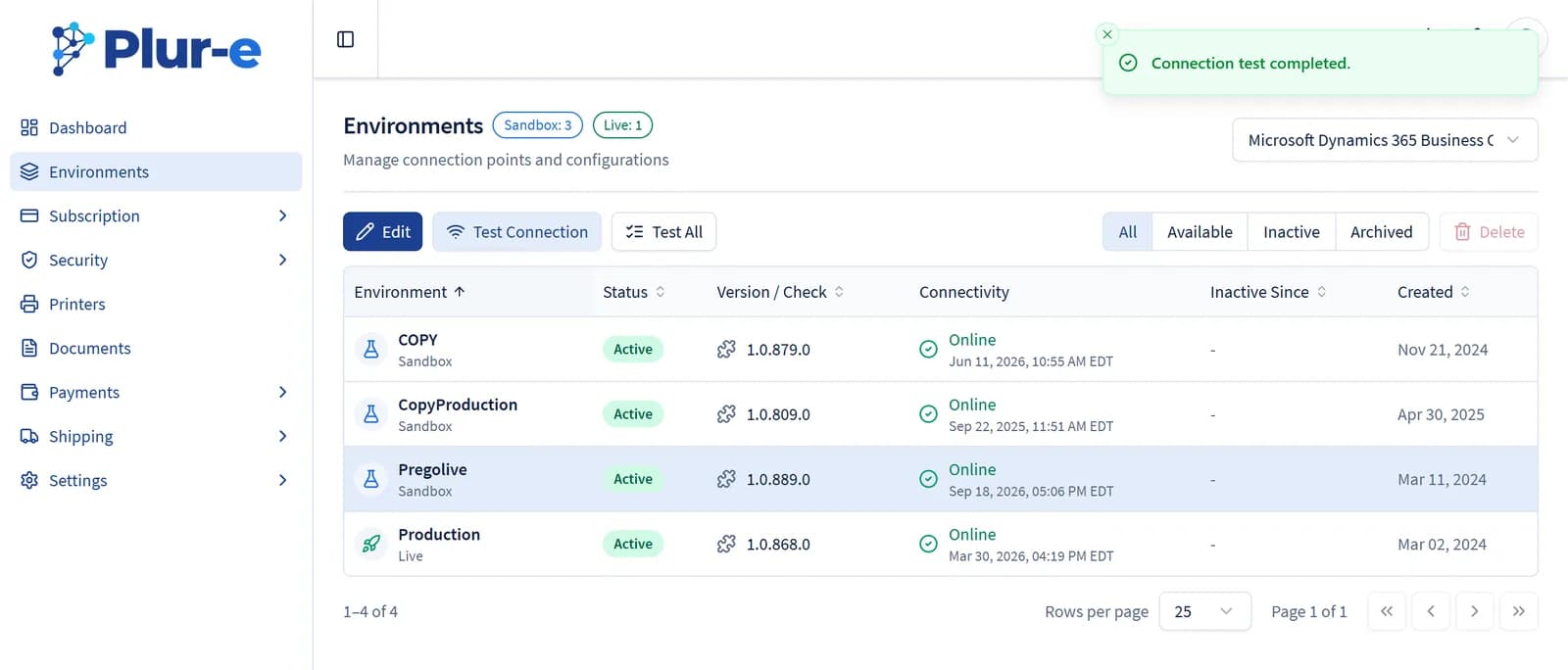
Open Environments. The Business Central environments configured by support are listed as Sandbox or Live; select one and choose Test Connection to confirm the extension answers, or Edit to review its companies.
Create users
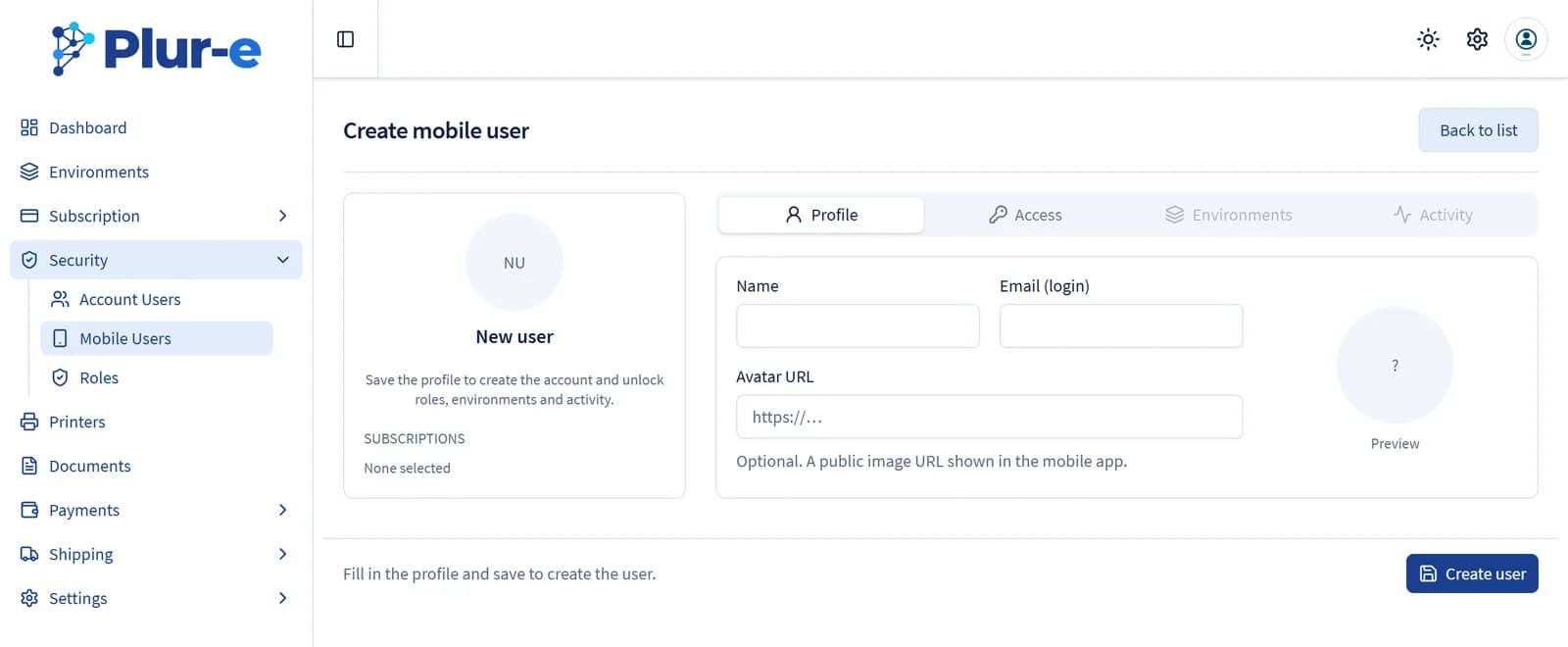
Open Security → Mobile Users and select Create User. Give each mobile user a subscription, a role, their environments and companies and — per module — the ERP user (salesperson) and location from Business Central.
Create roles (optional)
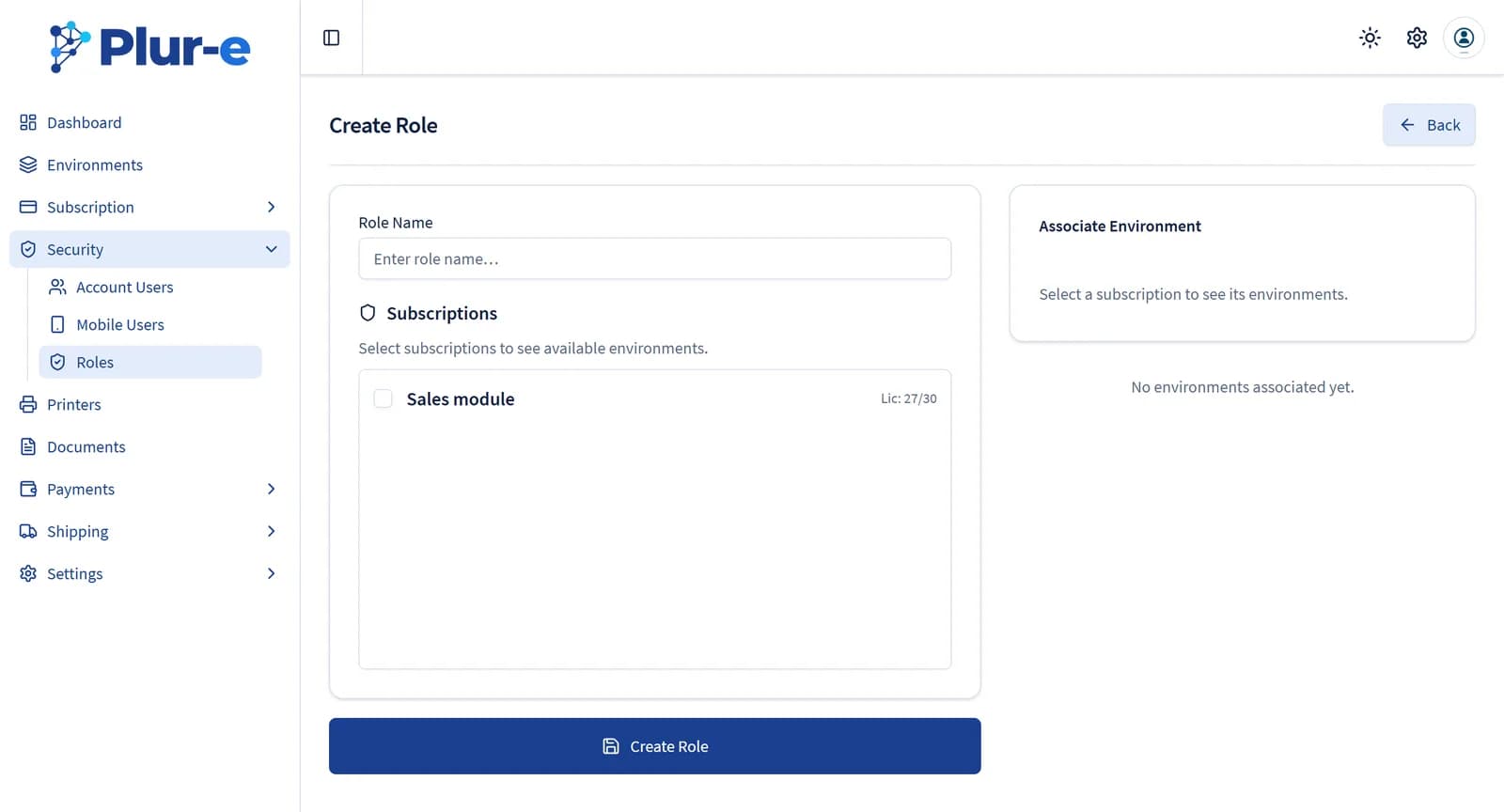
In Security → Roles create roles for a subscription and its environments to limit which modules a user sees.
Send the temporary passwords
Each new user receives a temporary password by email. They change it after the first sign-in in the app.
Result
- The environment is verified from the Admin Center.
- Every mobile user exists with the right environment, role and salesperson.
Next steps
- Install the mobile app and sign in
- Configure payment methods if you subscribed the Payments module
- Add printers if you print from the app
Last updated on
Edit on GitHubInstall the Plur-e extension
Install Plur-e from Microsoft AppSource, run the Plur-E Setup wizard, grant Entra ID consent, choose number series and enable Allow HttpClient Requests.
Install the mobile app and sign in
Install Plur-e Mobile from Google Play, sign in with the user created in the Admin Center, change the temporary password and set the company and location defaults.