

Install the mobile app and sign in
Install Plur-e Mobile from Google Play, sign in with the user created in the Admin Center, change the temporary password and set the company and location defaults.
Quick answer
Install Plur-e from Google Play, sign in with the user and temporary password sent by email, change the password when prompted and check that the company and default location match the Business Central environment you were assigned.
Install Open [Plur-e on Google
Play](https://play.google.com/store/apps/details?id=com.plure.app) and install the app. The device needs Android 9.0 or later and about 100 MB free.
Sign in Enter the user name created in the Admin Center and the temporary password
from the welcome email.
Change the password On first sign-in the app asks for a new password. Choose one
that meets your company policy.
Check company and location The active company comes from the environment assigned
to the user. The default location is set per user in the Admin Center (Security → Users → preferences) and is used by inventory counts and warehouse documents.
Allow permissions Grant camera access for scanning. If you print to Bluetooth
printers, also allow Bluetooth in the Android app settings.
Manual install (APK)
Devices without access to Google Play (for example in mainland China) can install Plur-e from an APK instead. Download it from plur-e.com/download/android, where you can also check the version and the SHA-256 checksum of the file. Before opening it, allow your browser to install unknown apps (Settings → Apps → Special access → Install unknown apps). Apps installed this way do not update themselves: return to that page to download a new version when one is published.
Home screen
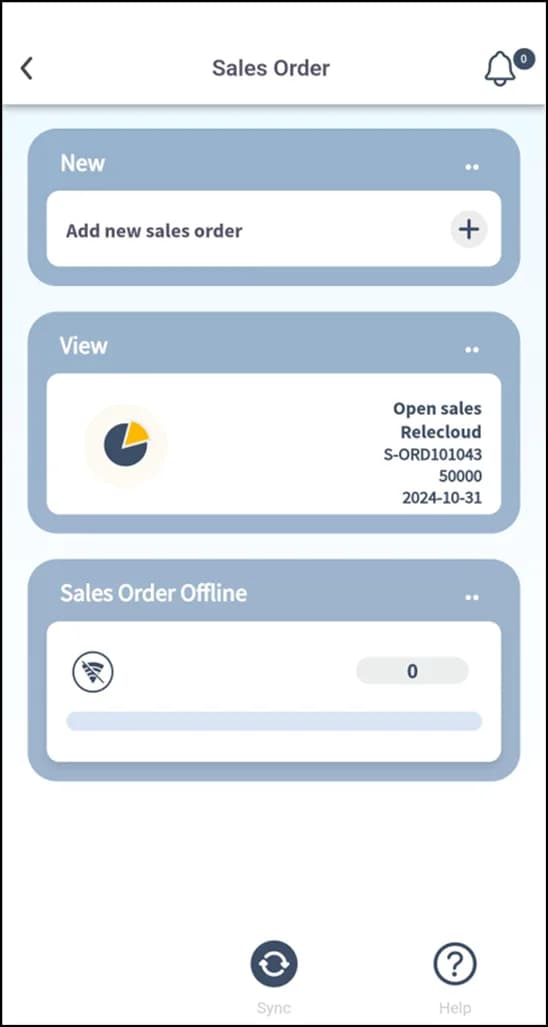
The home screen lists the modules enabled for your role: Warehouse, Inventory Cycle Count, Sales, Payments and, when configured, Printing. The bottom bar has Sync (push pending offline work) and Help.
Next step
Read the first-day checklist for your role.
Last updated on
Edit on GitHubSet up the Admin Center
After installing the extension, configure Plur-e from the Admin Center — confirm the environment, test the connection, create users and roles and hand out temporary passwords.
First-day checklist
A short checklist per role — administrator, warehouse and sales — to confirm Plur-e is ready before the first shift.