

Install the Plur-e extension
Install Plur-e from Microsoft AppSource, run the Plur-E Setup wizard, grant Entra ID consent, choose number series and enable Allow HttpClient Requests.
Quick answer
Install Plur-e from AppSource into the chosen environment, then open Assisted Setup → Plur-E Setup, accept the terms, click Grant Consent in the Microsoft Entra ID dialog, review the pre-selected number series and finish. If Business Central asks you to configure the extension, enable Allow HttpClient Requests in Extension Management.
Before you start
- Complete the requirements: Global Administrator account, SUPER permission set, target environment.
- Installing an extension interrupts every user session in the environment.
Install from AppSource
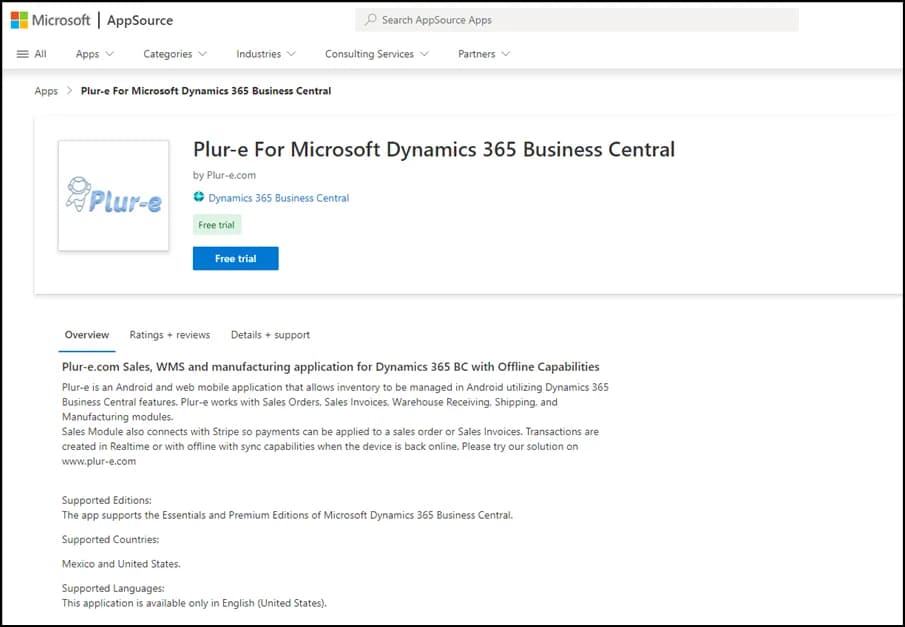
Find Plur-e on AppSource
Search for Plur-e in Microsoft AppSource or open the listing from the Plur-e site and select Get it now.
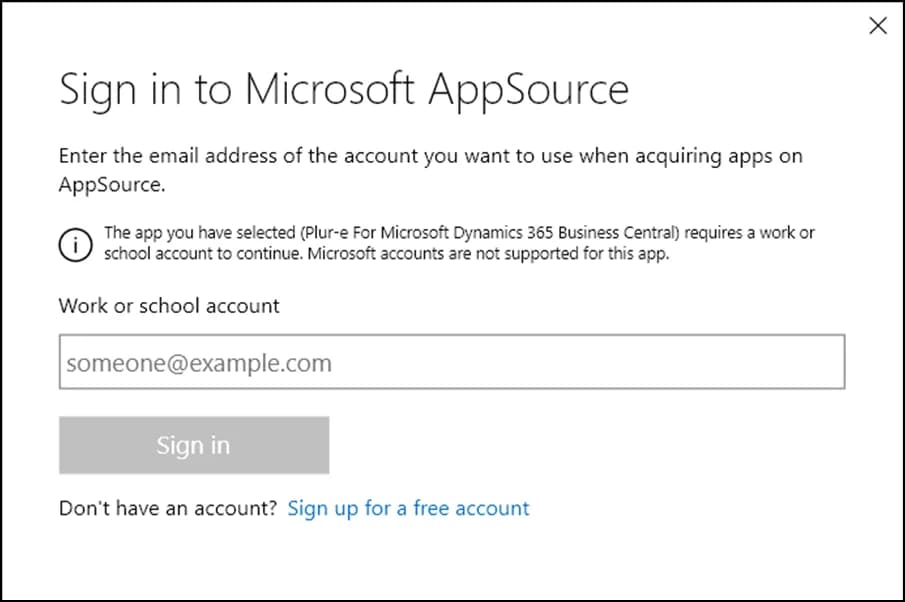
Sign in with the purchasing account
Use the Global Administrator account of the tenant that will use Plur-e.
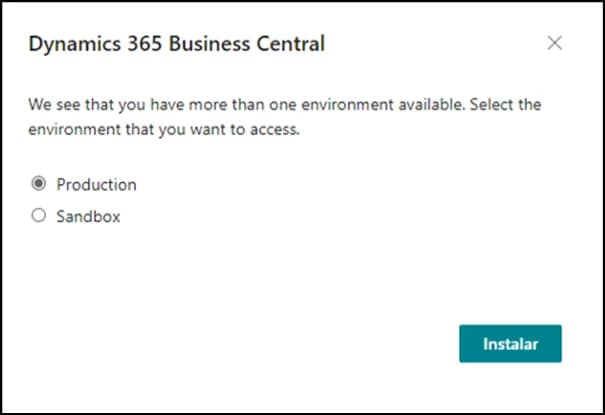
Choose the environment
Select the production or sandbox environment where the extension will be installed.
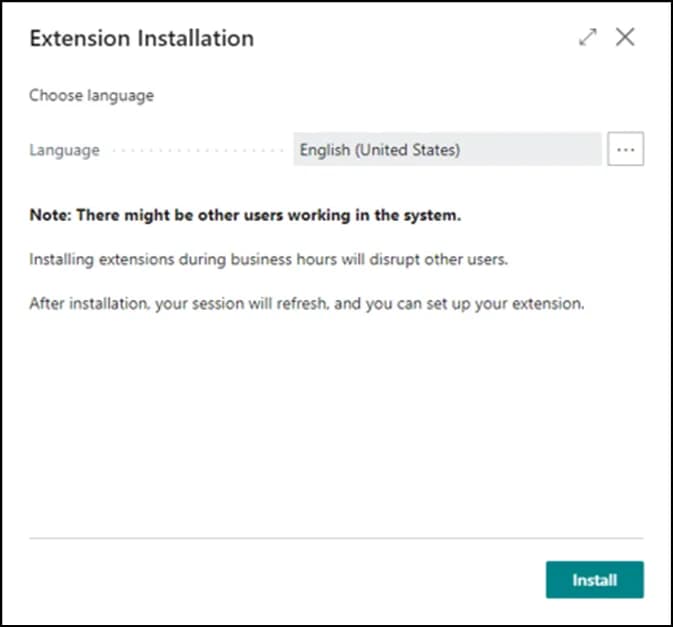
Follow the Business Central install steps
Confirm the language and accept the installation. Wait until the extension shows as installed.
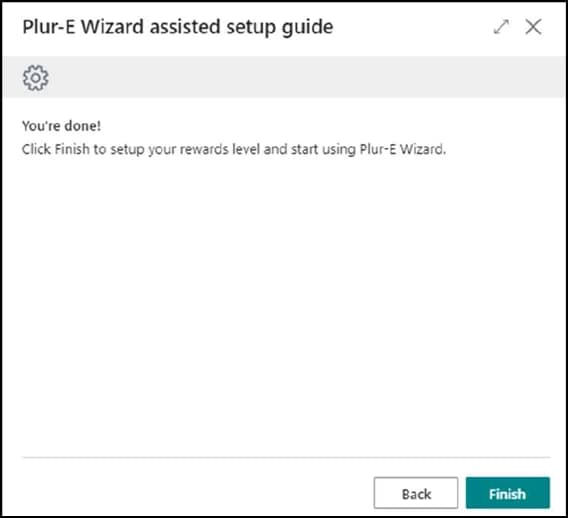
Run the Plur-E Setup wizard
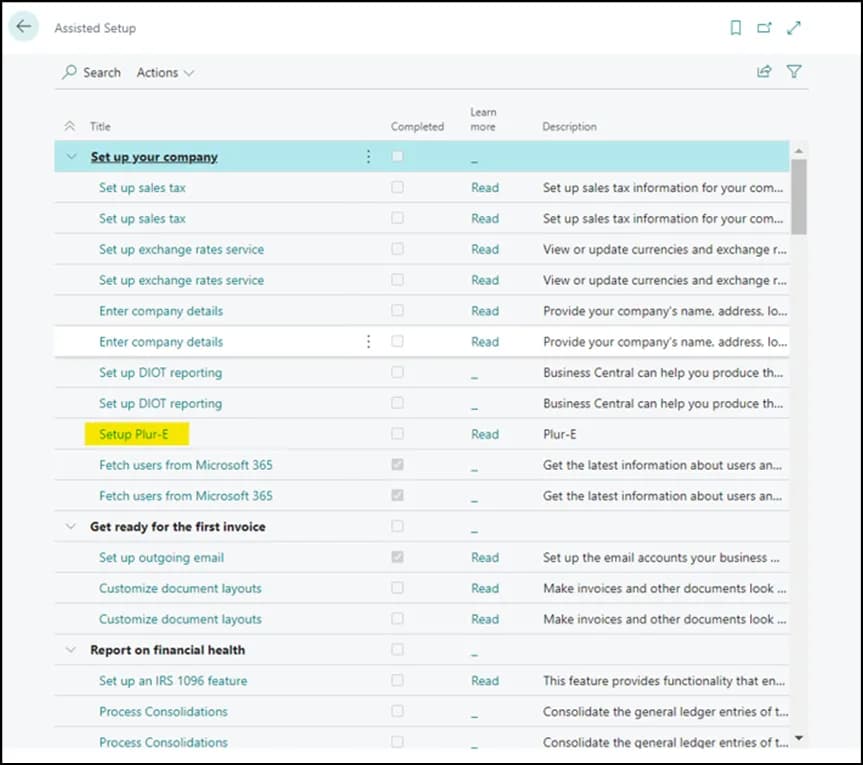
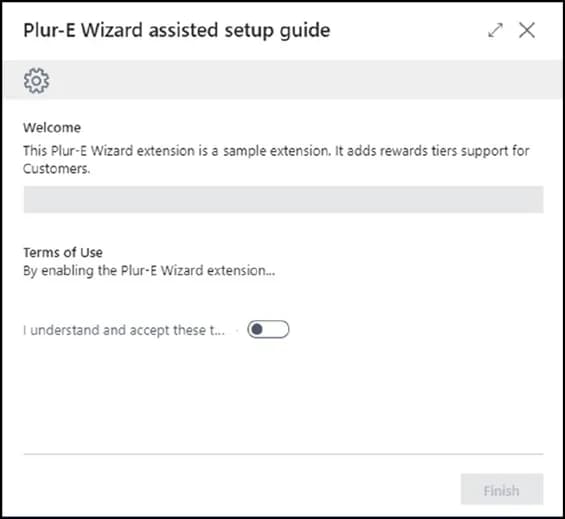
Grant consent
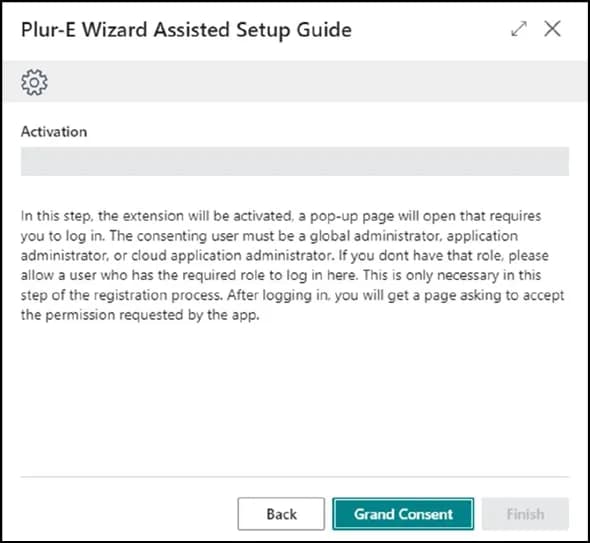
The wizard opens the Business Central Microsoft Entra ID (Azure AD) application. Select Grant Consent so Plur-e can call the Business Central APIs on behalf of the tenant.
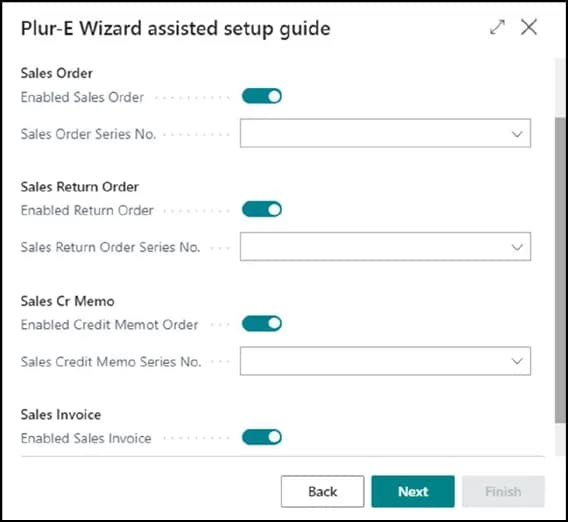
Review the number series
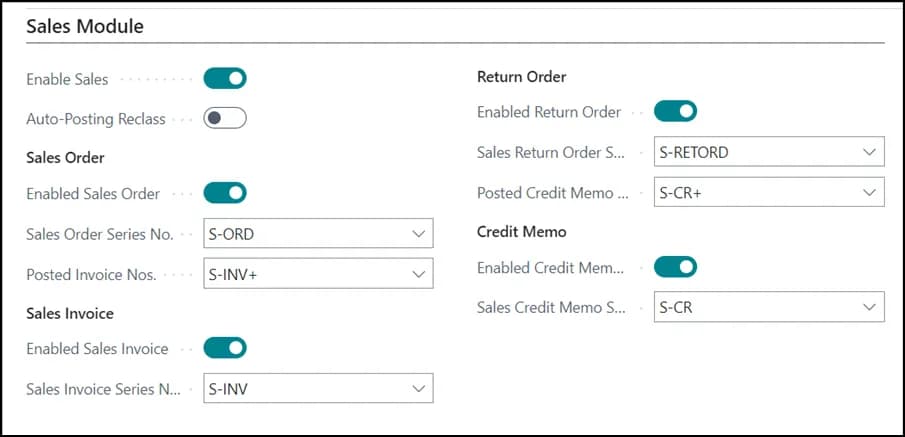
The wizard lists the number series Plur-e Mobile will use for each document type. They are pre-selected according to the modules subscribed in the Plur-e portal; change them only if your company uses different series.
Check the Plur-E Setup page
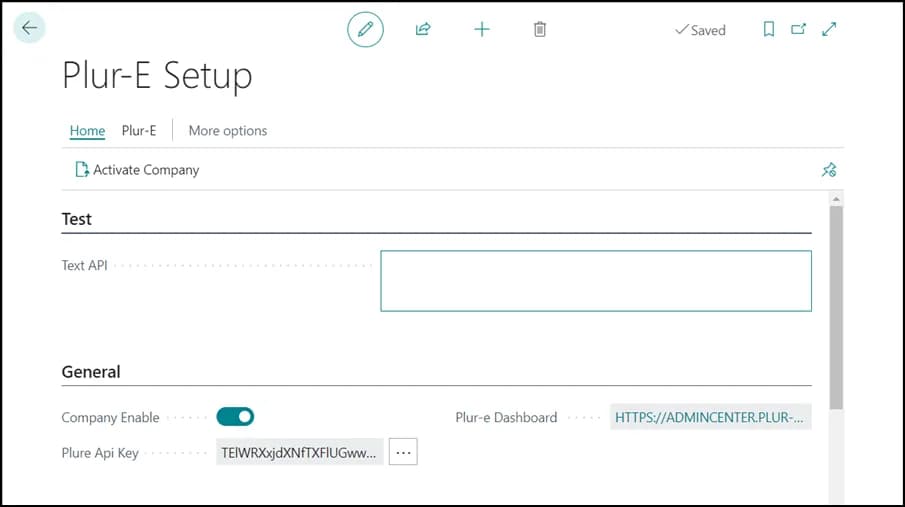
Search for Plur-E Setup. The page shows every setting and the link to the Admin Center, where you configure the modules you subscribed (for example, Sales).
If Business Central asks you to configure the extension
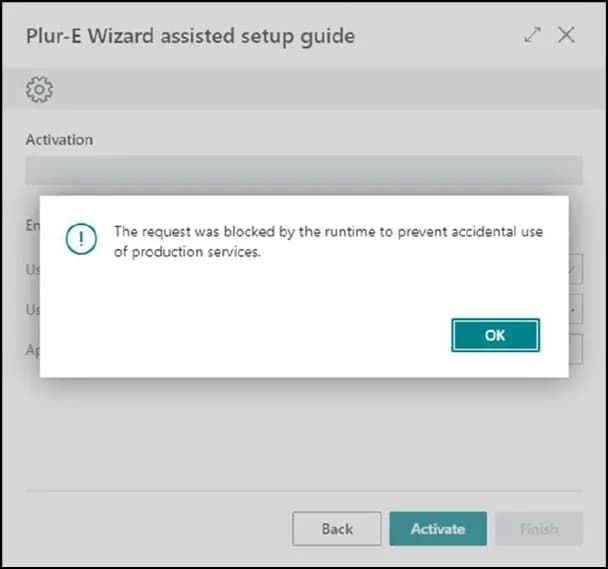
If you see the message "Go to the Extension Management page, select the Plur-E extension and select Configure":
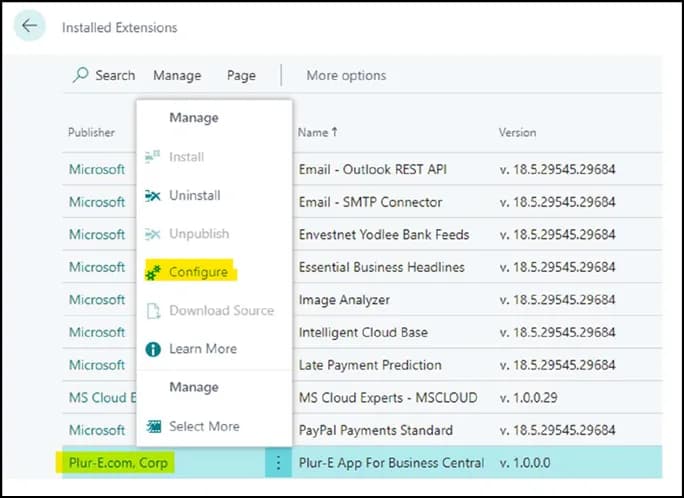
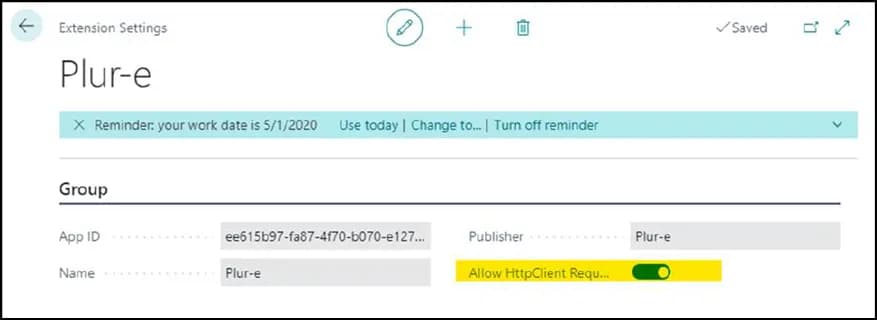
Enable Allow HttpClient Requests
Turn on Allow HttpClient Requests and close the page. Without it the extension cannot call Plur-e services.
Result
- The Plur-e extension is installed and consented in the environment.
- Number series are assigned for the documents the mobile app will create.
- You can open the Admin Center from the Plur-E Setup page.
Next step
Set up the Admin Center: register the environment, create users and send them their temporary passwords.
Common problems
| Symptom | Fix |
|---|---|
| "Configure the extension" message | Enable Allow HttpClient Requests as described above. |
| Grant Consent fails | Sign in with a Global Administrator of the tenant; consent needs admin rights. |
| Users cannot see documents in the app | Create the users in the Admin Center and assign the environment; for warehouse documents set the Assigned User ID in Business Central. |
Last updated on
Edit on GitHubRequirements
What you need before installing Plur-e — a Business Central environment, a Global Administrator account with SUPER permissions and an Android device.
Set up the Admin Center
After installing the extension, configure Plur-e from the Admin Center — confirm the environment, test the connection, create users and roles and hand out temporary passwords.