

Requirements
What you need before installing Plur-e — a Business Central environment, a Global Administrator account with SUPER permissions and an Android device.
Quick answer
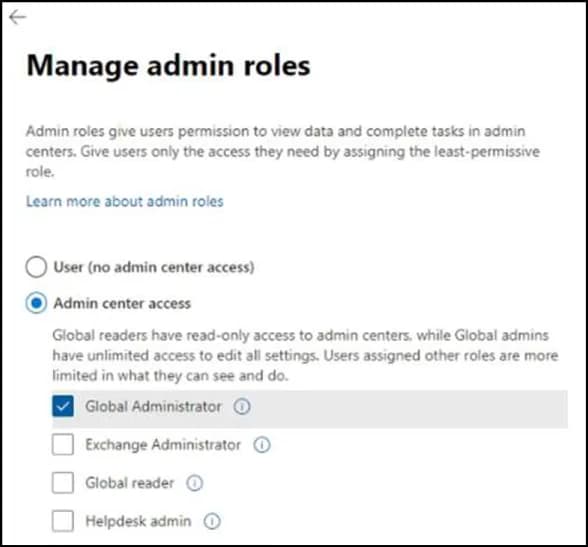
To install Plur-e you need (1) a Business Central production or sandbox environment, (2) a user who is Global Administrator in Microsoft 365 for every company that will use Plur-e — with the SUPER permission set in Business Central — and (3) an Android 9+ device for Plur-e Mobile.
Business Central
| Requirement | Detail |
|---|---|
| Environment | Production or sandbox. Install in a sandbox first if you want to test number series and permissions. |
| Companies | The installer must be Global Administrator in all companies configured in Business Central. |
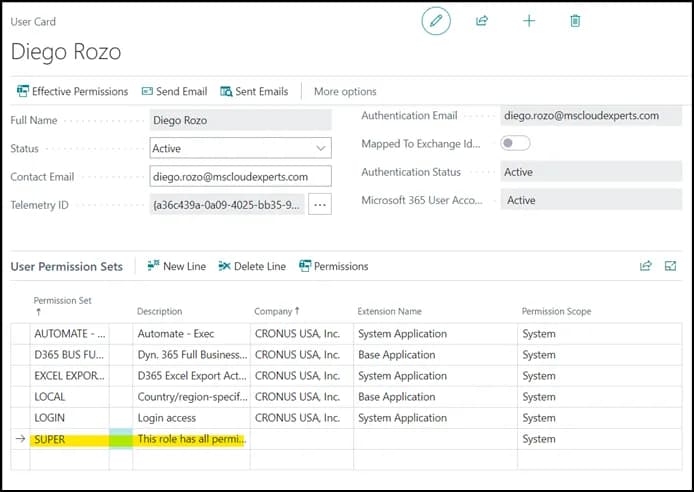
| Permissions | Assign the SUPER permission set to the installing user in Business Central. |
| Sessions | Installing any extension interrupts the sessions of every user in that environment. Plan a quiet moment. |
Microsoft 365 account
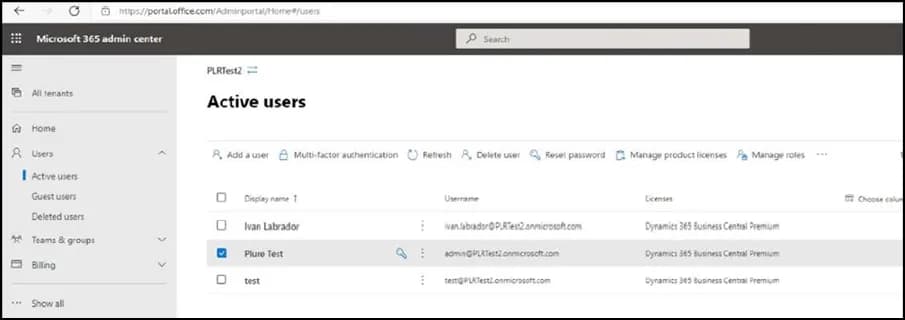
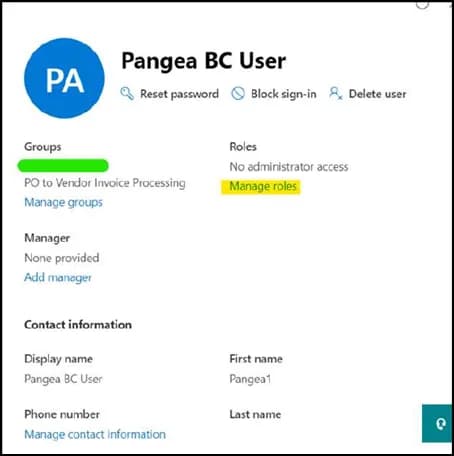
Plur-e is installed and consented with a Global Administrator account. To grant that role:
Open the Microsoft 365 admin center
Go to portal.office.com/Adminportal/Home#/users and select the user.
SUPER in Business Central
In Business Central, open Users, select the same user and add the SUPER permission set.
Devices
| Requirement | Detail |
|---|---|
| Operating system | Android 9.0 or later. An iOS build is available; ask support for the current status of your modules on iOS. |
| Storage | At least 100 MB free. |
| Network | Internet access to Plur-e services. Sales orders can be captured offline and synced later. |
| Scanning | Device camera or a Zebra scanner. |
Next step
Last updated on
Edit on GitHubPlur-e documentation
Install, configure and use Plur-e Mobile with Microsoft Dynamics 365 Business Central. Guides by role for administrators, warehouse teams, sales reps and developers.
Install the Plur-e extension
Install Plur-e from Microsoft AppSource, run the Plur-E Setup wizard, grant Entra ID consent, choose number series and enable Allow HttpClient Requests.