

Add a printer
Choose the printers reported by Plur-e Printer in the Admin Center, activate them and use their Printer Key from Business Central and Plur-e Mobile; register a printer by hand only when it is not managed by a device.
Quick answer
Once a computer is linked with Plur-e Printer, it reports every printer installed on it. In admincenter.plur-e.com open Printers, tick Show unused device printers, select the ones you need and Activate them. Each active printer has a Printer Key that Business Central and Plur-e Mobile use to send documents to it. Create Printer is only for printers that no device manages.
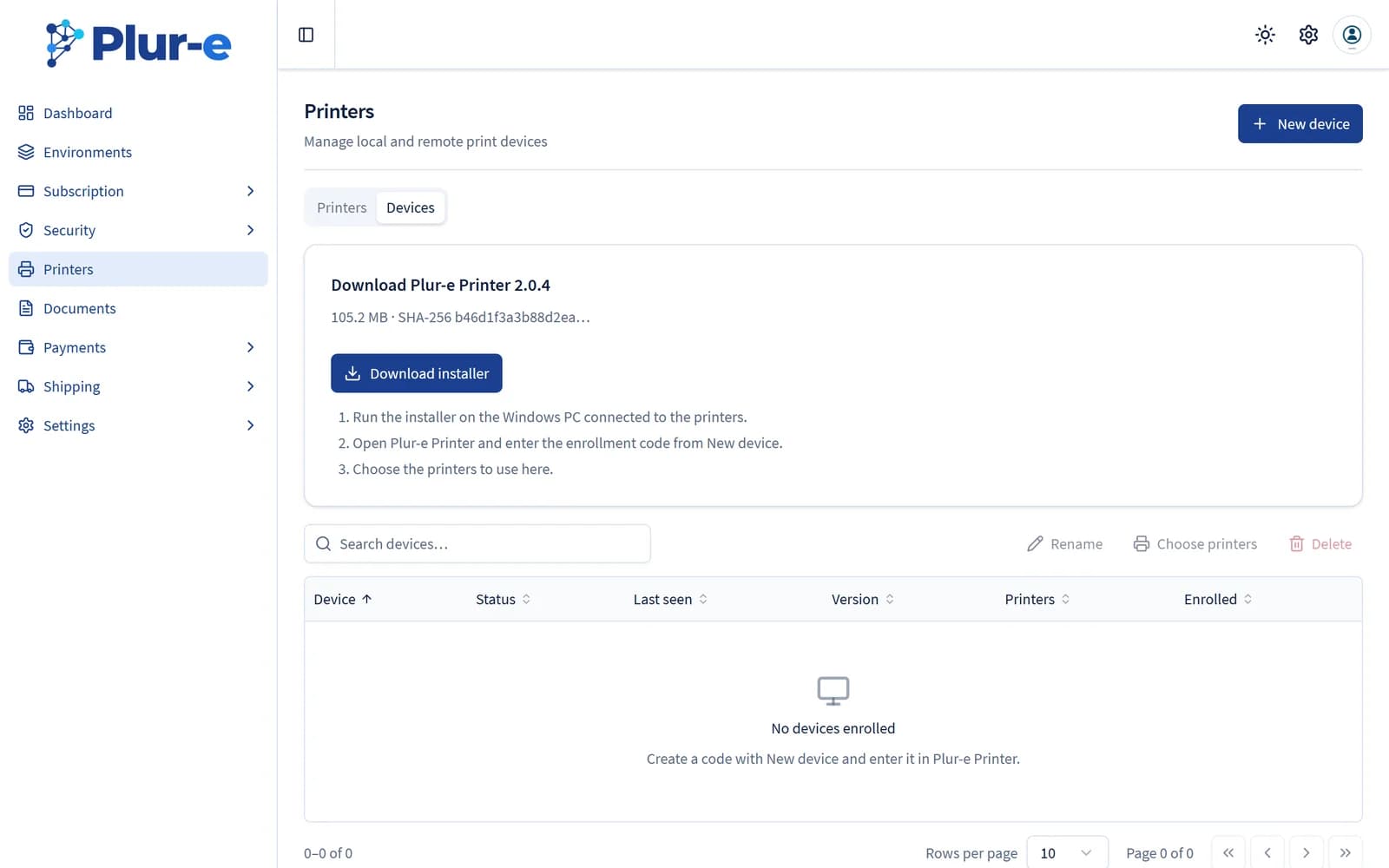
Check the device is online
In Printers → Devices the linked computer must show Online with its printer count. If it is Offline, open Plur-e Printer on that PC.
Choose the printers
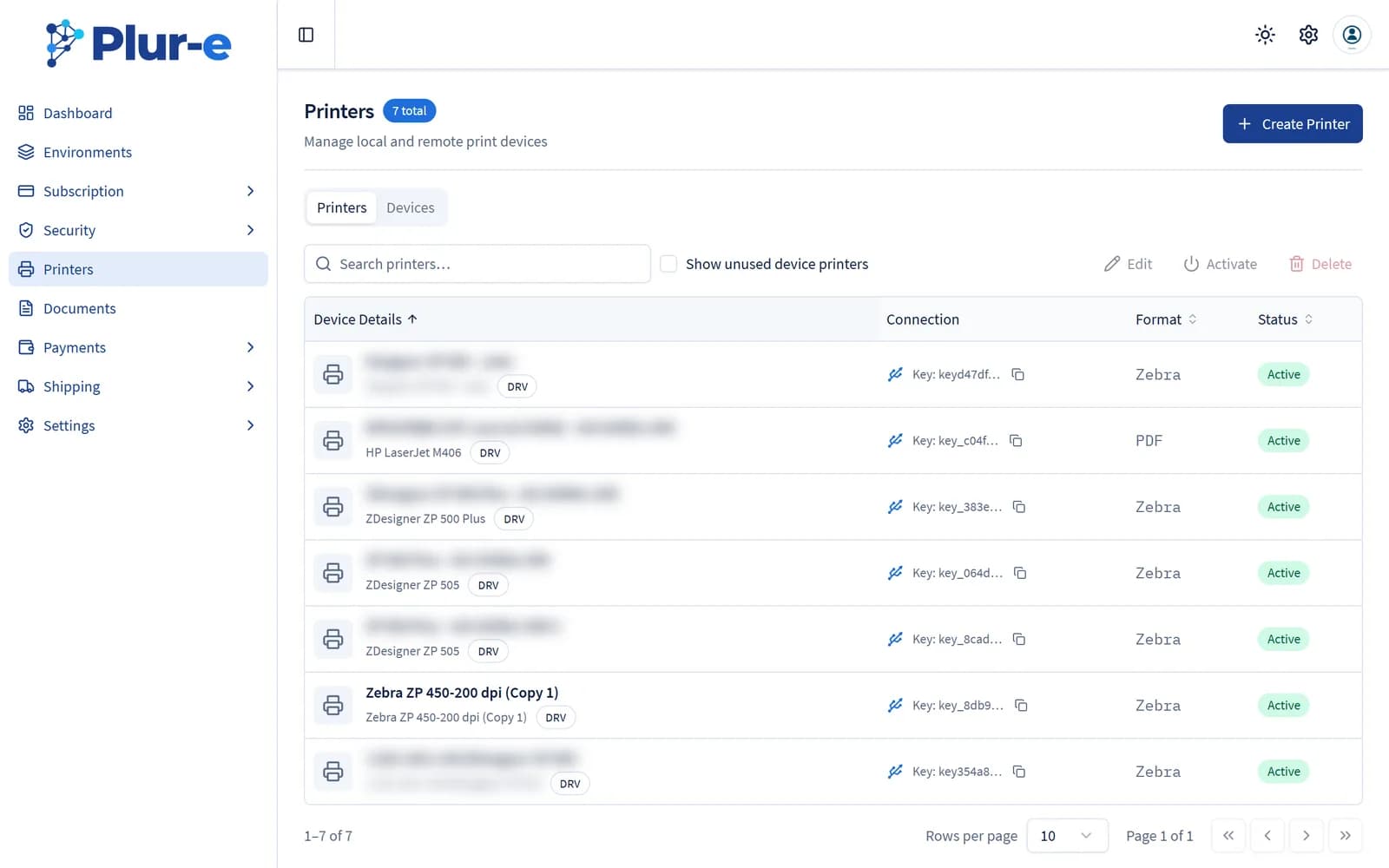
Open the Printers tab and tick Show unused device printers to see everything the device reported. Select the printers you want to use and choose Activate; the list shows their connection, format (Zebra, thermal or PDF) and status.
Copy the Printer Key
Select a printer and choose Edit to see its Printer Id and Printer Key. Business Central and Plur-e Mobile use this key to address the printer; it is also shown truncated in the list.
Register a printer by hand
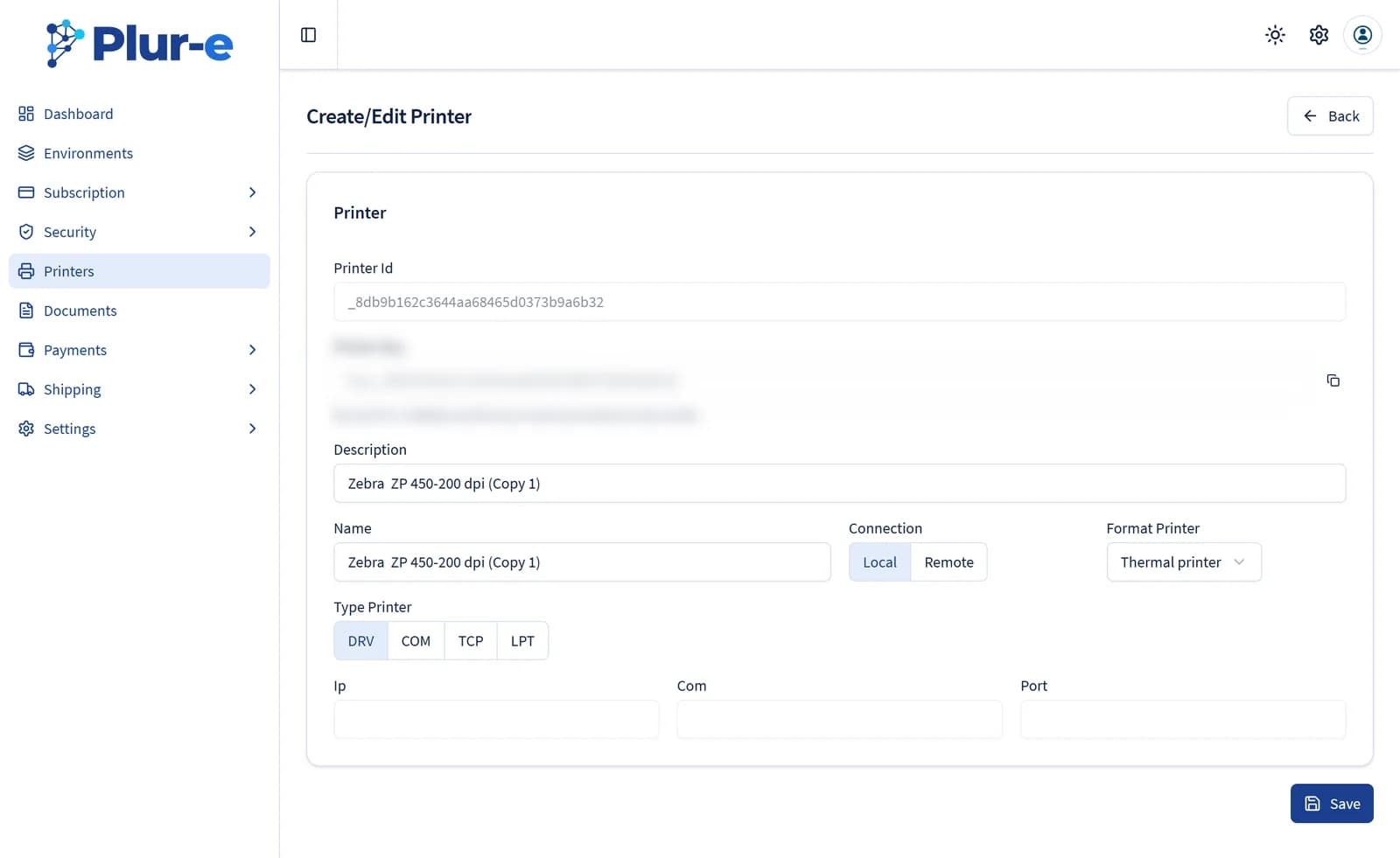
Create Printer is still available for printers that no device manages (for example a network printer reached through a legacy setup). Enter the Name exactly as it appears in Windows, a Description, the Connection (Local or Remote), the Format Printer (Thermal or PDF) and the Type Printer (DRV, COM, TCP or LPT). The Printer Key is generated when you save.
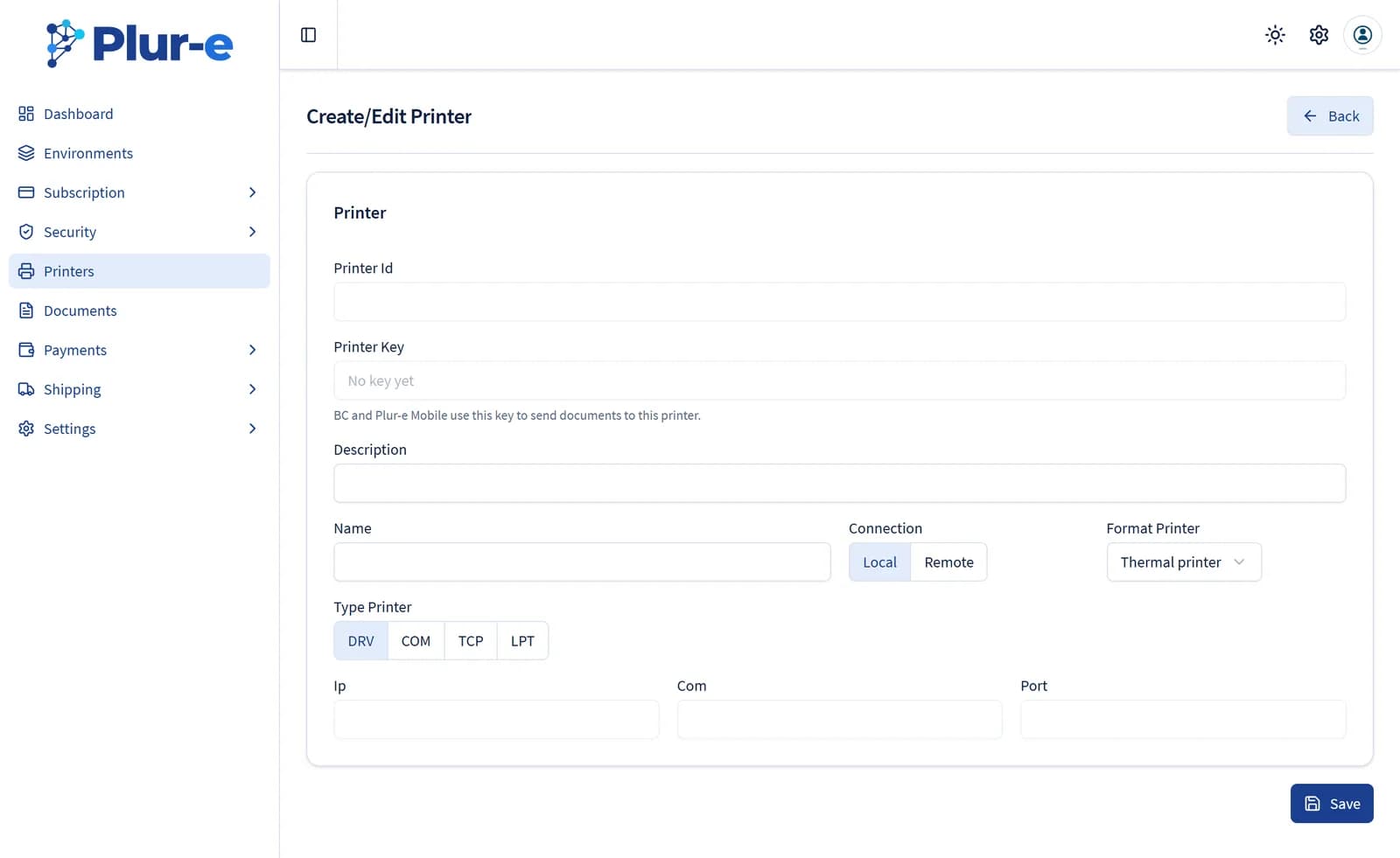
For a remote printer, ask support through the contact form.
Common problems
| Symptom | Fix |
|---|---|
| Printer not in the list | Tick Show unused device printers; if it is still missing, check that it is installed on the PC running Plur-e Printer. |
| Nothing prints | The device must be Online and the printer Active; open Documents to see why a queued document was not delivered. |
| Bluetooth printer from the phone | Allow Bluetooth for the Plur-e app in Android settings. |
Related: Printers in the Admin Center · Print from mobile · Troubleshooting
Last updated on
Edit on GitHubInstall Plur-e Printer
Install the Plur-e Printer desktop app on the Windows PC connected to your printers — download it from the Admin Center, run the installer and link the computer with an enrollment code so Plur-e Mobile and Business Central can print locally.
Print from Plur-e Mobile
Print Plur-e reports — paid invoice receipts, labels — from the phone to a printer registered in the Admin Center and served by Plur-e Printer.