

Print from Plur-e Mobile
Print Plur-e reports — paid invoice receipts, labels — from the phone to a printer registered in the Admin Center and served by Plur-e Printer.
Quick answer
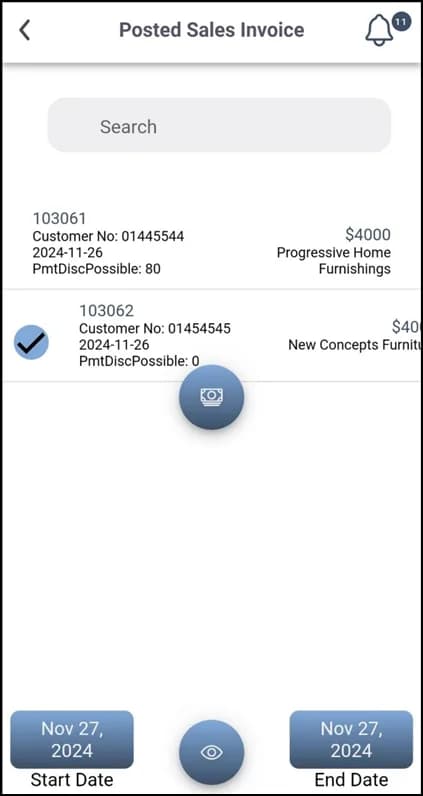
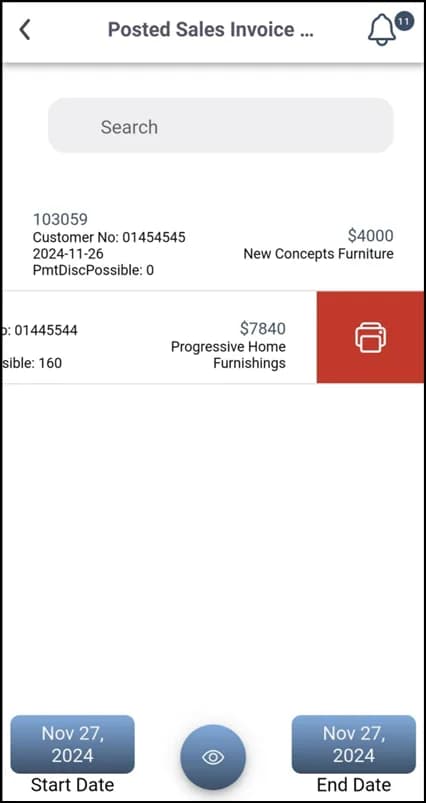
On a document that supports printing (for example a paid invoice in Posted Sales Invoice Payment), swipe right, tap Print, choose the printer and confirm. The job goes through Plur-e services to the Plur-e Printer app on the PC connected to that printer.
Requirements
- Printer created and activated (Add a printer).
- Plur-e Printer running on the PC with the printing service active.
- For Bluetooth printers, Bluetooth permission for the app on Android.
Related: Document history and reprint
Last updated on
Edit on GitHubAdd a printer
Choose the printers reported by Plur-e Printer in the Admin Center, activate them and use their Printer Key from Business Central and Plur-e Mobile; register a printer by hand only when it is not managed by a device.
Document history and reprint
Every document printed from Plur-e Mobile is kept in Admin Center → Documents, where you can open the original file and print it again.